Weekly Live Sessions
We host a weekly 30-minute livestream to answer questions and showcase projects and templates using the Cuttle Editor.
Join us live on Thursdays at 1:00 pm Pacific Time (2pm MT, 3pm CT, 4pm ET) on our Facebook Group. We’d also love to hear your suggestions on future topics!
On this page, you'll find recordings of past sessions, along with links to the Cuttle projects and templates featured in them. Feel free to use these as starting points for your own projects!

29:17
Making Your Fairy Lights Extra Fancy with Laser Cutting
DEC 18, 2025
In this video we explore 2 ways to use fairy lights laser-cut acrylic pieces to make them more interesting and festive. We show you how to choose the hole size and the difference between engraving and scoring for enhancing the effect.
Goldilocks Holes template can be found at Goldilocks Holes in Millimeters

33:07
Making Laser Cut Ornaments with Fairy Lights
DEC 11, 2025
In this video we explore 2 ways to make Christmas ornaments with an inside space to put little battery powered LED lights. The center piece is made out of clear acrylic which has a nice edge lit effect.
These designs were sparked by the wonderful work posted by May Stein on the Smokey Hill Laser Supplies Facebook group.
- Their shop can be found at https://www.etsy.com/shop/LaserartistStudio
- Dragon Ornament https://www.etsy.com/listing/4418594958/
- Elephant ornament https://www.etsy.com/listing/4421235138/
- Smokey Hill Facebook group https://www.facebook.com/groups/420168136142415

32:34
Making 3D Printed Cookie Cutters with Cuttle
DEC 4, 2025
In this video we show you how to make 3D printed cookie cutters using Cuttle's export for 3D printing feature. We try a few versions with emoji, images and text and discuss recommended settings and sizes to get the best results.
All the cutters were printed using PLA on a Prusa Mini. Dough used was Pillsbury sugar cookie refrigerated dough (I did follow the instructions on the package and kneaded additional flour for cut-out cookies).

33:33
Making Rattan Patterns for Laser Cutting
NOV 20, 2025
In this video we make a faux rattan pattern for laser cutting including the score lines to give a weave effect.
You can use this project as a starting point for your own projects or to copy the pattern:

31:11
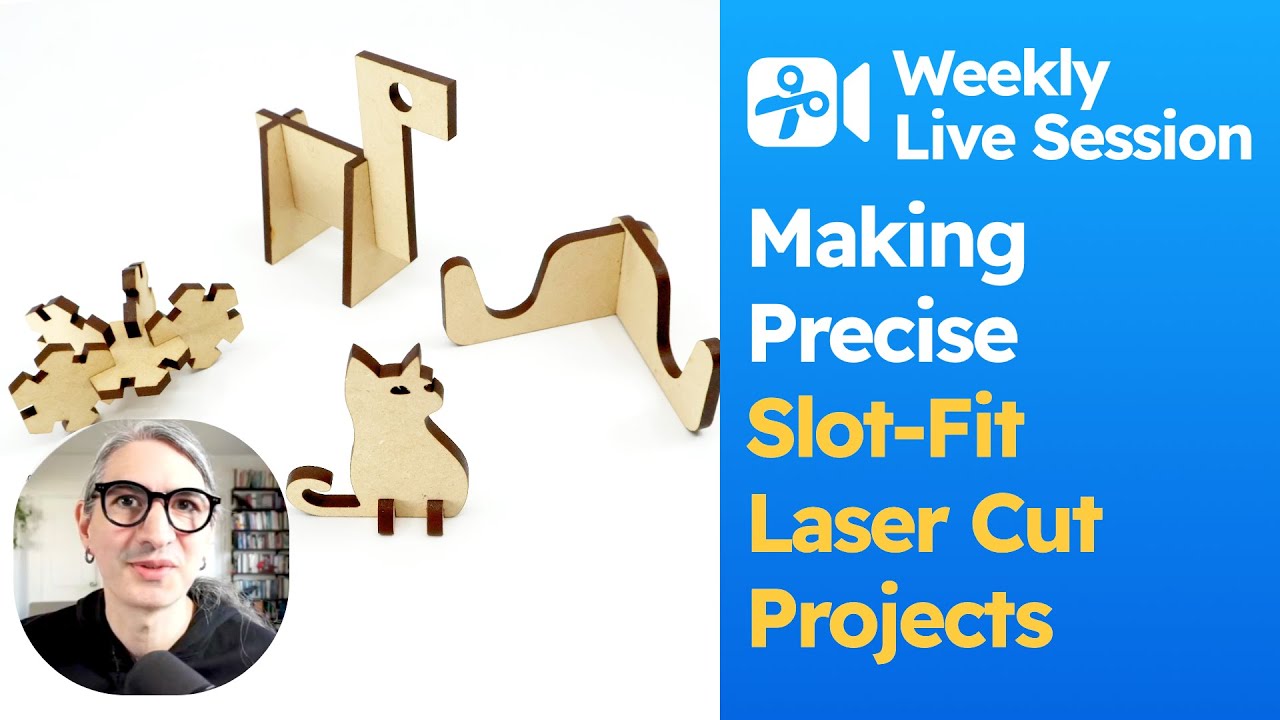
Make Slot-Fit Round Christmas Ornaments
NOV 13, 2025
In this video we make a few round ornaments that pack flat and slot together. You only need a rectangle and a single parameter to make 3D designs that work with any material.
See our previous video on slot-fit designs https://youtu.be/k2NlpWM-nGA
A similar project with a 2 part snow flake https://youtu.be/gDXhfPPQ6Lk
Slot Size Tester Slot Size Tester
Instructables Project Mentioned in the Video: https://www.instructables.com/Christmas-Tree-Ornaments-1/
You can use this project as a starting point for your own projects:
33:49
From Flat to 3D: Slot-Fit designs made easy with Cuttle
NOV 6, 2025
In this video we guide you through a few simple steps to start making laser cut designs that slot together. You only need a rectangle and a single parameter to make 3D designs that work with any material.
Templates mentioned in the video:

33:04
Export for 3D Printing directly from Cuttle (Beta Feature)
OCT 16, 2025
In this video we showcase Cuttles new Export for 3D printing feature and give you some ideas on how to use it.
Templates mentioned in the video:

34:41
Quick and Easy Laser Cut Stamps with your Laser Cutter
OCT 9, 2025
In this video we show you how to use Cuttle's powerful component workflow to make the different parts you need for making professional looking stamps with your laser cutter.
Templates mentioned in the video:
Cuttle Projects you can use as a starting point for your own templates:
Materials:
Orange Rubber Stamp Sheet for Laser Engraving https://amzn.to/3KEUUcF
Settings for Stamp Material:
Tara Recommends:
* Glowforge Engraving: speed 400 | power 90 | LPI 270 | Passes 2
* Thunder Engraving: 35/100: speed 200, max power 35, LPI 260, passes 3
Federico Recommends:
Glowforge Engraving: Speed: 310 | Power: 93 | LPI:450 | Passes 1
Glowforge Cutting: Speed: 150 | Power: Full | Passes 1

31:13
Making Easy One Layer Christmas Ornaments with Your Laser Cutter
OCT 2, 2025
In this video we show you how to quickly design several styles of Christmas ornaments using Cuttle's tools. We focus on single layer and customizable text ornaments that are easy and quick to make for your costumers.
Cuttle Project you can use as a starting point for your own templates: Easy Christmas Ornaments (Live Session #63)
Link to Etsy file from ZeoLaserDesigns: https://www.etsy.com/listing/1265280842/split-snowflake-svg-files-personalized

29:51
Making a Template with Mix and Match options
SEP 25, 2025
In this video we show you how to set up a template so you can have a selection of shapes and patterns using the Switcher component and the Mask modifier.
Template by cbcodesigns mentioned in the video: Mix-and-Match Patterned Signs
Cuttle Project for your reference: Using The Switcher (Live Session #62)

32:37
Making Optical and Geometrical Art with Cuttle
SEP 18, 2025
In this video we take inspiration from Hajime Ouchi's "Japanese Optical and Geometrical Art" and we try to replicate some of the designs. We use Cuttle's repeat modifiers and show some tips and tricks, including how to use compound paths.
Link to book https://amzn.to/47LrhzO
Cuttle Project for your reference: Japanese Optical And Geometrical Art (Live Session #61)
32:32
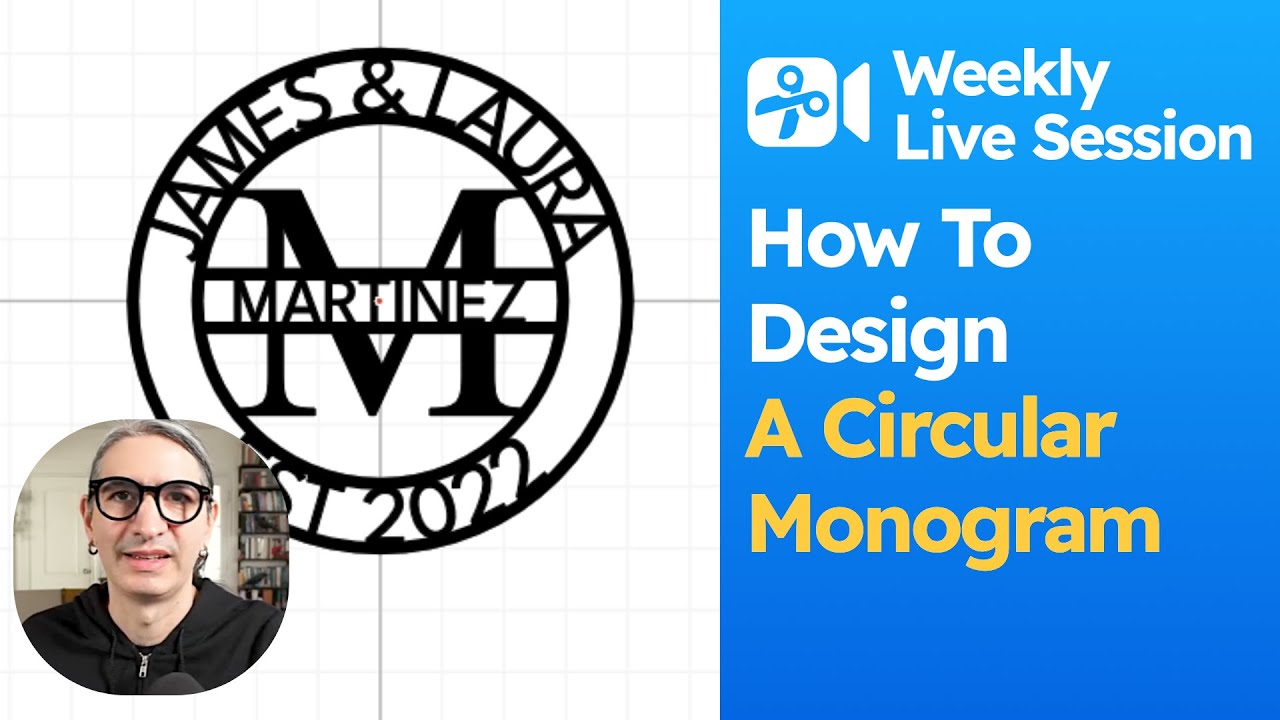
Making a Circle Monogram For Laser Cutting
SEP 11, 2025
In this video we create a Monogram Project using various text objects including text around a circle and Split Text. Towards the end, as a bonus, we include a quick explanation about using a scaling factor.
You can use this template as a reference or as a starting point for your own projects: Circular Monogram (Live Session #60)

33:20
Making Laser Cut Earrings with Repeat Modifiers
SEP 4, 2025
In this video we give you a quick introduction to using the pen tool for creating paths and then we dive into making some simple but elegant shapes for making earrings. We cover how to use several modifiers including Mirror Repeat, Linear Repeat, Rotational Repeat and even Transform Repeat.
We also use some helpful modifiers like Merge Paths and Mask.
Visit Monarch and Pine for findings and other jewelry supplies at https://monarchpine.com/ - Search for Ball Style loops for the ones shown in the video.
30:18
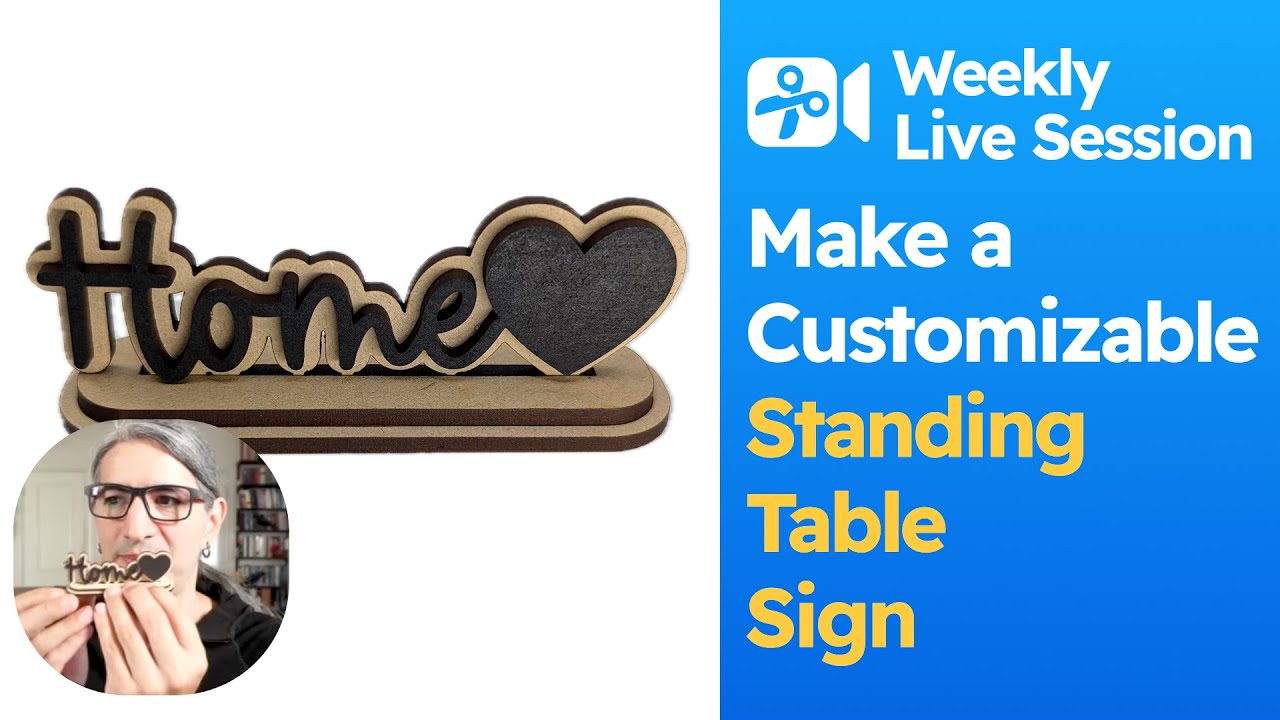
Making a Laser Cut Standing Text Sign
AUG 14, 2025
In this video we make a customizable standing sign. We show you how to make a base with a slot you can assemble together, and we tailor it to the thickness of your material. Toward's the end we explain how to add kerf compensation to the slot.
You can use this project as a reference or as a starting point for your own designs: Standing Table Sign (Live Session #58)
30:02
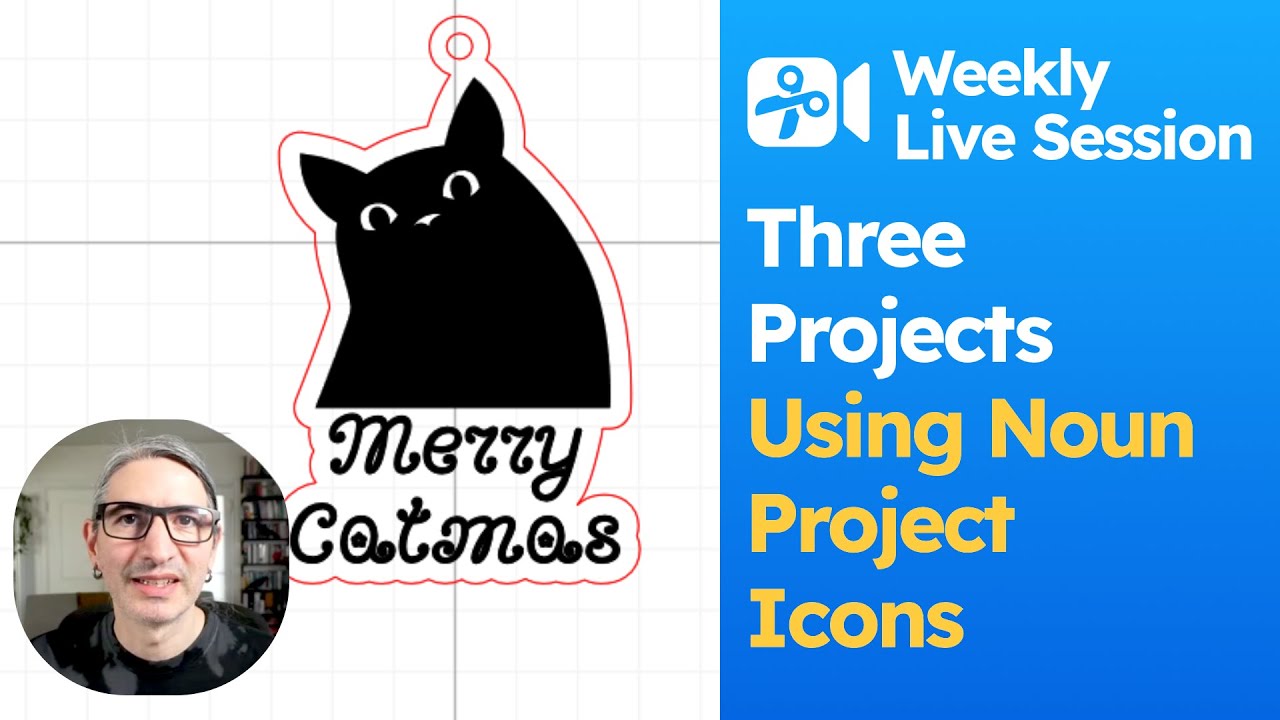
How to Make Ornaments, Earrings and Key Chains with Noun Project
AUG 7, 2025
In this video we design 3 projects using variations on the same technique. Covering how to use Offset, Remove Holes, Attach and Add Hole Modifier.

28:43
How to Make Kid's Puzzle with Icon's from The Noun Project
JUL 31, 2025
In this video we design a Kid's puzzle using assets placed in Cuttle directly from the Noun Project. We show you how to perform offsets, how to create a finger hole and how to set up your project so you can focus on the design without repetitive tasks.

31:00
How to Make A Hanging Sign Template with Multiple Names
JUL 24, 2025
In this video we design a hanging sign template that grows as you add new names. We use Fit Text to create the basic sign. We then see how we can use the Linear Repeat modifier with a little bit of code to automatically add new signs as we type new lines of text.
Inspired by these designs made by Audrey Min
You can use this template as reference or as a starting point for your own project:
30:40
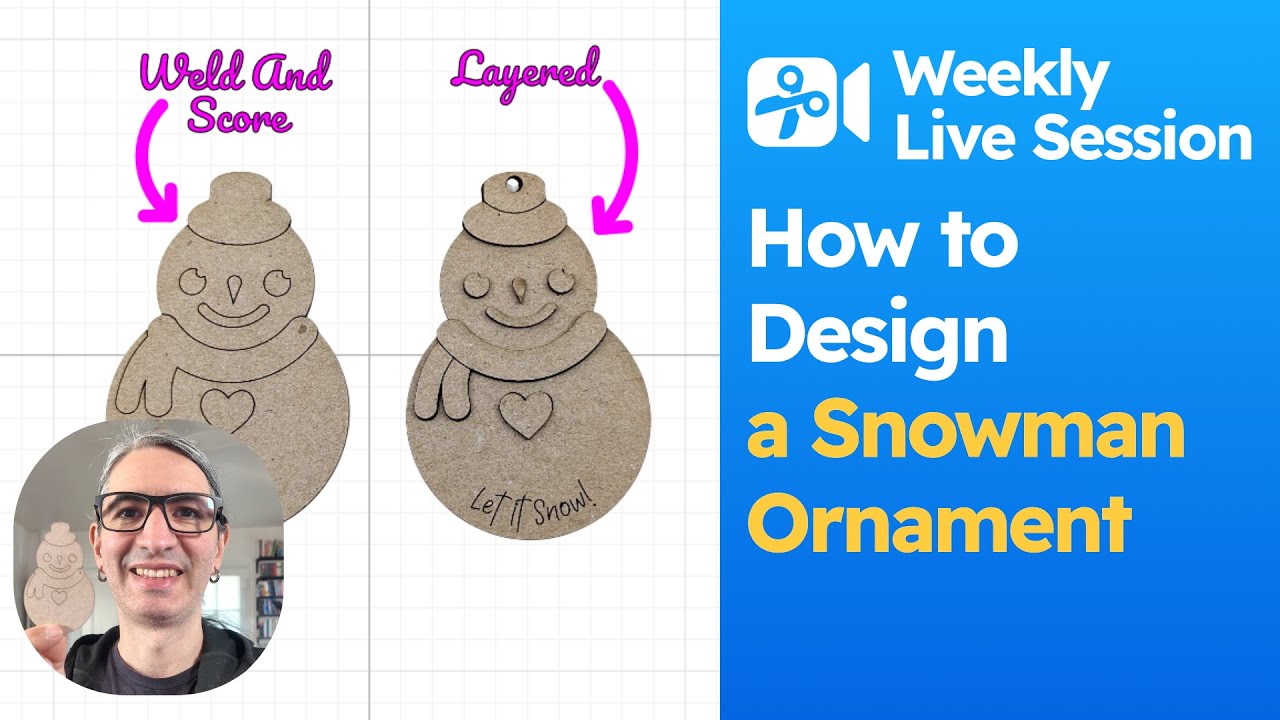
How to Design a Snowman Ornament and Cut it 3 Ways
JUL 10, 2025
In this video we design a snowman ornament from scratch using basic shapes and colors. In order to cut it on the laser cutter we use Cuttle's modifiers including Layered Stack, Flatten and Weld and Score to show the different treatments you can use.

29:30
How to Set up Your Projects For Bulk Production with A list of names
JUL 3, 2025
How do set up your projects for bulk production using Auto Layout and
a tiled repeat modifier with customized repetitions in Cuttle.
You can use this project as a starting point or reference for your own projects Bulk Production Examples (Live Session #53)

26:29
How to Make a Laser Cut Luggage Tag
JUN 26, 2025
In this video we create a 3 layer luggage tag with customizable text. We show you how to create the 3 layers based on the dimensions of a common credit card (3.375" x 2.125") and how to create a customizable text field that automatically resizes to fit a specified area.
For a similar take on making gift card holders check out this video https://youtu.be/pYJakSzXbXo?si=7NkFywHHMjtvZkDQ
You can use this project as a starting point for your own projects: Luggage Tag (Live Session #52)
Browse google fonts at https://fonts.google.com/
These are the projects and links mentioned for inspiration:
31:54
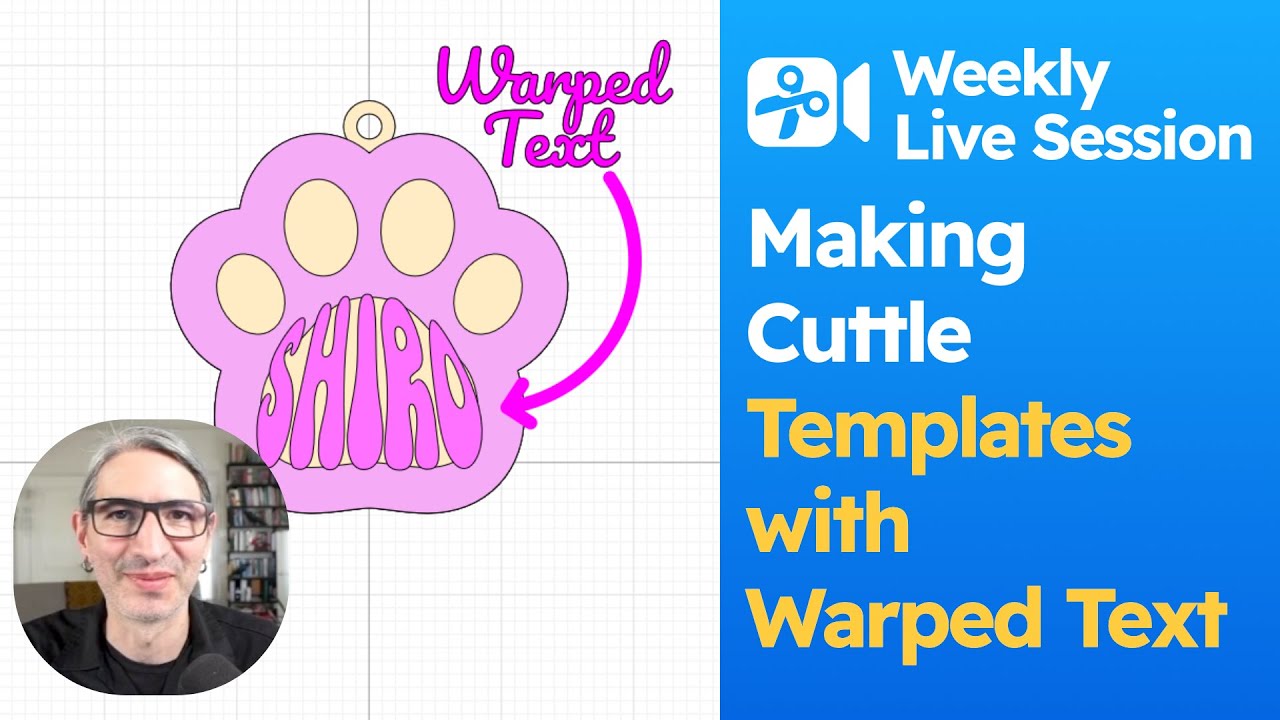
How to Make Laser Cutting Project with Warped Text
JUN 19, 2025
We demonstrate how to edit anchor points to the Custom Warped Text shape. Using simple shapes from the emoji menu, we prototype personalizable templates for a boxing glove, a shirt, a retro joystick, and a paw. We also show how to create a back layer, add a hole, and how to package your design into a Cuttle template.
You can use this project as a starting point for your own projects: Warped Text Paw (Live Session #51)
See Bonnie's templates at https://cuttle.xyz/@cbcodesigns
Bonnies Instagram at https://www.instagram.com/cbco.designs/

32:28
How to Make a Two Layer Ornament with a State Name and Outline
MAY 22, 2025
In this video we explore how to make an ornament depicting the outline of a US or Canadian State and its name in ornate text with tails.
Font mentioned (but not recommended) in the video https://propublica.github.io/stateface/

28:34
How to Make a Layered Sports Jersey Number
MAY 15, 2025
In this video we explore 3 different ways to make a sports jersey number with added text for the team name and the player.

30:59
How to Add More Icons to the Sports Keychain
MAY 8, 2025
In this video we answer how to add different icons to the Sports Keychain Template, including external SVG and Emoji. We also explore how to use the Switcher Component.
Template mentioned:
You can also use this switcher template as a starting point for your project:

30:06
How to Make a Varsity Letter Patch with your Laser Cutter
MAY 1, 2025
In this video we explore how to create a letter with some diagonal text with several laser cutting techniques, engraving, layering and combined.
You can also use this template as a starting point for your project:

31:46
Making Custom Laser Cut Badge Buddies
APR 17, 2025
In this video we explore how to create badge backers with custom text, also know as "Badge Buddies". We start by creating a reference ID component with standard dimensions. Using the ID, we create the badge backer, adding a slot, customizable text, and rounded corners. We also make a version with Weld and Score, and a horizontal version,
You can also use this template as a starting point for your project:

29:59
Laser Cut Box with a Reinforced Base
APR 10, 2025
In this video we make a remix of the Box With Finger Joints and modify it to make a base that has an extra lip and slots where the perimeter of the box is attached.
Templates Mentioned In the Video:
You can also use this template as a starting point for your project:

29:19
All about Using Weld And Score for your Laser Cutting Projects
MAR 27, 2025
This is a deep dive on using the Weld And Score modifier both on text and to accomplish multilayer effects without the added layers.
30:51
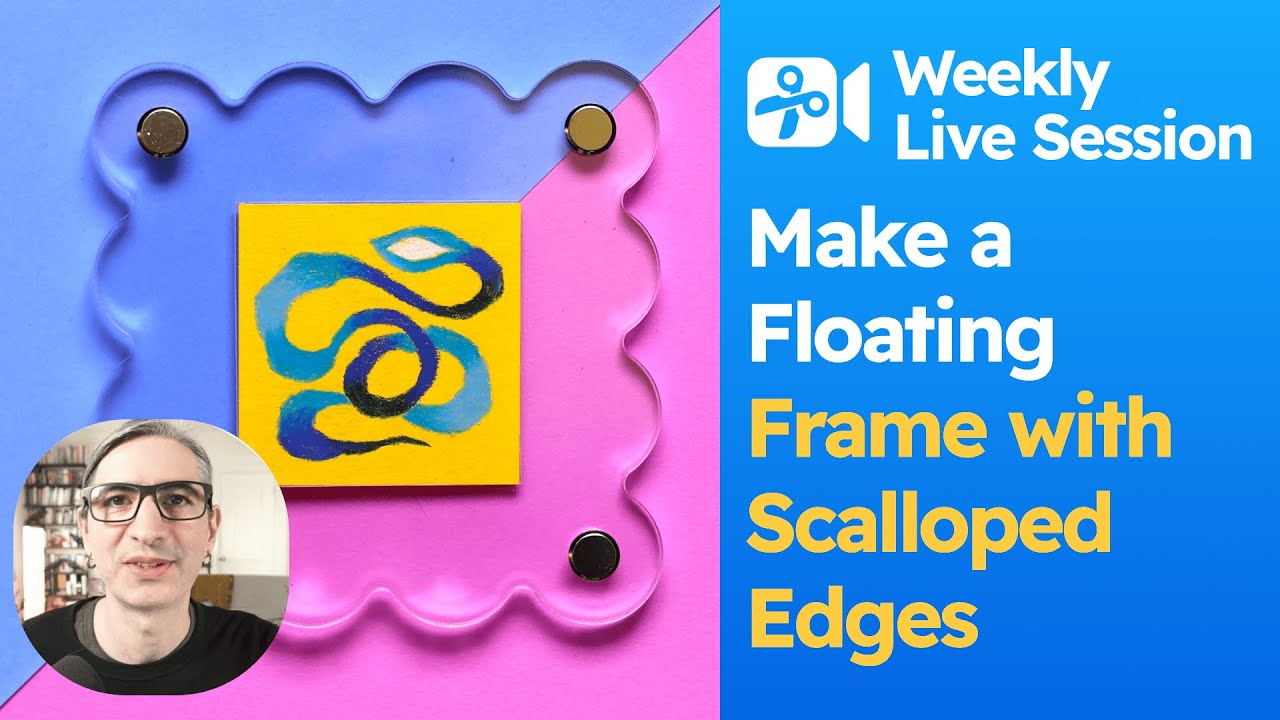
Making a Scalloped Floating Frame with Chicago Screws
MAR 21, 2025
In this video, we continue our exploration of Chicago Screws from last week, to create a Floating Picture Frame with Scalloped Edges. We use the Tile Repeat modifier to add circles around the frame. We also see a trick to using the Expand and Contract modifiers as a way to round the corners of a shape.
You can also use this template as a starting point for your project:
Materials:
- Chicago Screws https://www.amazon.com/dp/B079Z44VYP
- Sign Standoffs https://amzn.to/3DHFSQ2

34:12
Making Customizable Floating Frames with Chicago Screws
MAR 13, 2025
Making a simple floating frame using Binding Screws.
Templates mentioned in this video:
You can also use this template as a starting point for your project:
Materials:
- Chicago Screws https://www.amazon.com/dp/B079Z44VYP
- Sign Standoffs https://amzn.to/3DHFSQ2
- 10x3mm Magnets https://www.amazon.com/dp/B09Y641B27

26:27
Making A Laser-Cut Prayer Cross Using Blocks of Text
MAR 6, 2025
In this video, we design a prayer cross with words using our Block of Text template as a starting point. Once all our text is in place, we use the Weld and Score modifier to make sure it cuts as one piece. We end by designing a backer and frame for the project.
Templates mentioned in this video:
You can also use this template as a starting point for your project:

32:42
Making A Custom Letter Banner
FEB 27, 2025
In this video we learn how to create a personalizable hanging letter banner. We create the flag outline by combining basic shapes like a rectangle and triangle.
We see how Customized Repetitions work when using the Linear Repeat modifier. Using this along with a bit of code, we split the letters in a name and turn them into individual pieces of the banner.
You can use this template as a starting point for your project:

29:30
Making Layered Dioramas with Finger Joints
FEB 13, 2025
The Finger Joints Kit lets you add laser cut finger joints to any project. In this video we use it to make a layered diorama. Part of the artwork is from an image made in Procreate and traced with Cuttle's new Trace Image feature. We add tabs to each of our layers and make a base with slots to assemble our diorama.
You can use this template as a starting point for your project: Layered Diorama (Live Session #38)

30:54
How to Make a Desk sign using the Finger Joints Kit
FEB 6, 2025
The Finger Joints Kit lets you add laser cut finger joints to any project. In this video we use it to make a sign with a base that can stand on your desk. We use the Offset modifier with Connected Text to create our two layer sign. We see how to use the Finger Joints Kit to add tabs to the name, and design a base with slots.
You can use this template as a starting point for your project: Standing Sign (Live Session #37)

32:05
How to Add Finger Joints to Any Shape with the Finger Joints Kit
JAN 30, 2025
The Finger Joints Kit lets you add laser cut finger joints to any project. In this video, we see how to use the Replace Edges modifier to make our finger jointed projects parametric. We also create a simple shelf design by adding finger joints to basic shapes like triangles and a rectangle.
Finger Joints Kit - Finger Joints Kit

30:37
Testing Design Variations on the Easter Egg Ornament
JAN 23, 2025
This is part two of the Easter Egg Ornament livestream from last week. In this video, we look at different approaches to designing decorations on the front layer. We create lines that follow the contours of an egg, use nodes to create wavy lines, use Mirror Repeat with simple shapes like circles, and more!
You can use this template as a starting point for your project:
The project from the previous week:

29:21
How to Make Easter Egg Ornaments with Multiple Layers
JAN 16, 2025
In this video we create a personalizable easter egg ornament - just type your name to make your own! We use the Pen Tool with the Mirror Repeat modifier to create decorations. We also learn a trick to apply the usually invisible Treatment modifier to a project. This lets you choose between Weld and Score to create a single cut, or separate pieces if you want to use different materials.
You can use this template as a starting point for your project:
30:25
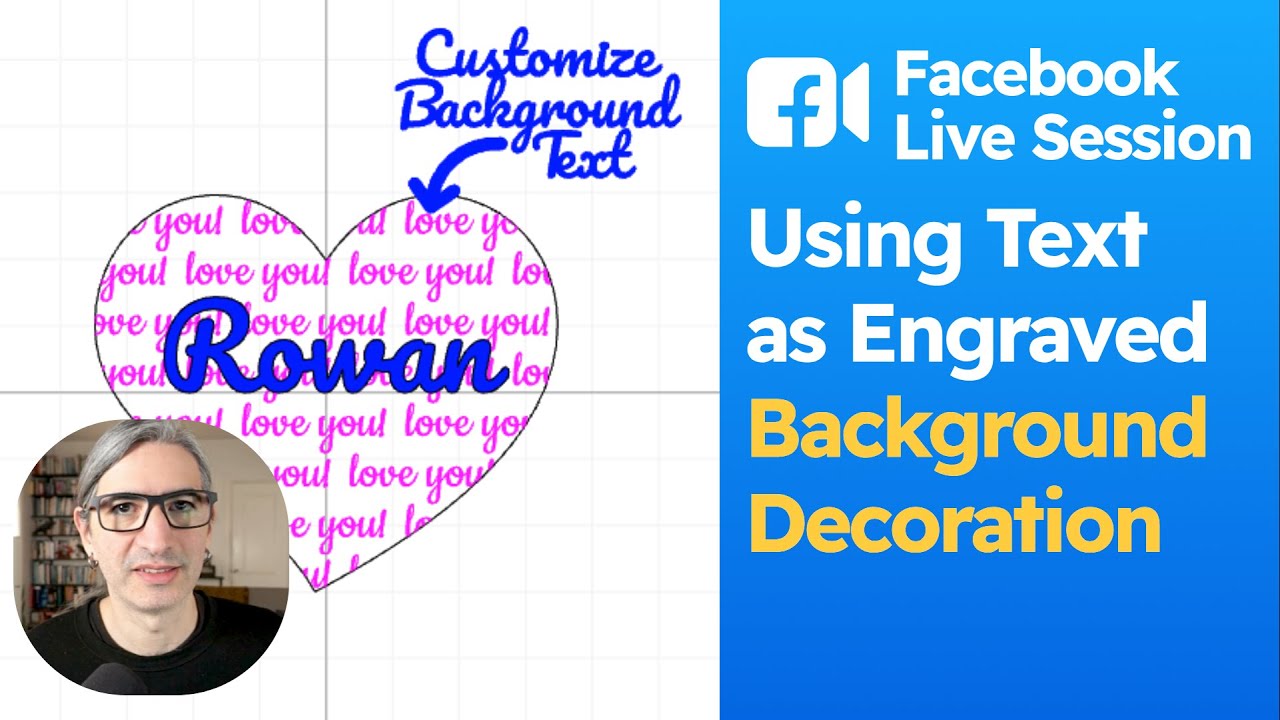
How to use Text as a Background Decoration
JAN 9, 2025
In this video, we explore how to use engraved text as background decoration on a shape. We use the Tile Repeat and Mask modifiers to create the background text. We also see how to allow adjustments to the final result by extracting various parameters like text spacing, angle, and size. Finally, we add a selection menu that lets us choose between different shapes.
You can use this template as a starting point for your project: Background Text Ornament (Live Session #33)

33:56
How to Make A Bottle Holder Christmas Ornament
DEC 19, 2024
In this video, we create a Bottle Holder Ornament from scratch in the Cuttle Editor. We start by measuring our bottle, and then design a ring that fits around the bottle. We then create a frame where these rings can slot in. This outer frame can be any shape we want it to be!
You can use this template as a starting point for your project: Bottle Holder Ornament (Live Session #32)

31:50
How to Apply Small Changes to Ornament Templates
DEC 12, 2024
In this video, we look at questions requesting small modifications to various ornament templates. We see how to add a halo to the Paw Ornament, using multiple fonts in the Circular Ornament, as well as adding shapes to the Circular Ornament. These approaches can be used to make one-off tweaks to many of our templates.
Templates mentioned in the video:

30:30
Make a Customizable Christmas Tree Topper
DEC 5, 2024
In this video, we create a personalizable Christmas Tree Topper. We apply the Fit Within modifier to Connected Text so that any name fits in our shape. We organize the design into a Preview and Cut component. Finally, we learn a slightly advanced trick and use the Visible modifier in conjunction with a Selection parameter so users can choose different shapes from a drop down menu.
You can use the project created during the video as a starting point for your own projects:

32:32
Making Flat Pack 3D Ornaments with Cuttle
NOV 21, 2024
In the video, we learn how to create 3D ornaments from flat laser cut parts using slot construction techniques. We first set up a template with a slot component that can be adjusted based on the height of a design and the thickness of the material. Using this setup, we quickly prototype a range of 3D ornaments including a star, a Christmas tree, and a snowflake.
You can use the project created during the video as a starting point for your own projects:

29:15
How To Make a Gift Card Holder Ornament
NOV 14, 2024
In this livestream, we learn how to create a customizable gift card holder from three pieces. We first create a component with the standard dimensions of a card. Using that as a reference, we design the the three pieces that are assembled to create the holder. As an optional extra, we see how we can add different designs to the front piece.
You can use the project created during the video as a starting point for your own projects:
24:54
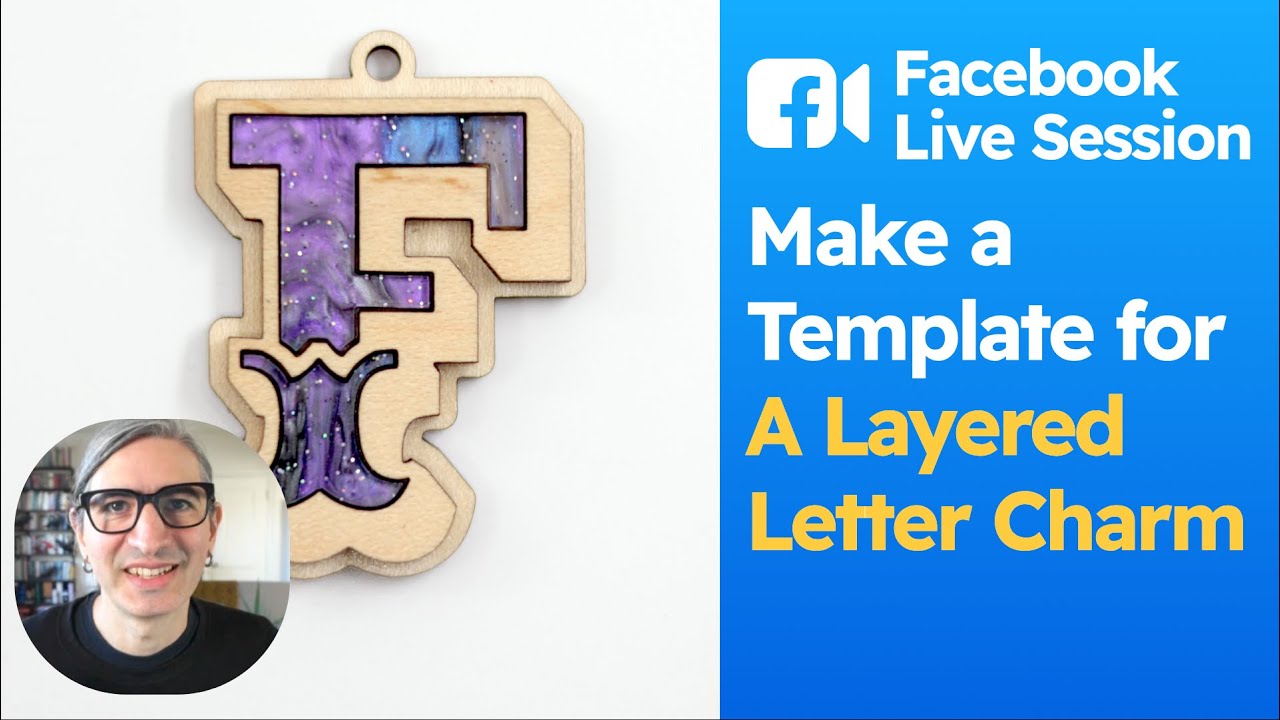
How To Make a Layered Letter Charm
NOV 7, 2024
In this livestream, we learn how to design a layered letter charm. We use the Remove Holes and Boolean Difference modifiers to separate the inlay shapes so that we can cut them from a different material. We then use the Expand or Offset modifier to create a backer. We also see how we can use components to separate the different parts of the design.
You can use the project created during the video as a starting point for yourown projects:

29:15
How to Share Projects with Cuttle and Some Explore Page Highlights.
OCT 31, 2024
In this video, we look at how we can share our projects with the Cuttle community. We look at the Explore tab that lets us discover cool projects that others have made. We also see how we can modify the Read Me page of a project so it's ready to share with others.
Projects Mentioned in the Video:

29:33
How to Make 3D Laser Cut Name Signs using Cuttle.
OCT 17, 2024
In this video, we look at three different ways to make laser-cut name signs with multiple layers. The three approaches give us a look into how three different modifiers - Flatten, Weld and Score, and Layered Stack - each work and when we would use them.
Flatten creates an inset look which lets you use two different materials but is tricky to assemble. Weld and Score uses a single material but you can add more visual interest using paint. And Layered Stack lets you use two materials and stack them.
Etsy listing mentioned in the video:
You can use the project created during the video as a starting point for your own projects:
32:52
How to Choose the Right Vector Editor for Laser Cutting. What can Cuttle.xyz do for you?
OCT 10, 2024
This video is a little different in that instead of a tutorial on a specific project, we provide an overview of what users can do with Cuttle. We go over the two main aspects of Cuttle - templates, and the editor. We also compare the Cuttle Editor to common vector editing tools like Adobe Illustrator and Inkscape, so that you can figure out which tool best fits your needs!

30:15
Facebook Live Session #23: Making Testers for Embedding Magnets in Laser Cut Parts
OCT 3, 2024
In this video, we create a tester for embedding magnets into your laser cut projects. After manually creating a series of holes for the tester, we explore how to hack the Linear Repeat modifier to automate this process. This lets us easily tweak the tester template for different sized magnets.
You can use this Cuttle project as reference or as a starting point for your own projects:
Other templates mentioned in the video:
29:32
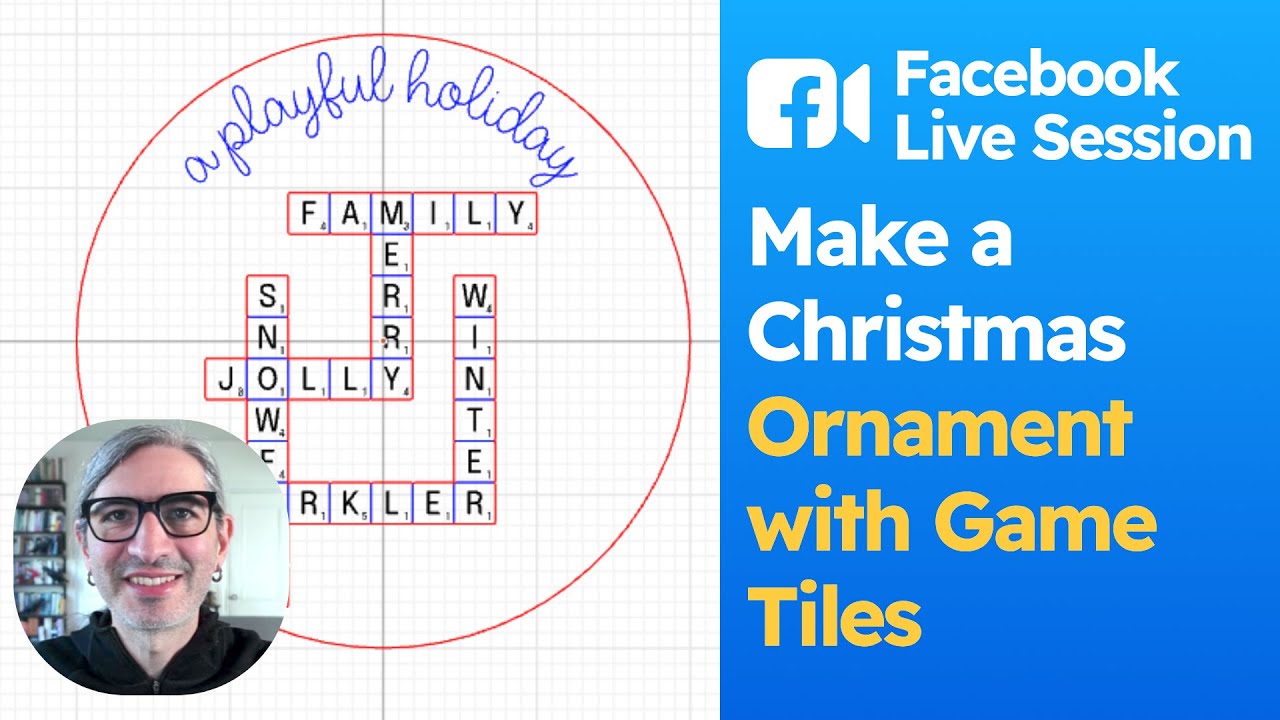
Facebook Live Session #22: Christmas Ornament With Game Tiles
SEP 26, 2024
In this video we create a Christmas Tree ornament with Game Tiles. We use the Letter Tile Keychain created by Brian Wente as a starting point, which you can find on the Cuttle Templates page. After tinkering with some code, this remixed templated lets us add multiple names and arrange them into an ornament.
You can use this Cuttle project as reference or as a starting point for your own projects:
Other templates mentioned in the video:
30:58
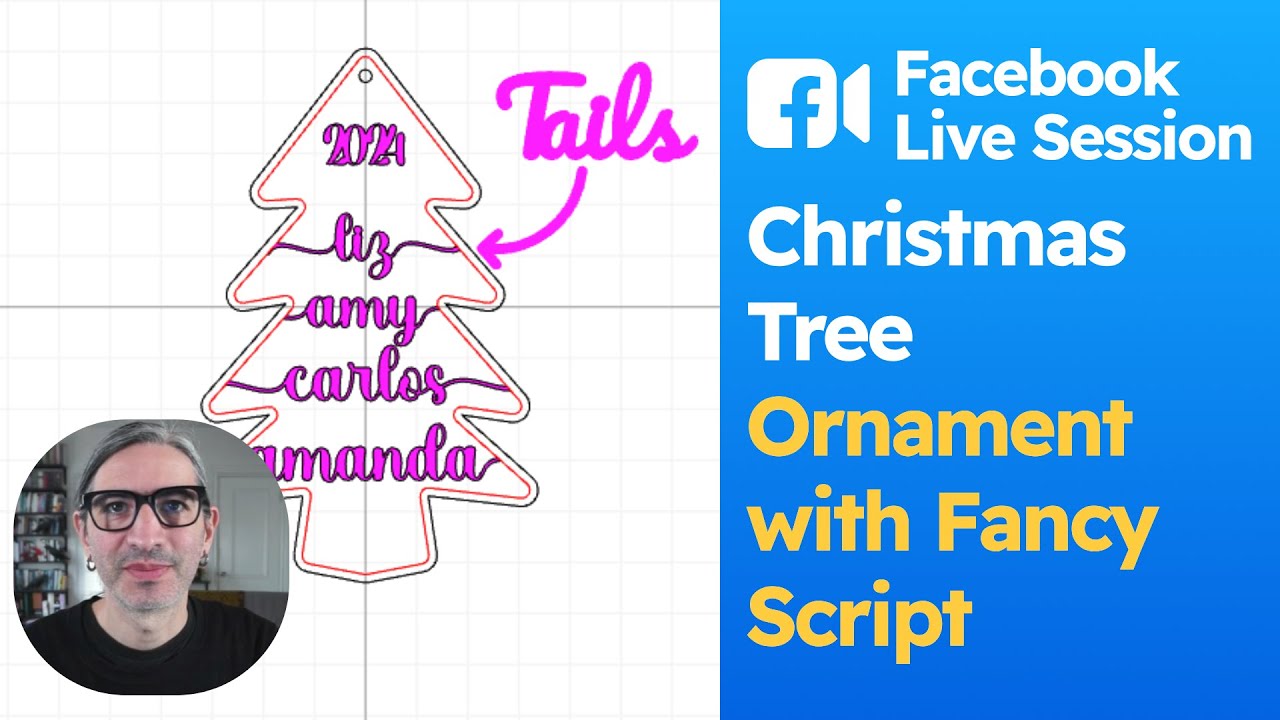
Facebook Live Session #21: Name Christmas Tree Ornament with Tails
SEP 19, 2024
In this video we create a Christmas Tree ornament using the new Connected Text with Tails and Hearts component. We talk about using different components to organize the project and present it as a template in the Read Me.
You can use this Cuttle project as reference or as a starting point for your own projects:

30:15
Facebook Live Session #20: Make "On Santa's Nice List" Christmas Medals
SEP 12, 2024
In this video we create 3 variations of medals that can be made for Christmas with a customizable name, so the recipient can be inducted into "Santa's Nice List". And we talk about the difference between scoring and engraving, and the technique for scoring on mirrored acrylic.
The Santa Icon was found on The Noun Project Website and was designed by Brad at:
You can use this Cuttle project as reference or as a starting point for your own projects:

29:02
Facebook Live Session #19: Make a Laser Cut Cheerleading Megaphone Bag Tag
SEP 5, 2024
In this video we create a bag tag with a customizable name and a cheerleading megaphone for the outside shape. The design is based on some of the other sports tag templates we have on the site, but we build it from scratch so you can do the same too.
You can use this Cuttle project as reference or as a starting point for your own projects:
Templates mentioned in the video:
31:31
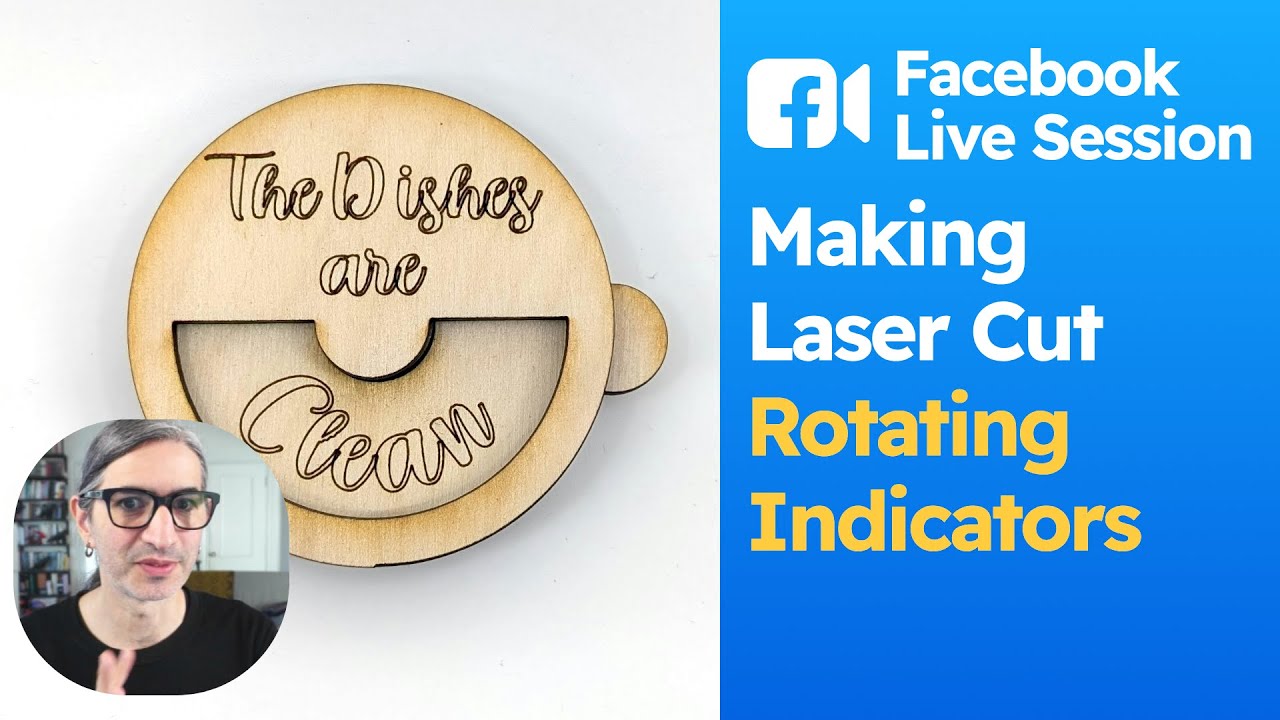
Facebook Live Session #18: Make a Laser Cut Revolving indicators or "Volvelles"
AUG 29, 2024
In this video we create a revolving indicator to mark whether your dishes are clean or dirty or your pets have been fed. These are also know as "Volvelles". In the video we design it and show you some variations and assembly.
Starting project: Clean/Dirty Dishes Volvelle (Live Session #18)
Some references:
Wikipedia Page on Volvelles https://en.wikipedia.org/wiki/Volvelle
Austin Kleon video https://www.instagram.com/p/CqLk4nvPEqA/

30:34
Facebook Live Session #17: Three Templates Using Names Within Shapes
AUG 22, 2024
In this video we create 3 different compositions using a name within a shape component. A cluster of shapes ornament, a year with shapes on top and a frame. They all use the same concepts and are vaguely inspired by the wonderful designs of Missa Daigger.
Check out her shop at https://www.etsy.com/shop/bymissa/ and her website at https://www.bymissa.com/

30:59
Facebook Live Session #16: A short introduction to Cuttle Components
AUG 15, 2024
This video is a quick introduction to the ways in which you can use Components in Cuttle. It's not a comprehensive list but hopefully it can give you ideas or clarify the concept.

29:37
Facebook Live Session #15: Make Press-Fit inlays using Cuttle's Design Kit
AUG 1, 2024
This facebook live session is a show-and-tell on a couple of projects we've been working on for making the process of designing press-fit inlays easier. We think earrings look great with this technique so we made 3 earring designs, we also made a tester that helps you figure out how to find the right kerf compensation and we walk you through using the Inlay design kit for making your own work.
Templates mentioned in the video:
30:05
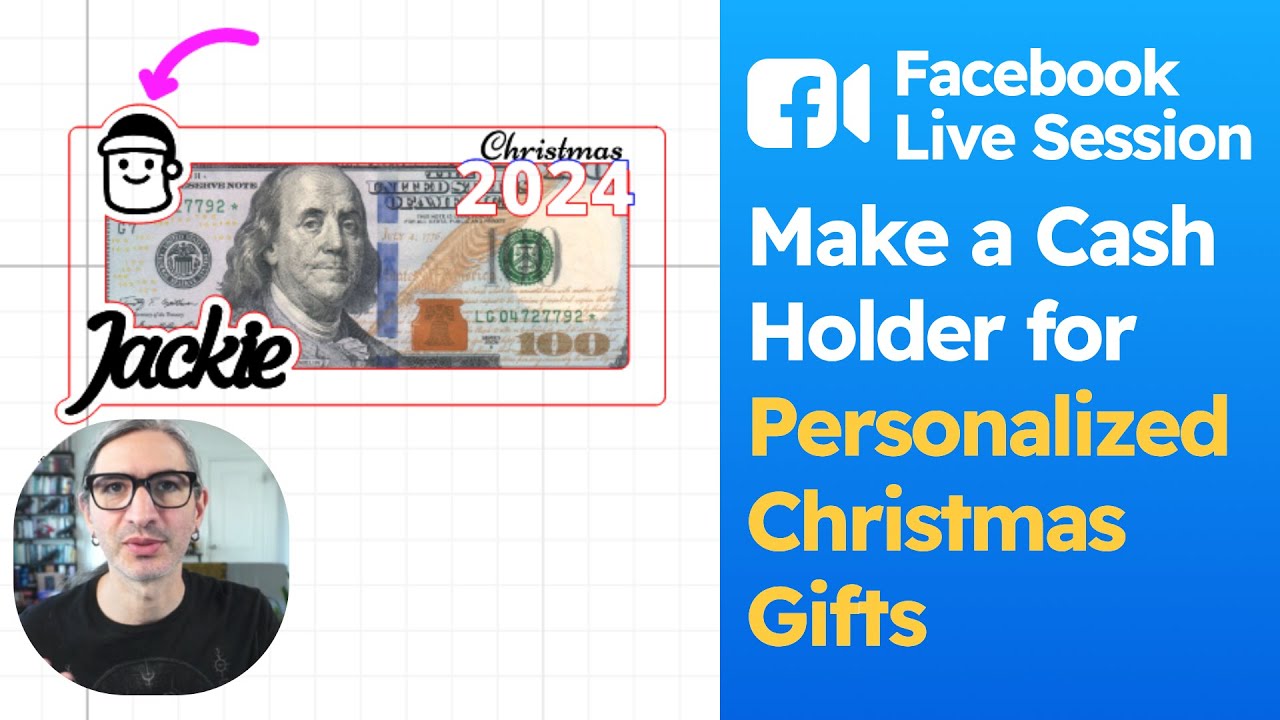
Facebook Live Session #14: Make a Cash Holder for Personalized Christmas Gifts
JUL 25, 2024
On this is a facebook live session we show you to modify the Graduation Cash Holder by replacing the graduation cap with other assets like a christmas tree, a Santa Claus, and even an emoji.
Templates mentioned in the video:
31:10
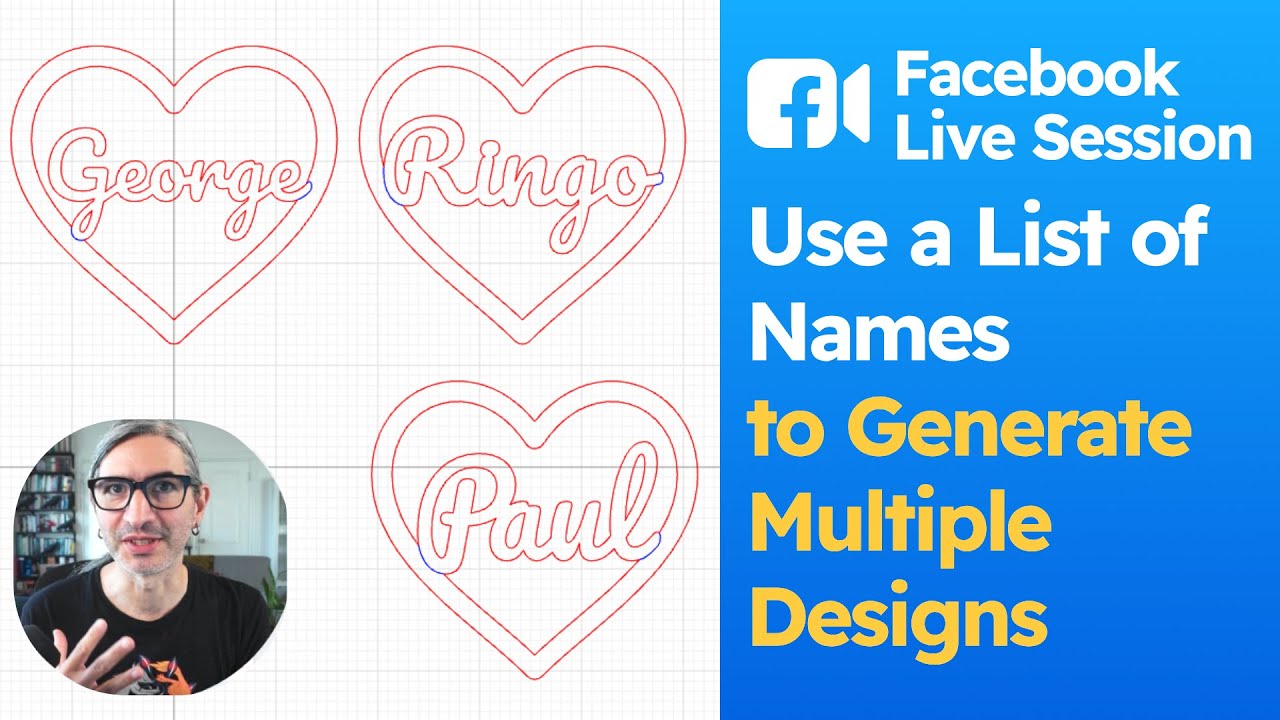
Facebook Live Session #13: Use a List of Names to Generate Multiple Designs
JUL 18, 2024
On this is a facebook live session we show you to create a template that keeps a name of any length inside a shape, and it also lets you type a list of names to generate multiple instances of the design.
Templates mentioned in the video:

30:35
Facebook Live Session #12: Adding New Features to the Open Box with Finger Joints Template
JUL 11, 2024
On this is a facebook live session we show you how to remix the Open Box with Finger Joints template to add a hanging tab with screw holes to the back. We look at the construction of the template and make the hanging tab adjustable by using the existing parameters and creating some new ones.
You can use this Cuttle project as reference or as a starting point for your own projects
Template mentioned in the video:

27:20
Facebook Live Session #11: Making a Layered Snow Globe Christmas Ornament
JUN 27, 2024
On this is a facebook live session we show you how to create a layered name Christmas Ornament inspired by snow globes. We use multiple connected components to generate the different layers.

29:38
Facebook Live Session #10: How Create a Multilayered Name Design
JUN 20, 2024
On this is a facebook live session we show you how to create a layered name design with additional decorative elements while showing how different components can be connected to each other. Understanding how to use components in Cuttle can unlock a lot of design options and efficiency and this is a good start for learning how to incorporate them into your own projects.

29:51
Facebook Live Session #9: How Create an Offset Outline for Laser Cutting
JUN 13, 2024
On this is a facebook live session we take a deep dive on using the Expand (Offset) modifier. We cover connected text, non-connected text, using it on arbitrary shapes and even on imported SVG's. We also cover some best practices and how to create a sign template that uses Expand, Contract and Remove holes.
32:13
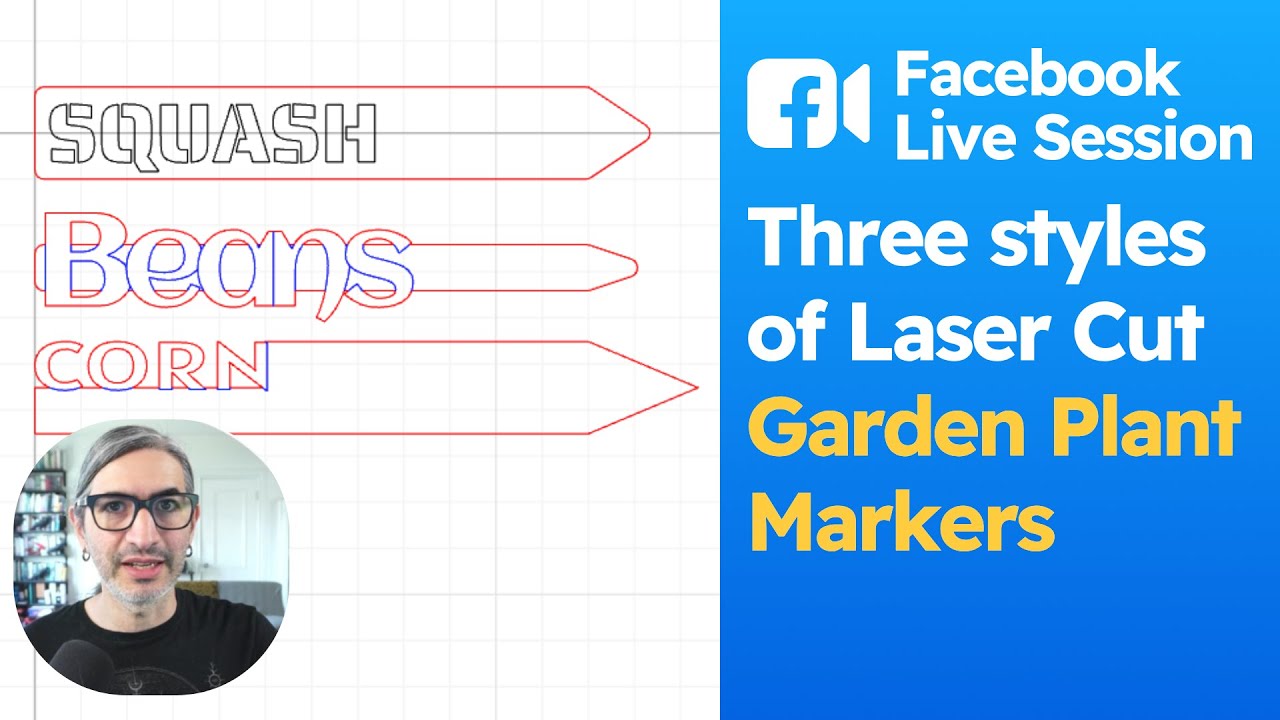
Facebook Live Session #8: Three different ways of making Laser Cut Garden Plant Markers
JUN 6, 2024
On this is a facebook live session we revisit and old project, making garden markers, and try in several different styles using some new tools that have been added to Cuttle ("weld and score" and "warped text"). Each version uses a text parameter so you can simply change the text and the design stays consistent.

26:53
Facebook Live Session #7: Adding a Cut Outline and Hanging Holes to an existing Design
MAY 30, 2024
On this is a facebook live session we answer a user question about taking and existing SVG and adding a Cut outline and Hanging Holes. We go a step further and add some parameters to make some design decisions faster.

33:01
Facebook Live Session #6: Intro to Modifying Existing Templates
MAY 23, 2024
On this is a facebook live session talk about modifying (or hacking) existing templates. There isn't a single answer and it's more about the willingness to look into it. We do a quick tour over the architecture of the easter bunny tag template and add a ribbon to the circular name ornament template.
Templates mentioned:

27:35
Facebook Live Session #5: Finding the Best settings for Laser Cut Inlays
MAY 20, 2024
On this is a facebook live session we show you how to test different inlay settings using Cuttle's components to find the goldilocks zone for making inlays that fit just right.
30:29
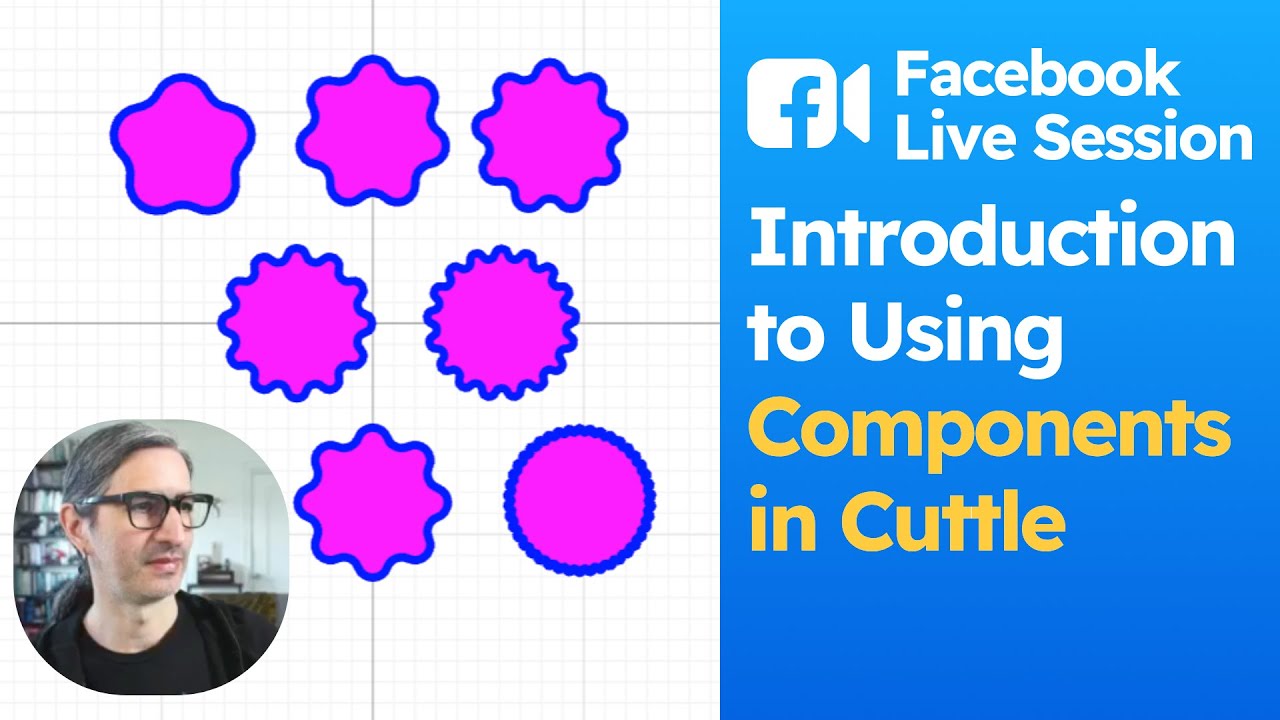
Facebook Live Session #4: Introduction to using Components
MAY 9, 2024
On this is a facebook live session we did a walkthrough different ways of using components in Cuttle. From a simple hole to a "remix" of an existing star component. Then we wrapped all together by making an experimental rainbow cake topper.

30:34
Facebook Live Session #3: How to convert a purchased SVG into a Cuttle template
MAY 6, 2024
On this is a facebook live session we purchased an SVG design from an Etsy seller and imported it into Cuttle to make it into an easy to personalize template.
29:27
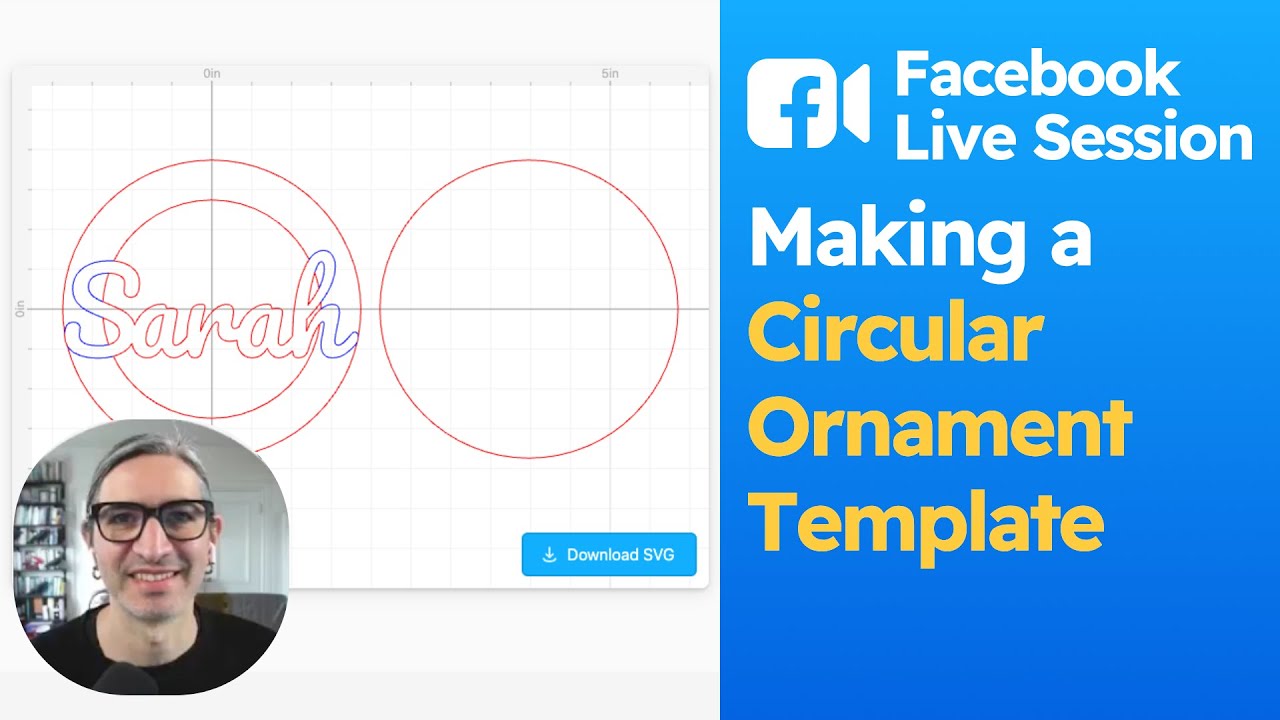
Facebook Live Session #2: Making a circular ornament template
MAY 6, 2024
On this is a facebook live session we cover how to make an ornament template composed of some text surrounded by a ring. We use the Fit Within modifier and the Weld And Score modifier so the name is welded to the circle with score lines automatically added to help the name "pop" out of the ornament.

29:47
Facebook Live Session #1: Get started making your own templates
MAY 6, 2024
This is a facebook live session introducing some basic concepts about making your own Cuttle templates, we cover how to extract elements as parameters, using the Read Me section, connected text and applying modifiers.