Pen tool and path editing
Path editing
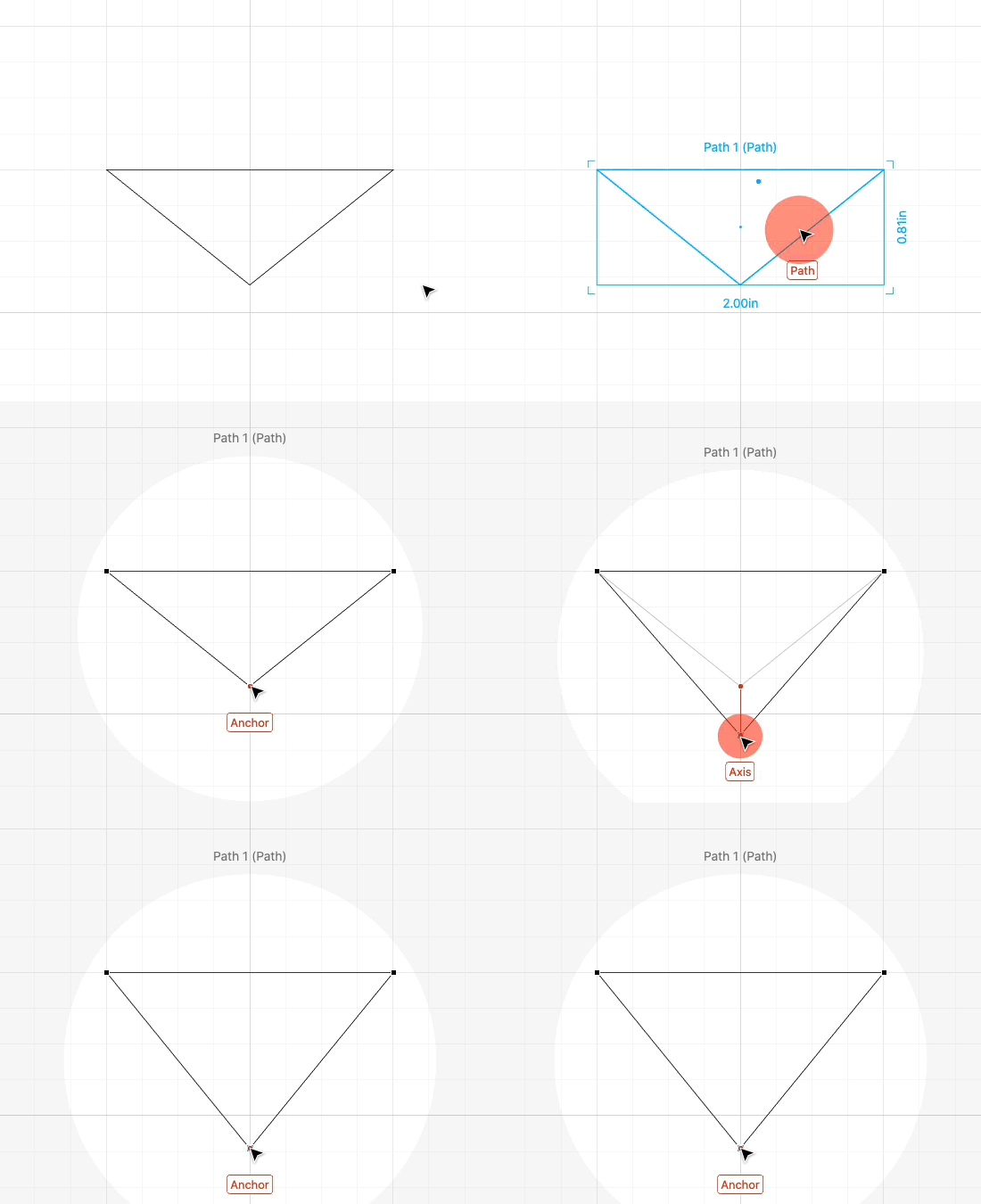
With the select tool, you can double-click a path to edit its anchors.
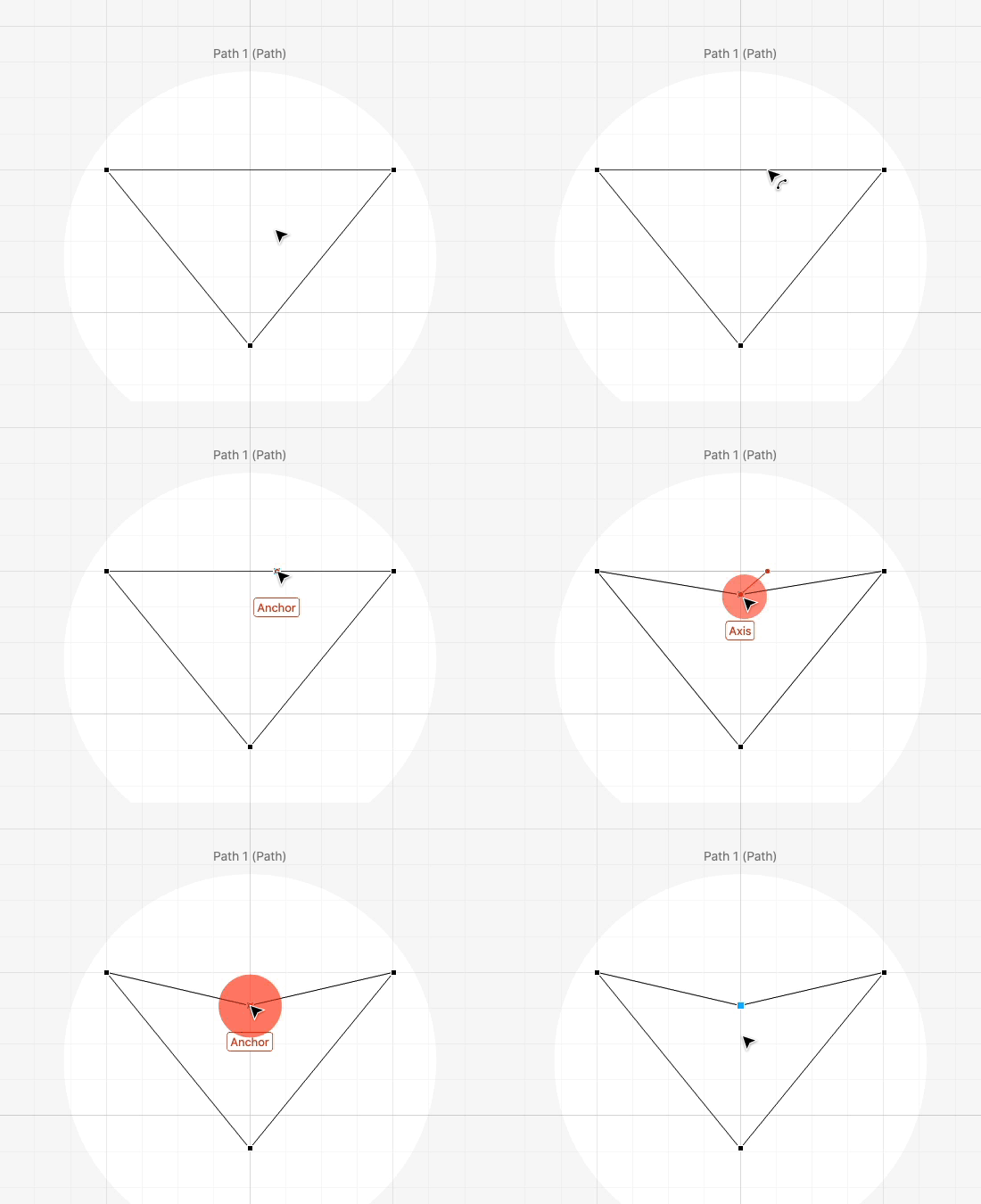
Double-click on a segment along the path to insert a new anchor.
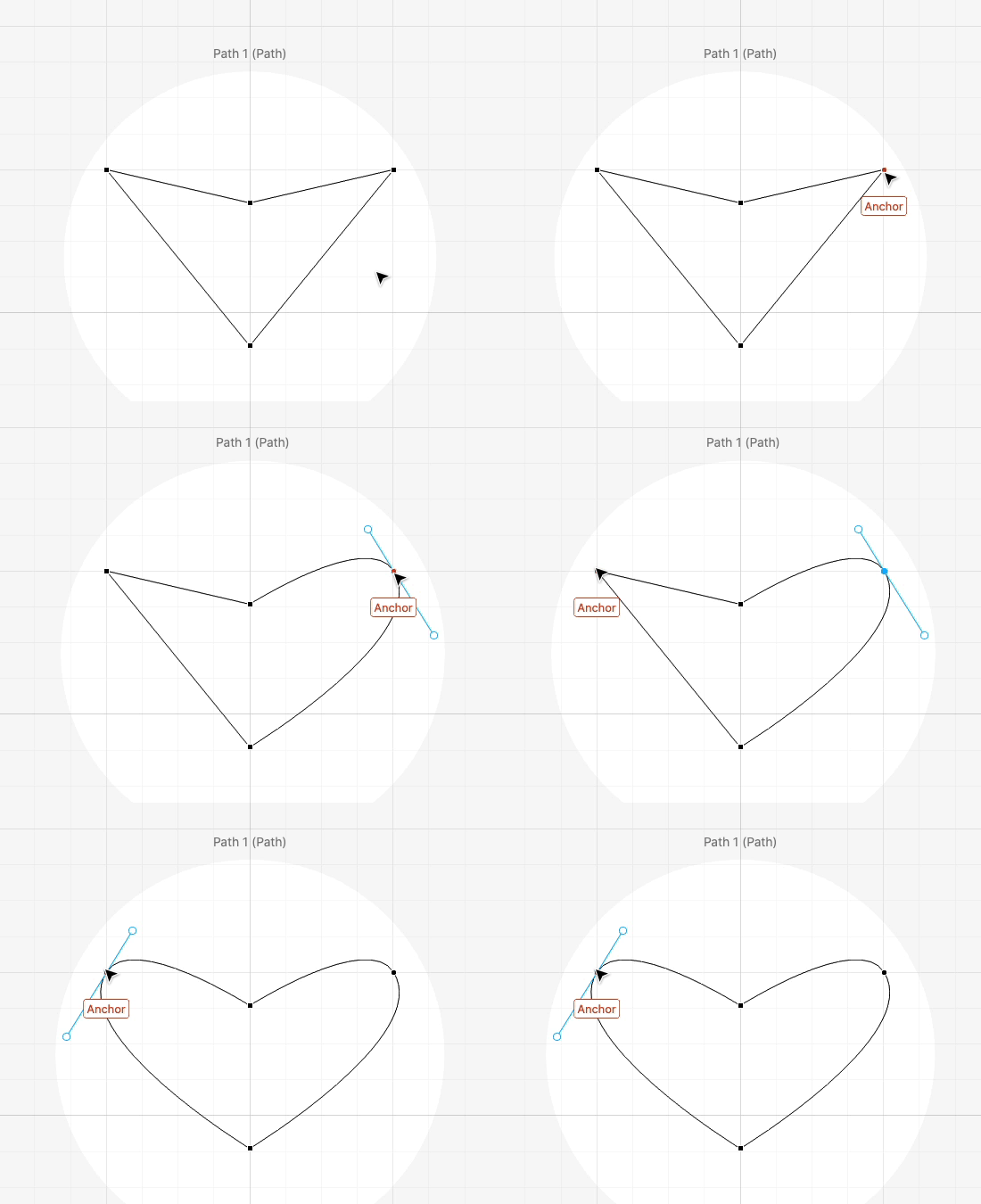
Double-click an anchor to convert it from a point to a smooth curve or vice versa.
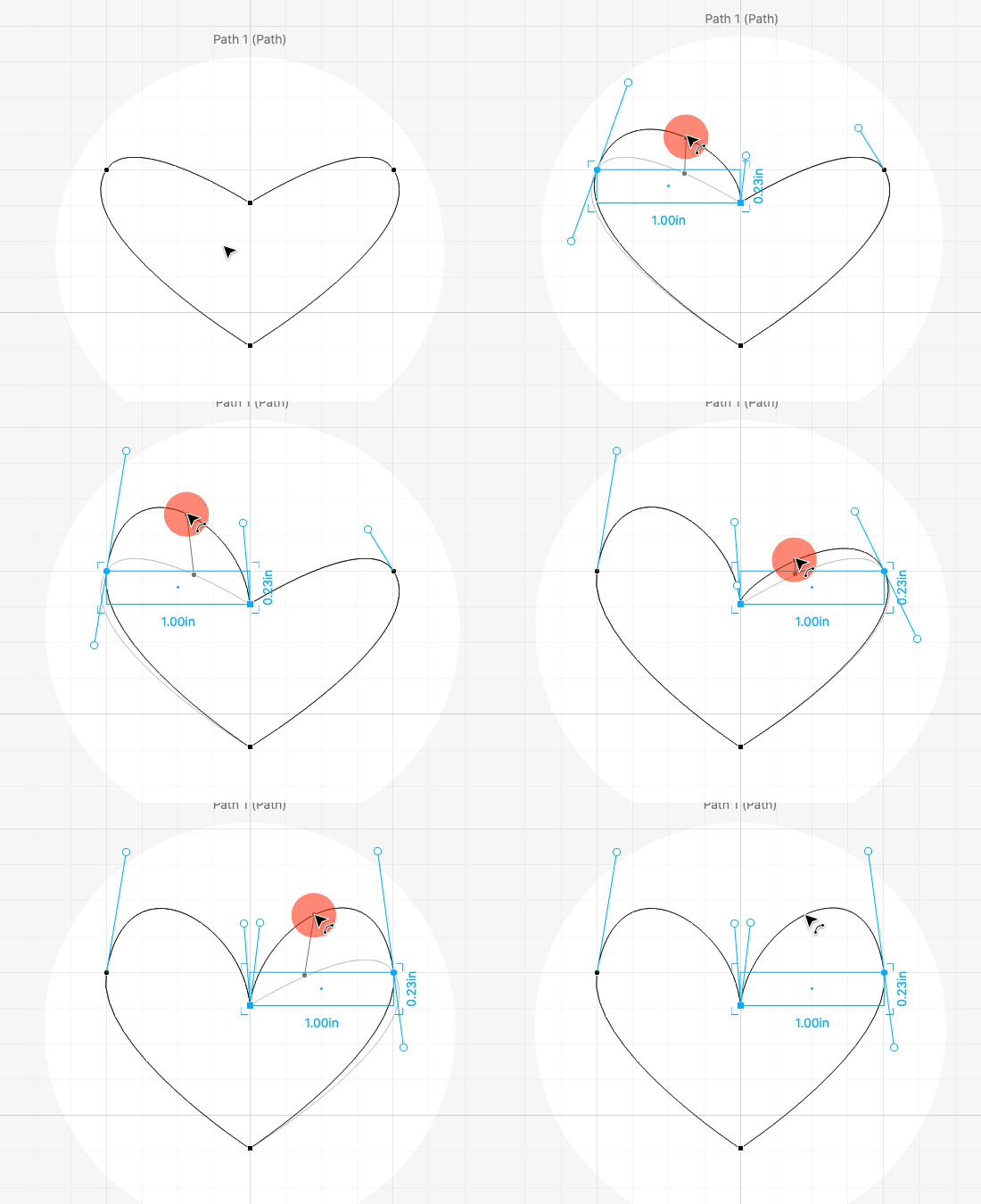
Drag a segment to bend it.
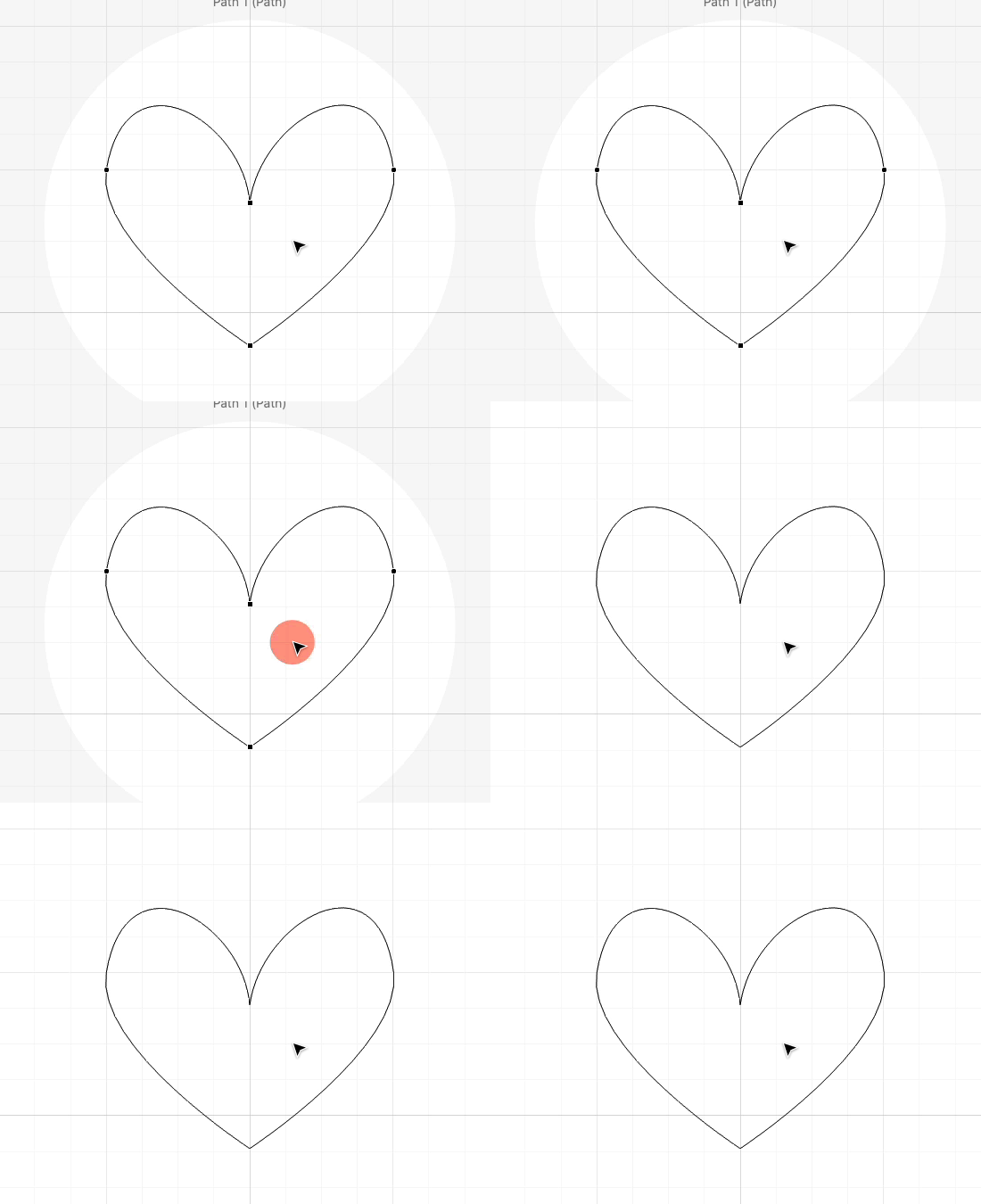
Double-click the background to finish editing the path.
Deleting Segments
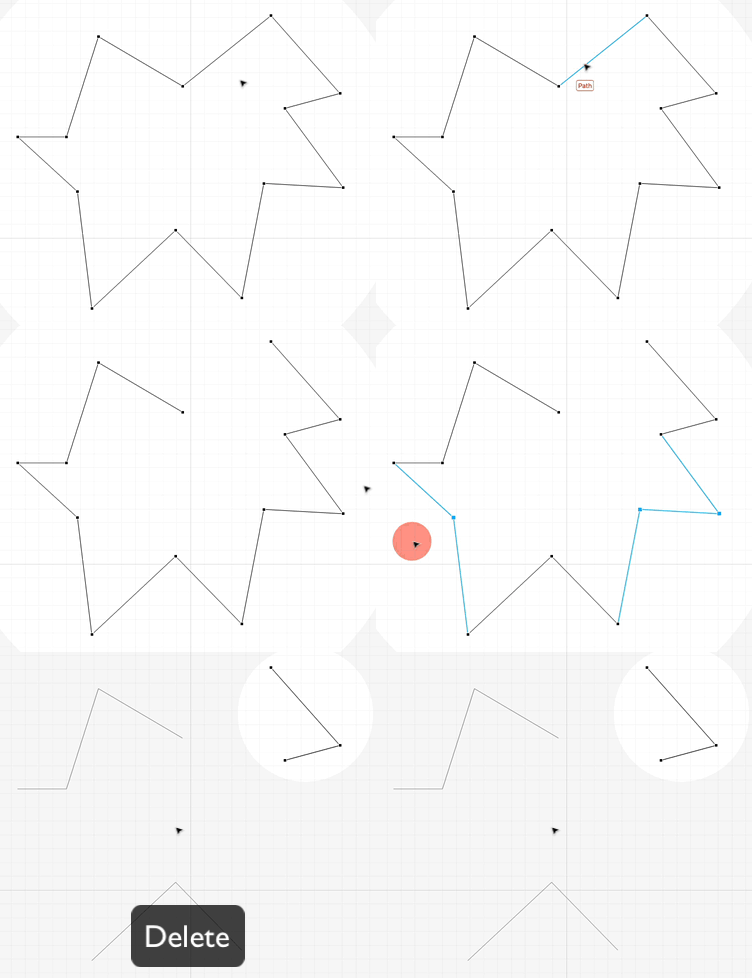
Double-click to edit the path. Click a segment to select it. Hit Delete to delete it. You can also delete multiple segments at once.
Editing built-in shapes as paths
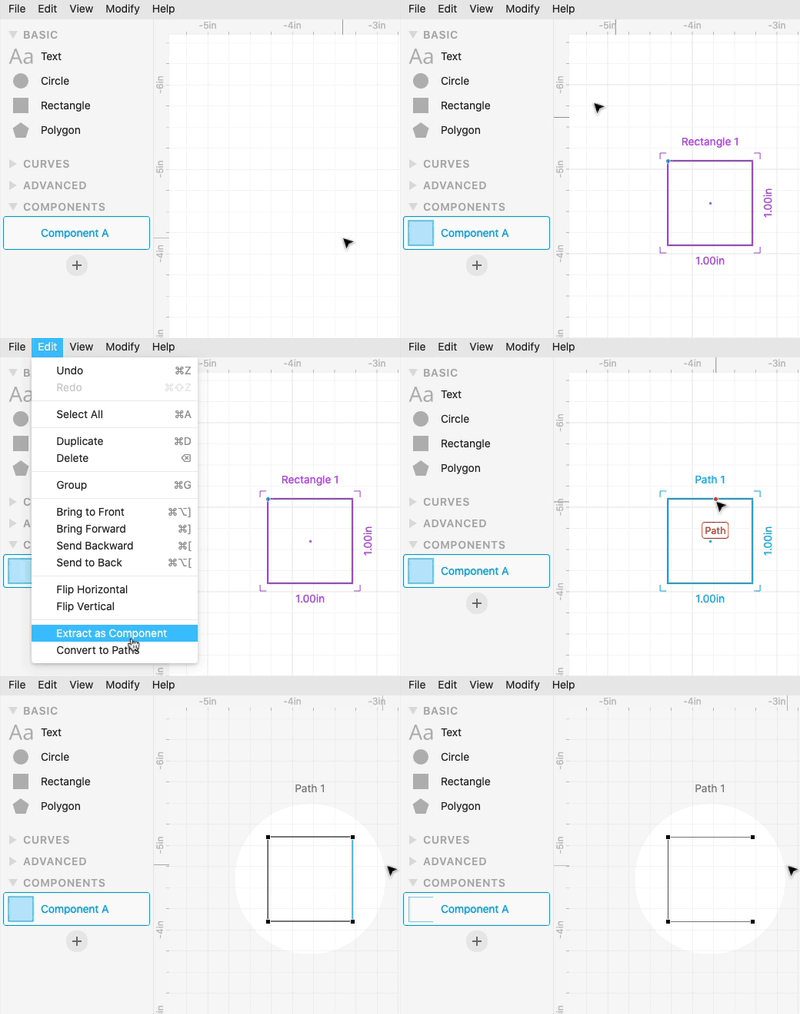
If you’d like to edit a built-in shape (like Rectangle or Polygon) as a path, you’ll need to do Edit > Convert to Paths. Then you can double-click it to make edits.
Keyboard Shortcuts
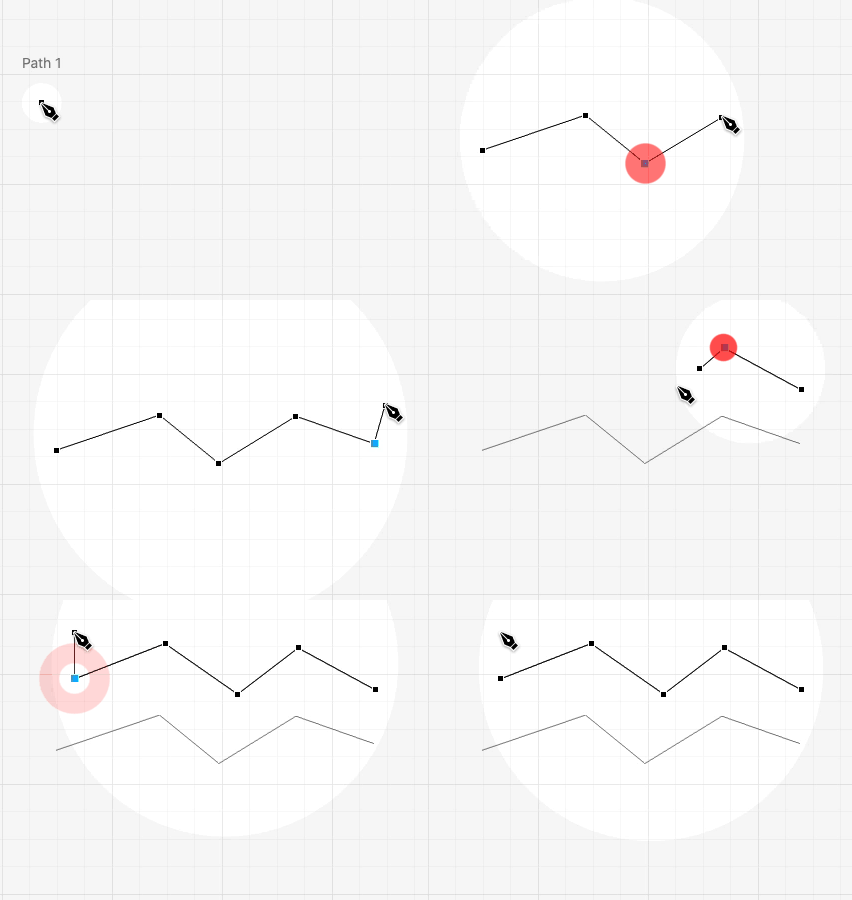
Press P to switch into the Pen tool, or V to switch back into the Select tool.
When drawing a path, press Esc to finish drawing the path and start drawing a new path. This is handy for drawing several open paths in a row.