Why can’t I see special characters in the font I uploaded?
If you’ve added your own font to Cuttle which includes special characters (like swashes, flourishes, or other decorative glyphs), this guide explains how to add them to your project.
What are PUA encoded fonts?
Some fonts come with additional characters—like alternate letters, fancy swashes, ornaments, or ligatures. They are stored in a special part of the font called the Private Use Area (PUA), and are called PUA encoded fonts. Refer to the publisher’s website to confirm if the font you added is PUA encoded.
As these characters are not accessible on a keyboard you can’t type them directly into Cuttle. You can still add them to your project using a tool like Font Book (Mac) or Character Map (Windows).
🍎 Mac Users: Font Book
- Double click on your font file (.ttc, .ttf, .otf, or .woff) to install it on Font Book.
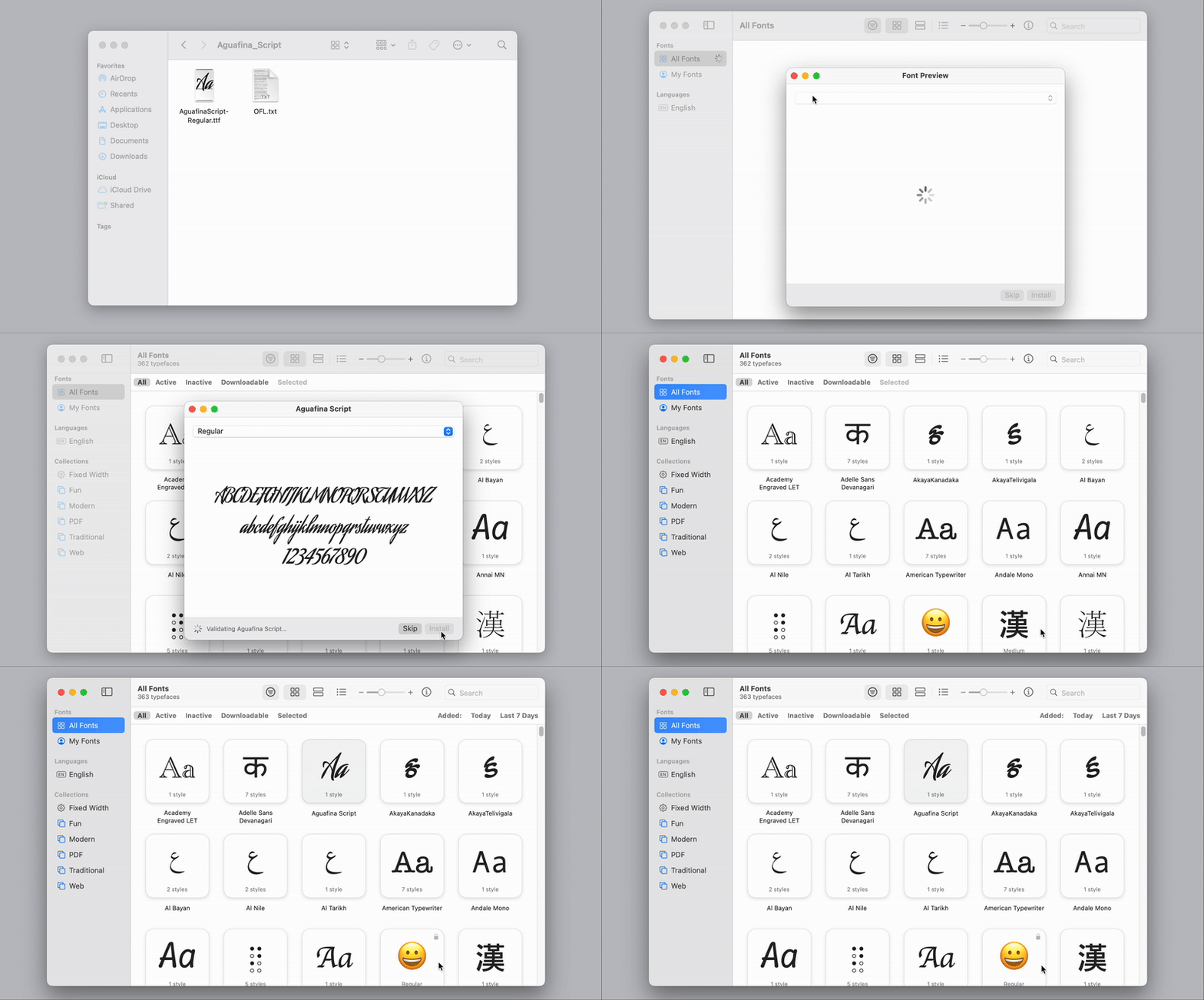
- Filter by “My Fonts” on the left sidebar to quickly find your downloaded fonts.
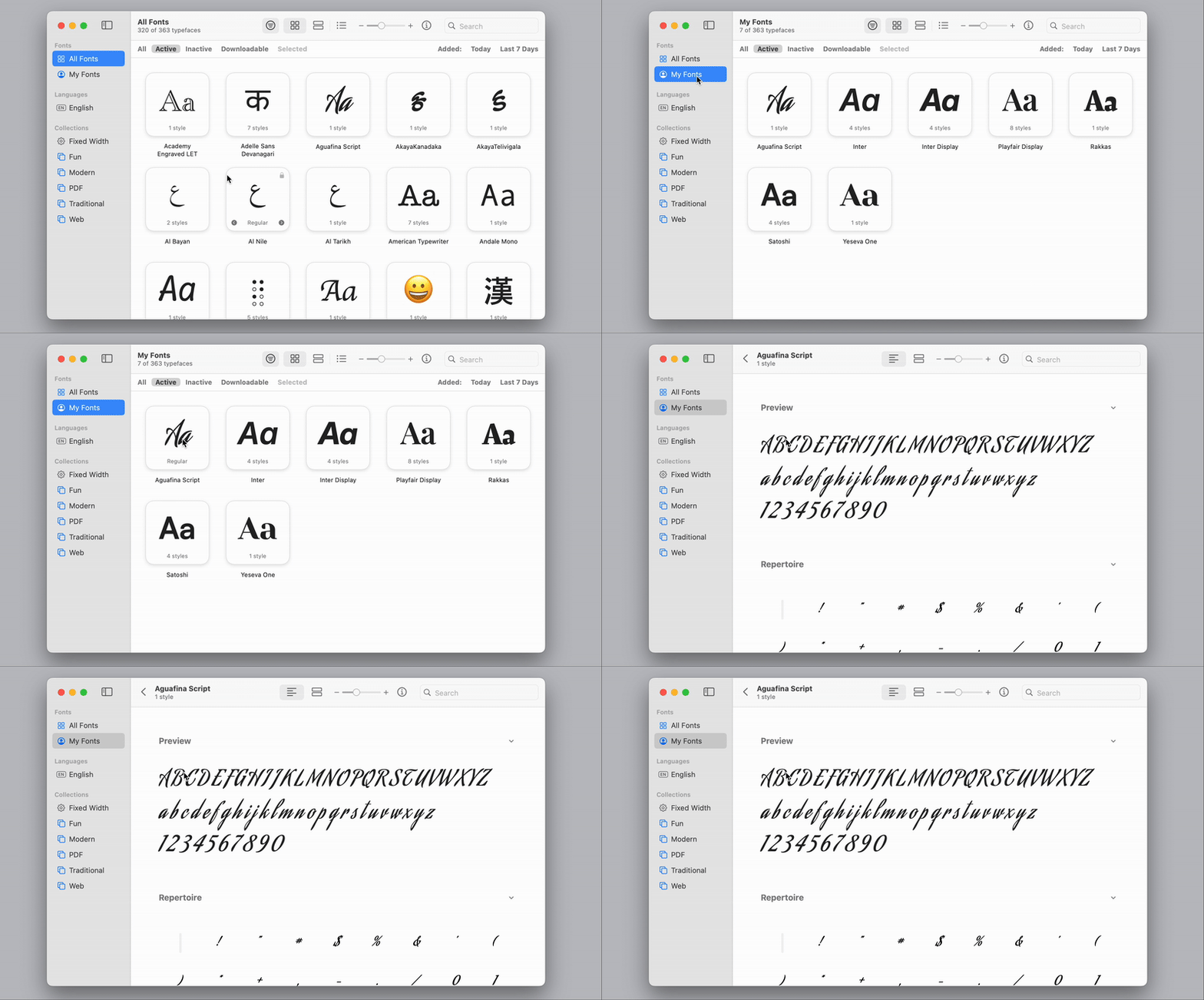
- Find and copy a character
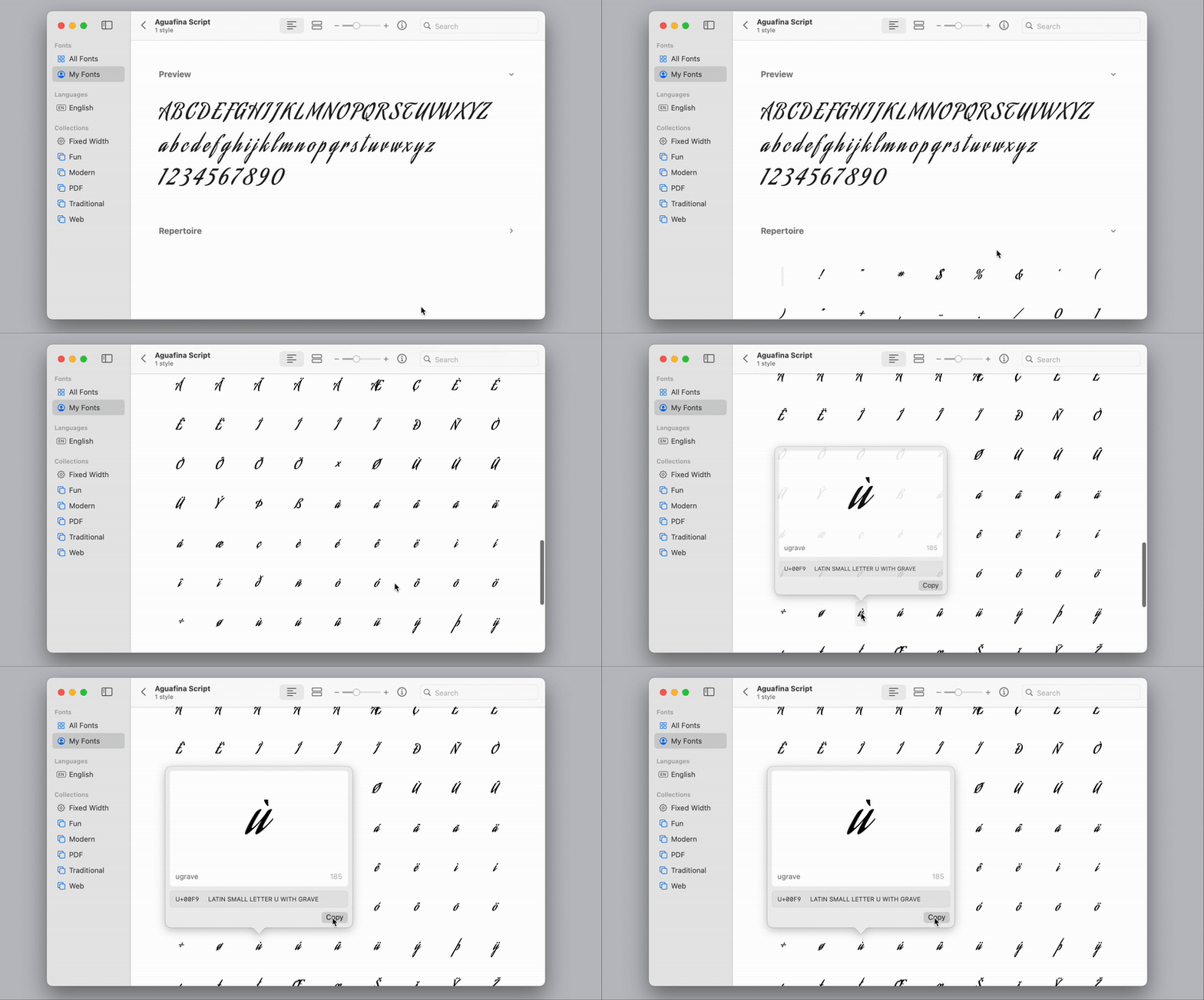
Make sure Repertoire is expanded by clicking on the arrow next to it. Scroll to find the character you’re looking for. Click on the character and click Copy.
- Paste into Cuttle
Press
Cmd + Vin the text field to paste the character into your Cuttle project.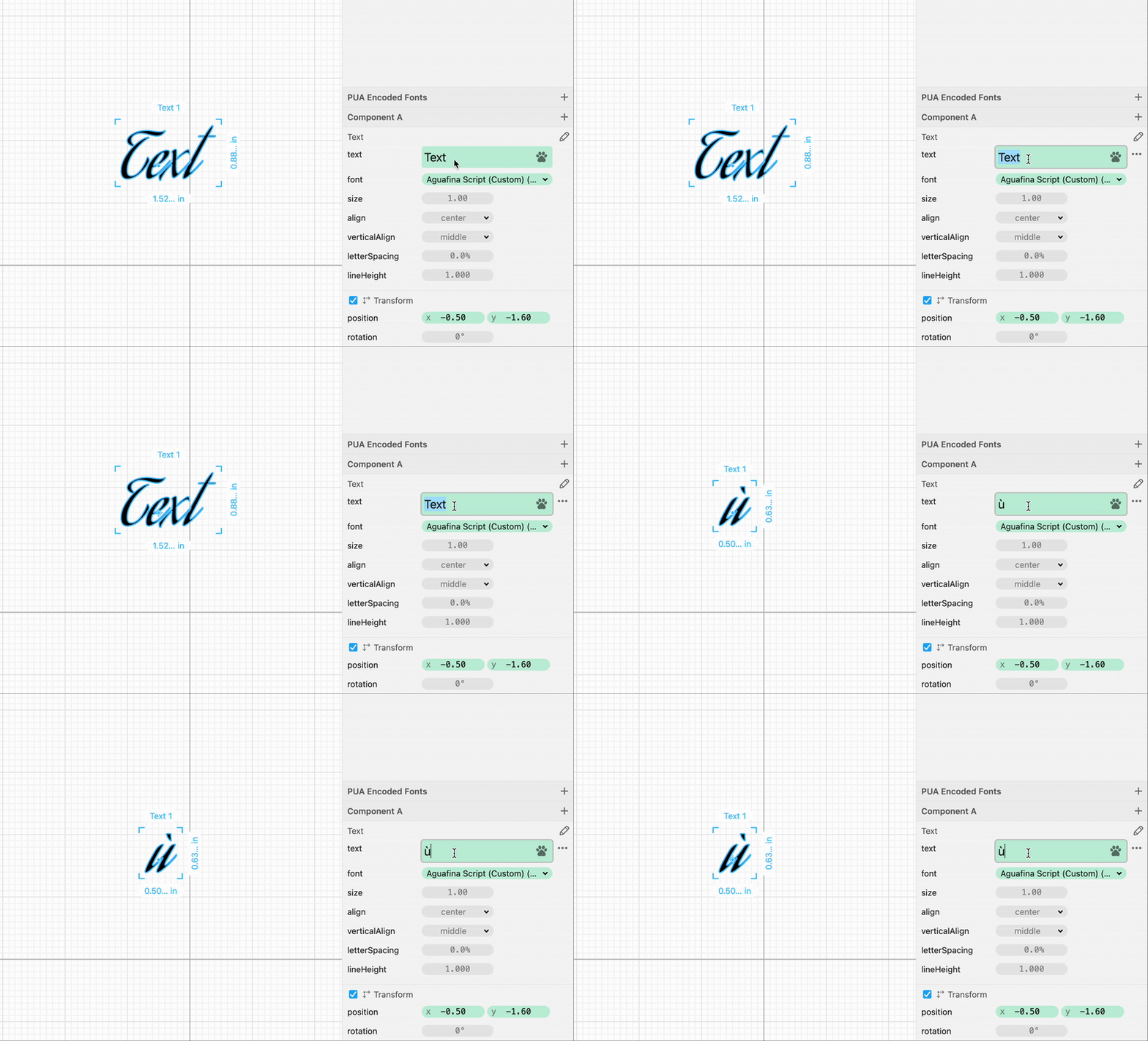
🪟 On Windows: Use Character Map
- Open Character Map
Open Character Map from the Start Menu.

- Select your font
Choose the font you uploaded to Cuttle from the dropdown.

- Find decorative characters
Scroll through to find the character you want.

- Copy the character
Click the character, then click “Select” and “Copy.”
- Paste into Cuttle
In Cuttle, use
Ctrl + Vto paste into a text field.
✅ Tips & Troubleshooting
- Not all fonts are PUA-encoded: If no special glyphs appear, the font might not include extra characters.
- Use the same font in Cuttle: After pasting, make sure your text is set to the same font you uploaded.