Weld and Score
Using “Weld and Score” on shapes can give the illusion of creating multiple layers even though you are cutting a single layer of material, and when applied to text the score lines make each letter pop which greatly increases the legibility of the text.
“Weld and Score” joins multiple shapes so they can be cut in a single piece, but score lines are added wherever the shapes overlap. Normally, when you “Weld” or “Boolean Union” two shapes, they are joined into a single shape but any lines where they overlap are removed.

How to use Weld and Score with simple shapes
Select any group of overlapping shapes and then go to Modify>Weld And Score
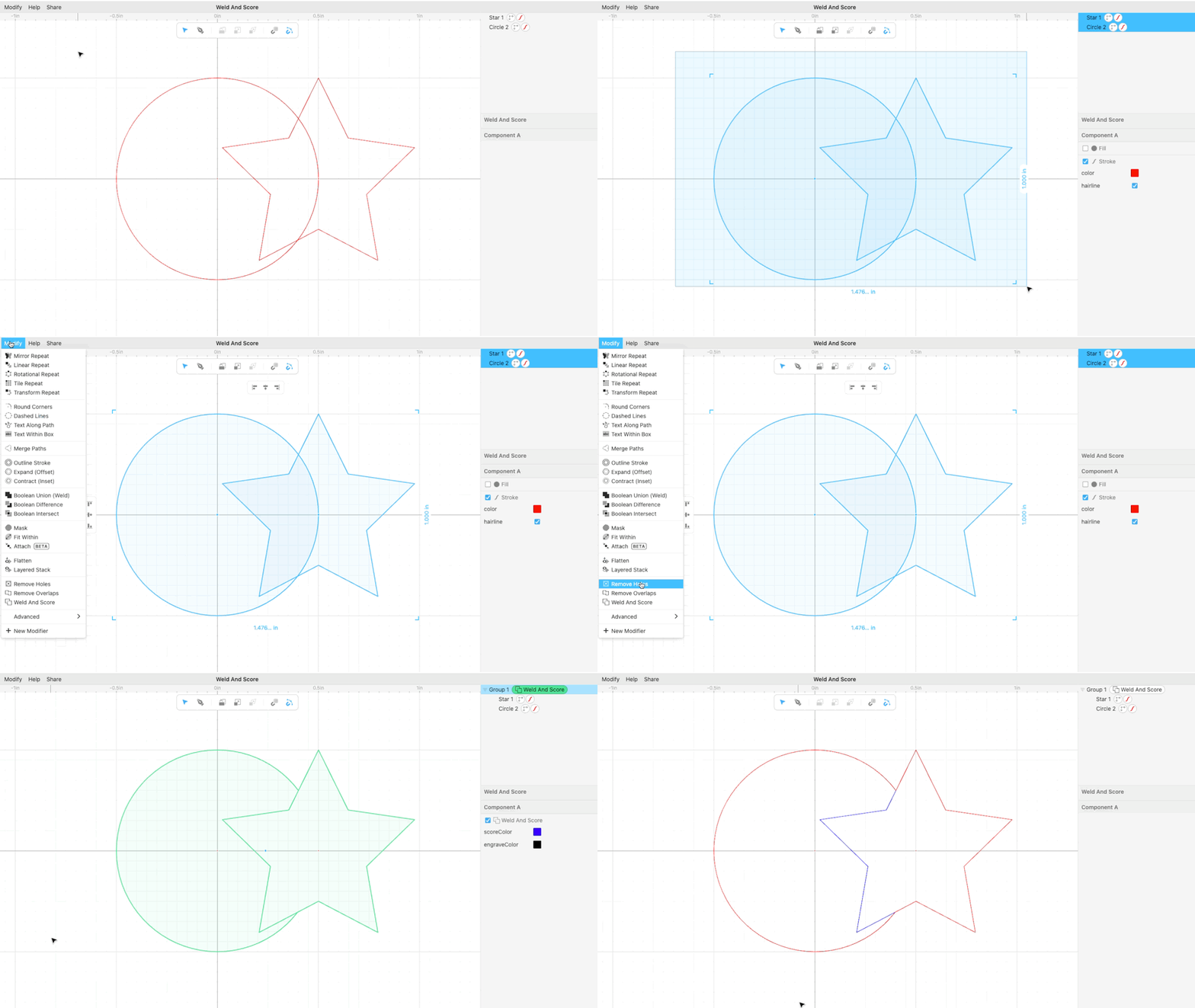
The order of the shapes matters, you can verify which shape is on top by looking at the inspector on the right hand side:

And you can reorder shapes to achieve the desired result:
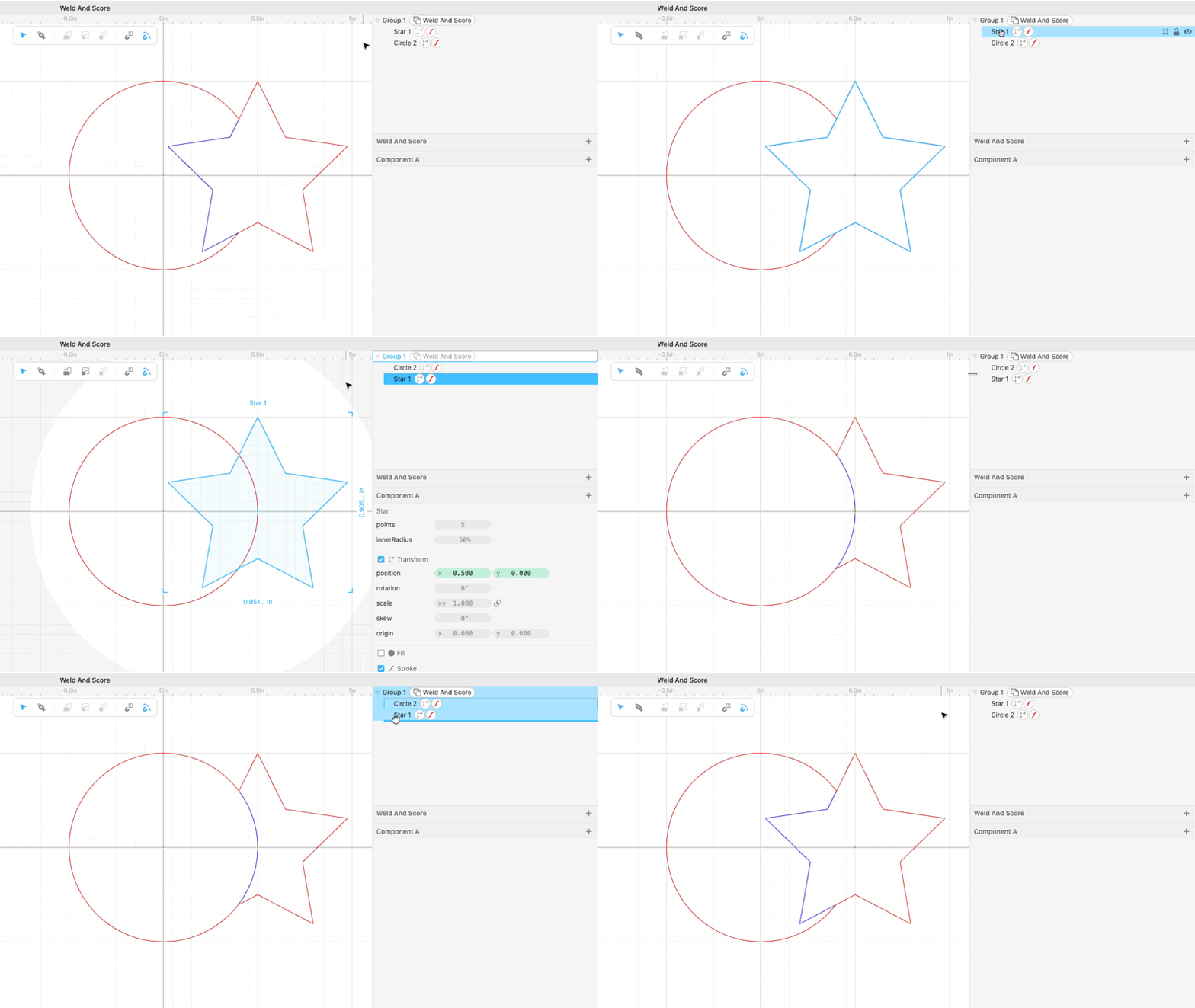
The score lines are blue as a default but you can change the score line color in the Weld And Score options by changing the scoreColor parameter.

How to use Weld and Score with engraved shapes
When your design has any engraved features you can designate a fill color that Weld and Score will ignore, and you can designate that color with the engraveColor parameter.
For example, with this bird head we want the beak (triangle) and the head (circle) to be joined, but we want the eye (black circle) to be engraved:

By designating the engraveColor parameter as black we ensure that it doesn’t turn into a score line.

How To Use Weld and Score with Text
Weld and Score can greatly increase the readability of connected text.

In order to make it work make sure you set connect to “dots and letters” and welding to “none” in your font options.
