Make connected text
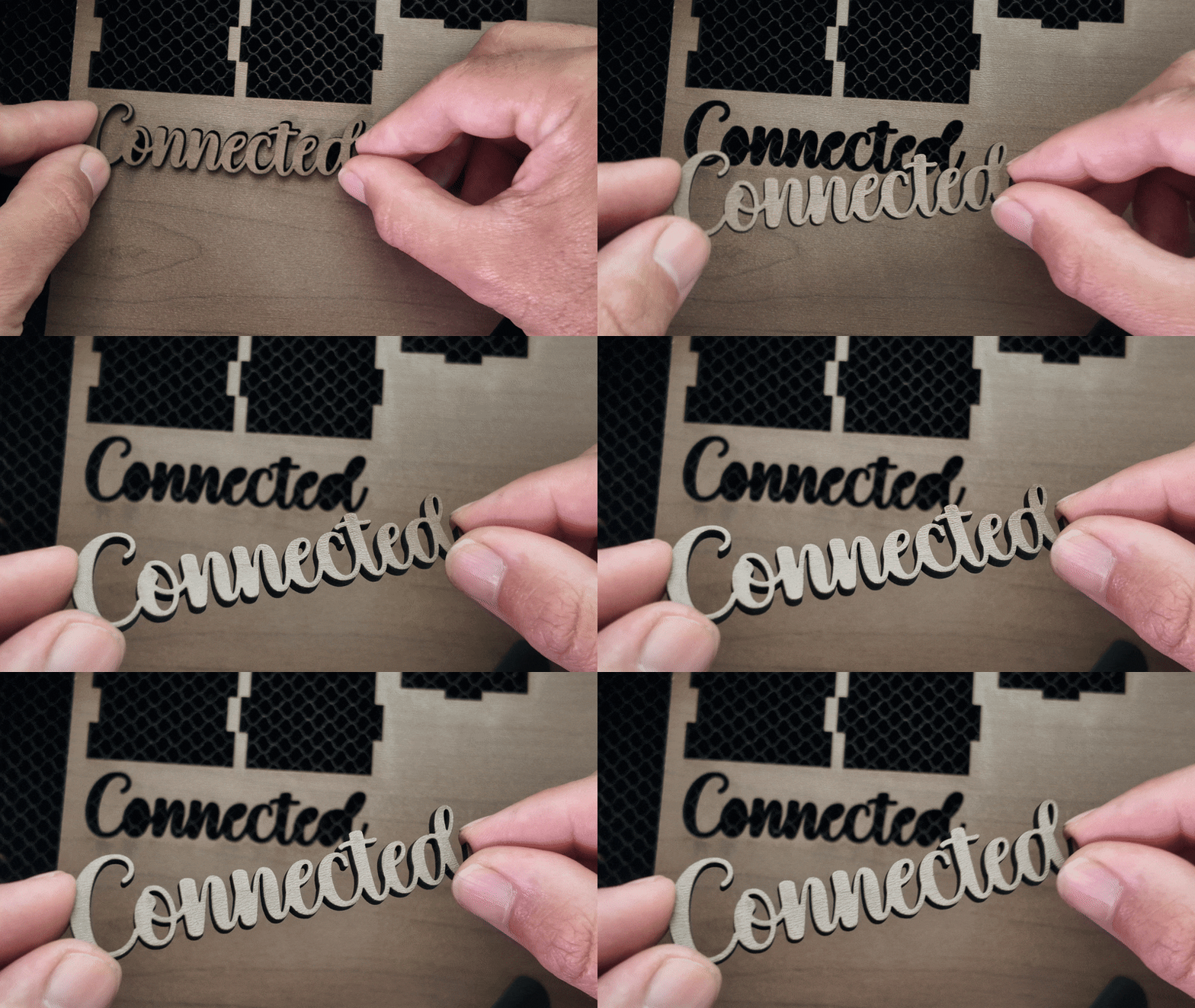
Connected Text is great for laser cutting because it keeps all the letters of your text and names joined in a single piece, including the dots on the i’s!
This makes cutting, handling, and assembling projects with text much easier. And it can save you time because:
- You don’t have to arrange the letters manually and it works with any font that you choose.
- When cutting multiple names you can simply type a list and you can get them all in one file.
- You can grab the entire word from the laser in one motion instead of collecting separate characters.
How to make Connected Text
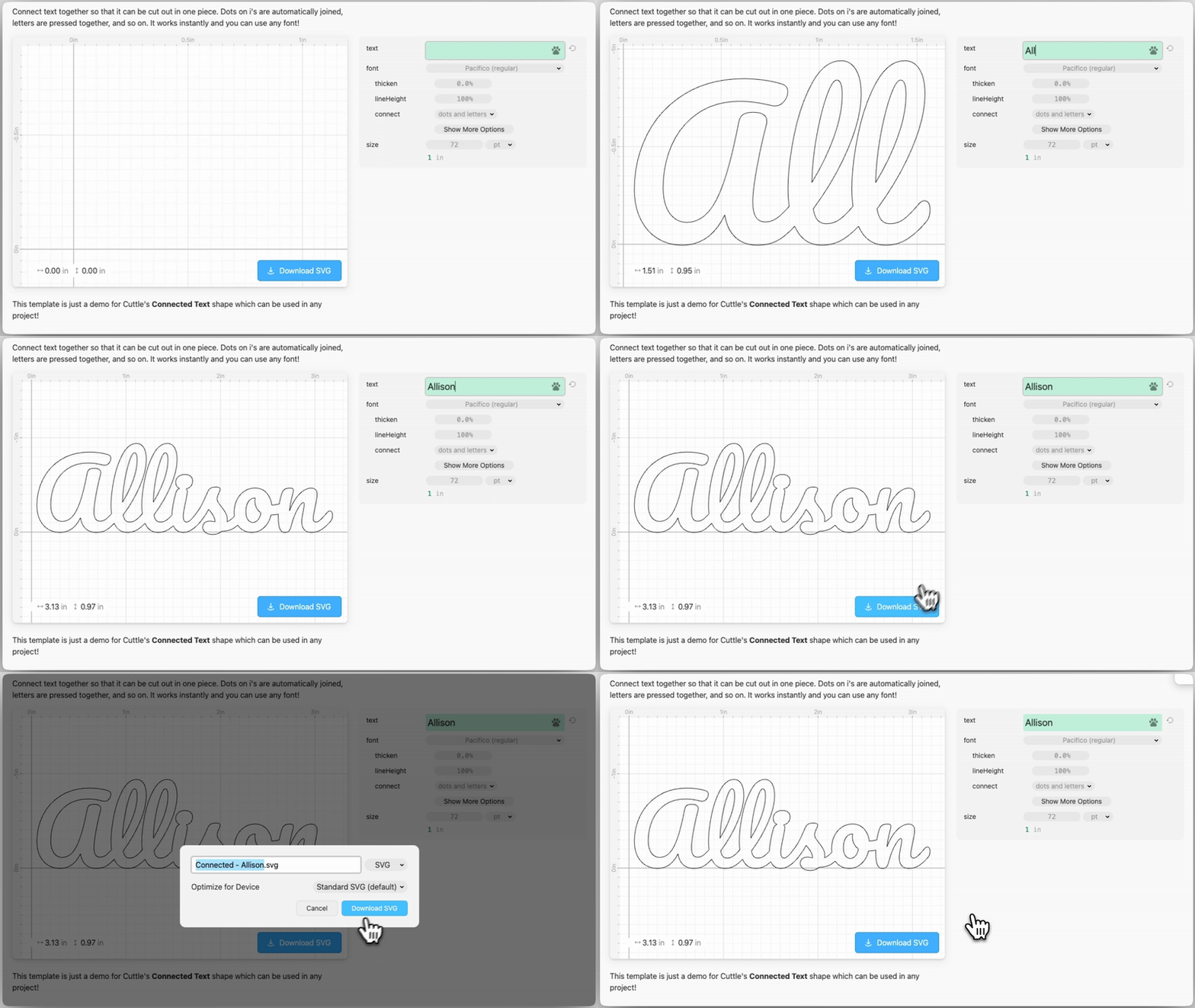
To make this kind of text quickly you can go to our free Connected Text template, type any word or group of words you need in the text field and click on the blue download button to get your file.
How to thicken text

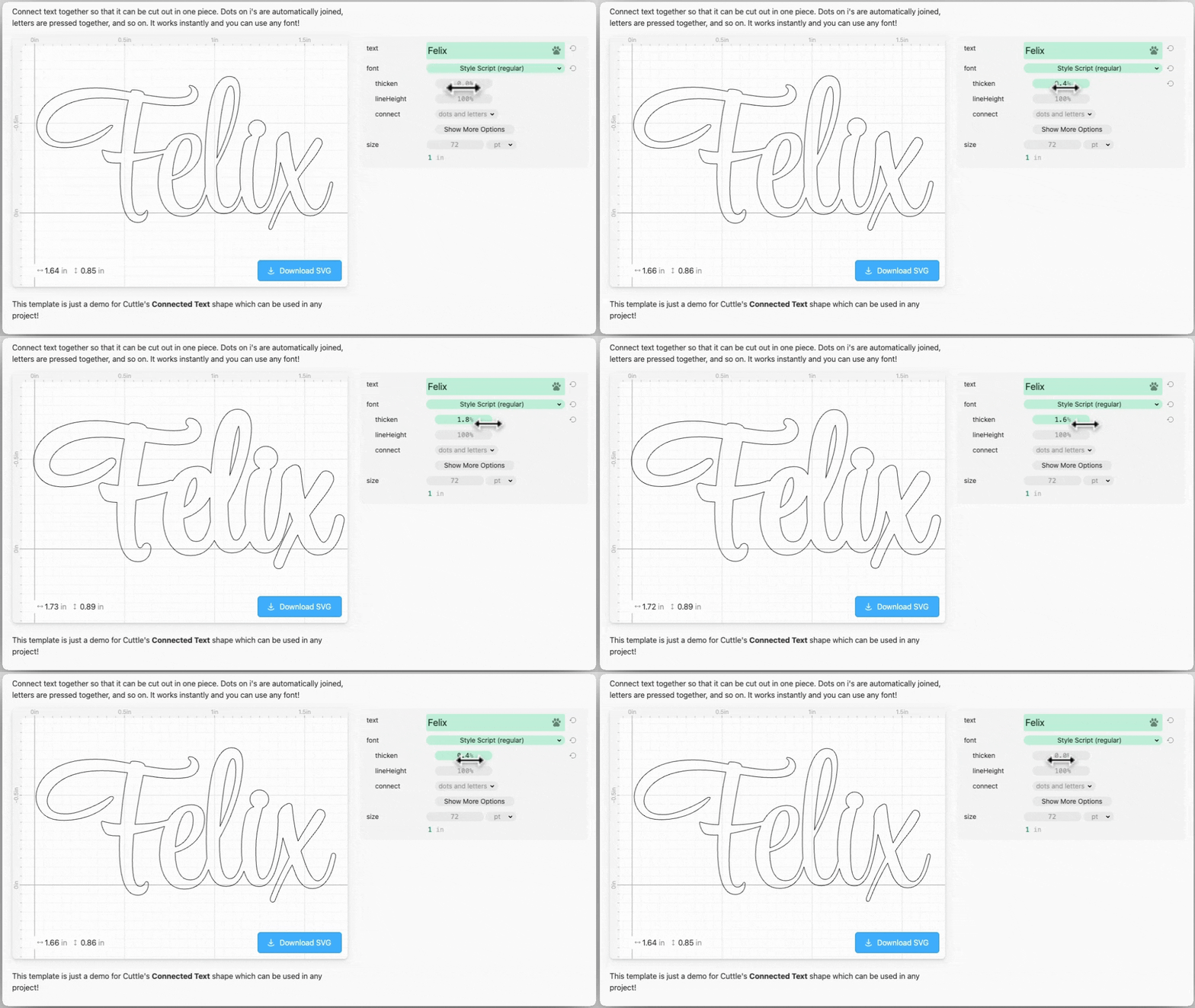
Sometimes a font can be too delicate for laser cutting, and the thin sections can burn off or break too easily. You can fix this by adjusting the thicken parameter, Bumping it up to 1% or 2% is usually enough.
Using Connected Text in the Cuttle Editor
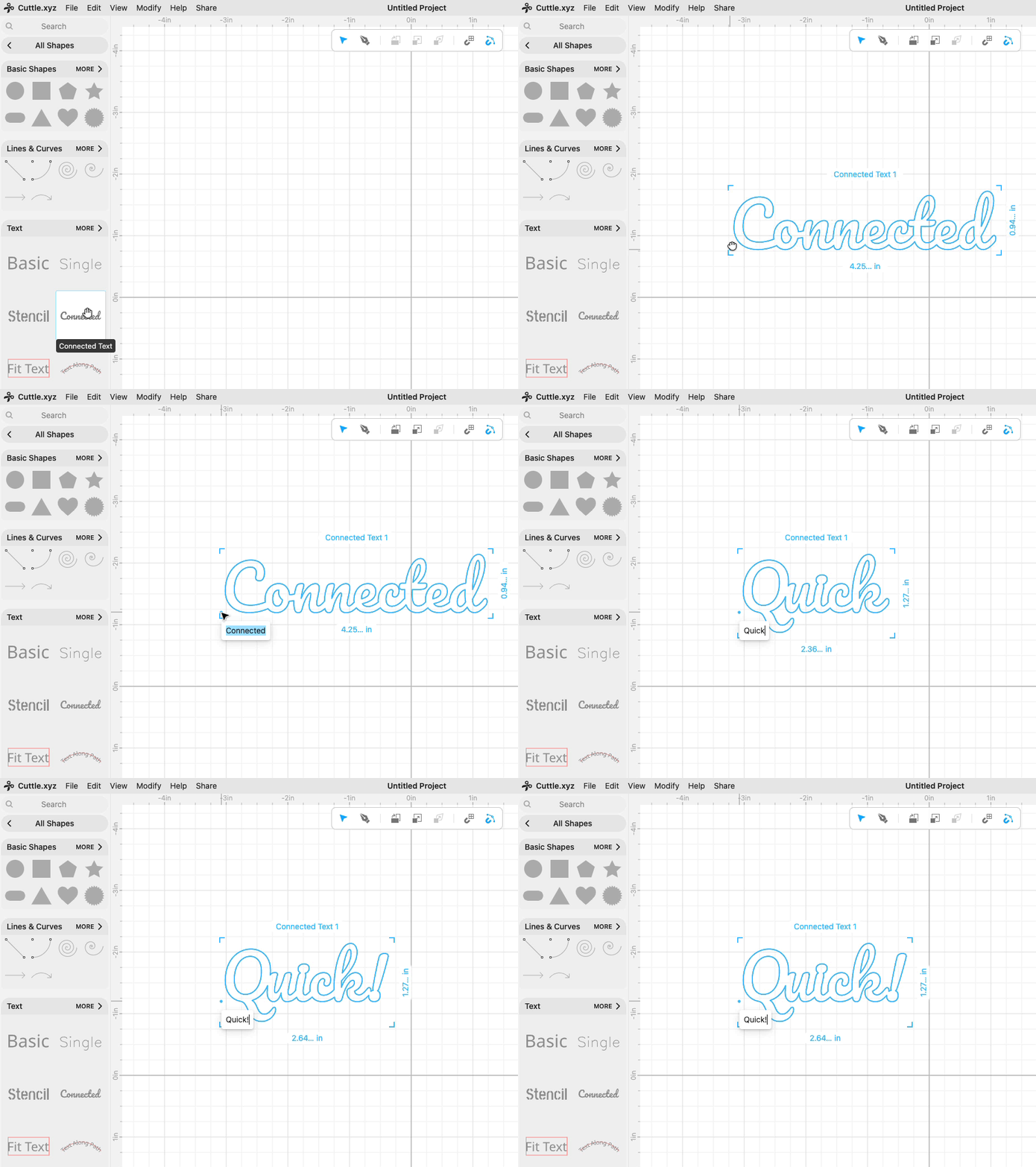
For more complex projects you can also use Connected Text inside the Cuttle Editor. In the editor’s left sidebar, click Browse All Shapes and look in the Text category.
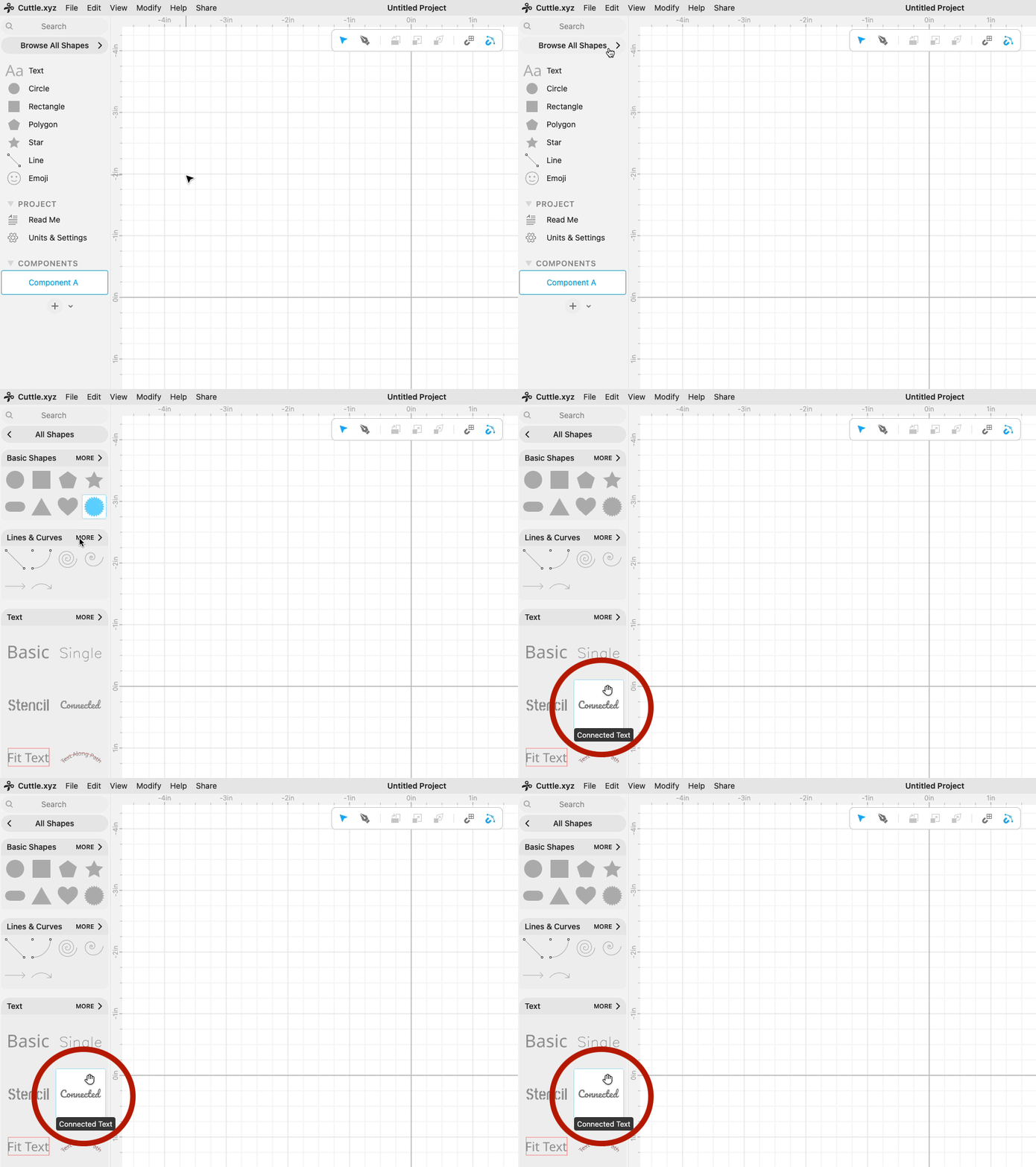
Drag out a Connected Text shape onto the canvas. Type your text and it will be automatically connected!
You can change the font in the inspector (right side panel).
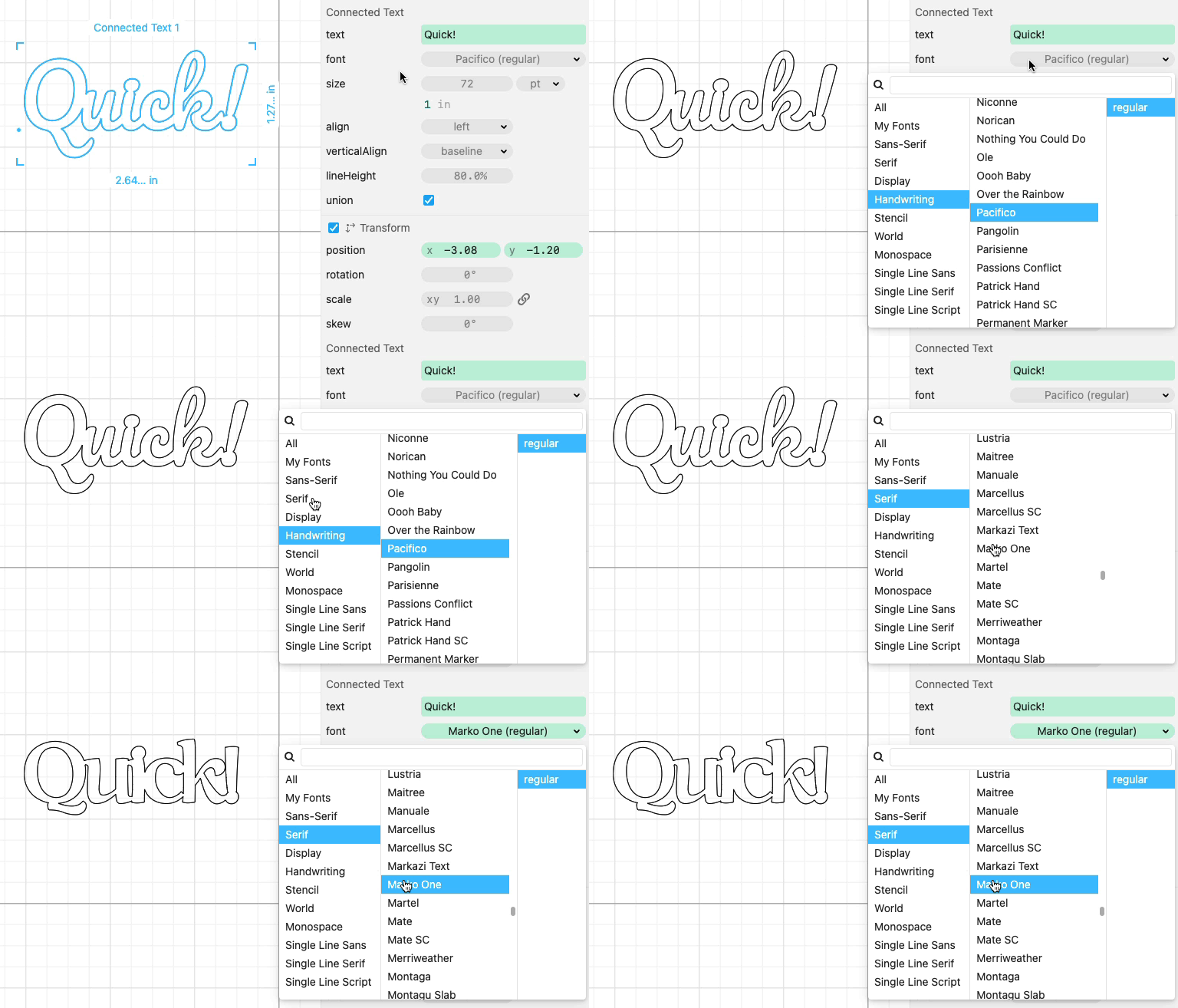
The feature works with any font, including custom fonts that you upload.