LightBurn: Kerf is incorrect
If you are using LightBurn and having trouble with kerf, you may be applying kerf compensation in both Cuttle and LightBurn, resulting in joints that are too tight!
Make sure that you turn off LightBurn’s kerf compensation when using any Cuttle template that has kerf compensation, like our box templates.
Alternatively, if you prefer using LightBurn’s kerf compensation, then in the Cuttle template you can set the kerf parameter to 0, so that Cuttle does not apply any kerf compensation.
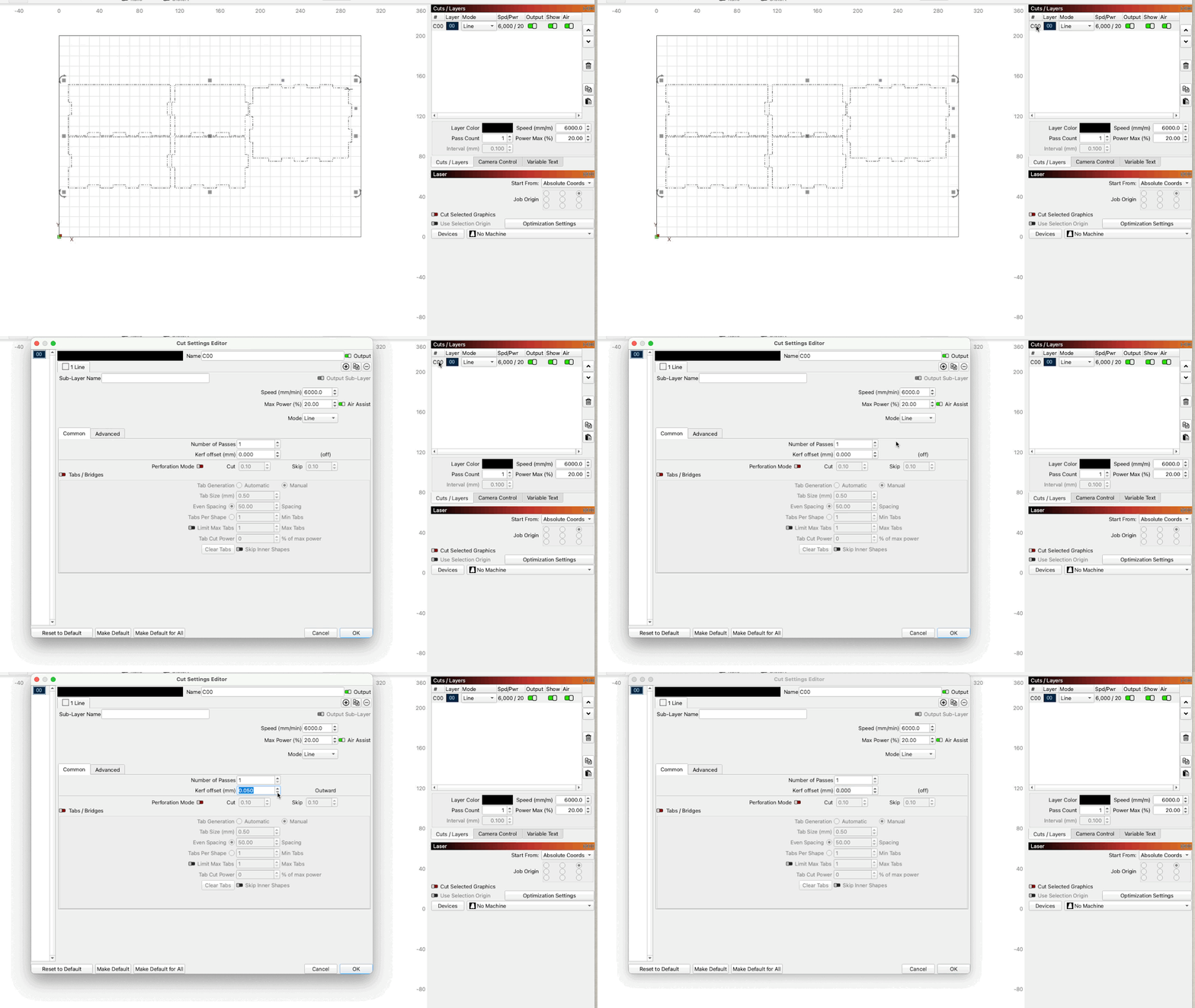
How to turn off or adjust “Kerf offset” in LightBurn
- Select the layer you want to adjust. LightBurn will have a kerf offset on a per layer basis.
- Double click on the layer to open the Cut Settings Editor, and you’ll find the Kerf offset on the Common tab. Make sure to set this to 0.