How to offset text for laser cutting

If you need to create an expanded outline, or offset, for text or any other shape you can you the Expand modifier.
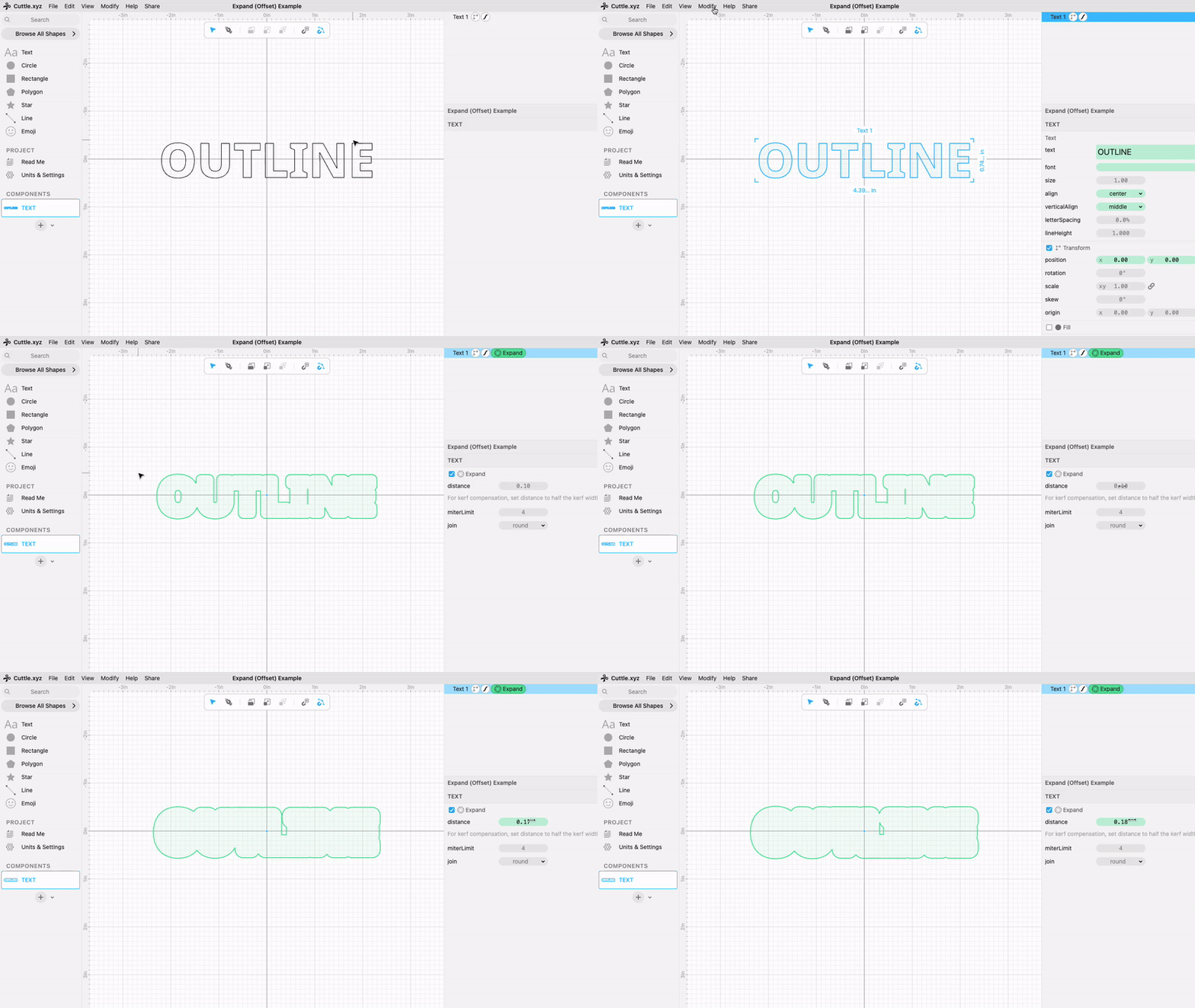
- Select the shape.
- Go to the Modify menu.
- Select Expand (Offset)
- You can then set the Distance to fine tune the offset.
This can be useful for creating a backer piece on a multilayer design.
The Expand (Offset) modifier is often used when you need to create a backer for your design. In that case you want to create a copy of the design and apply the modifier to the copy. Additionally sometimes you might want to remove the internal holes of the expanded version using the Remove Holes modifier.
Advanced Tips and Techniques
You are not limited to text when using the Expand(Offset) modifier, you can use it on any shape and including imported SVG’s.
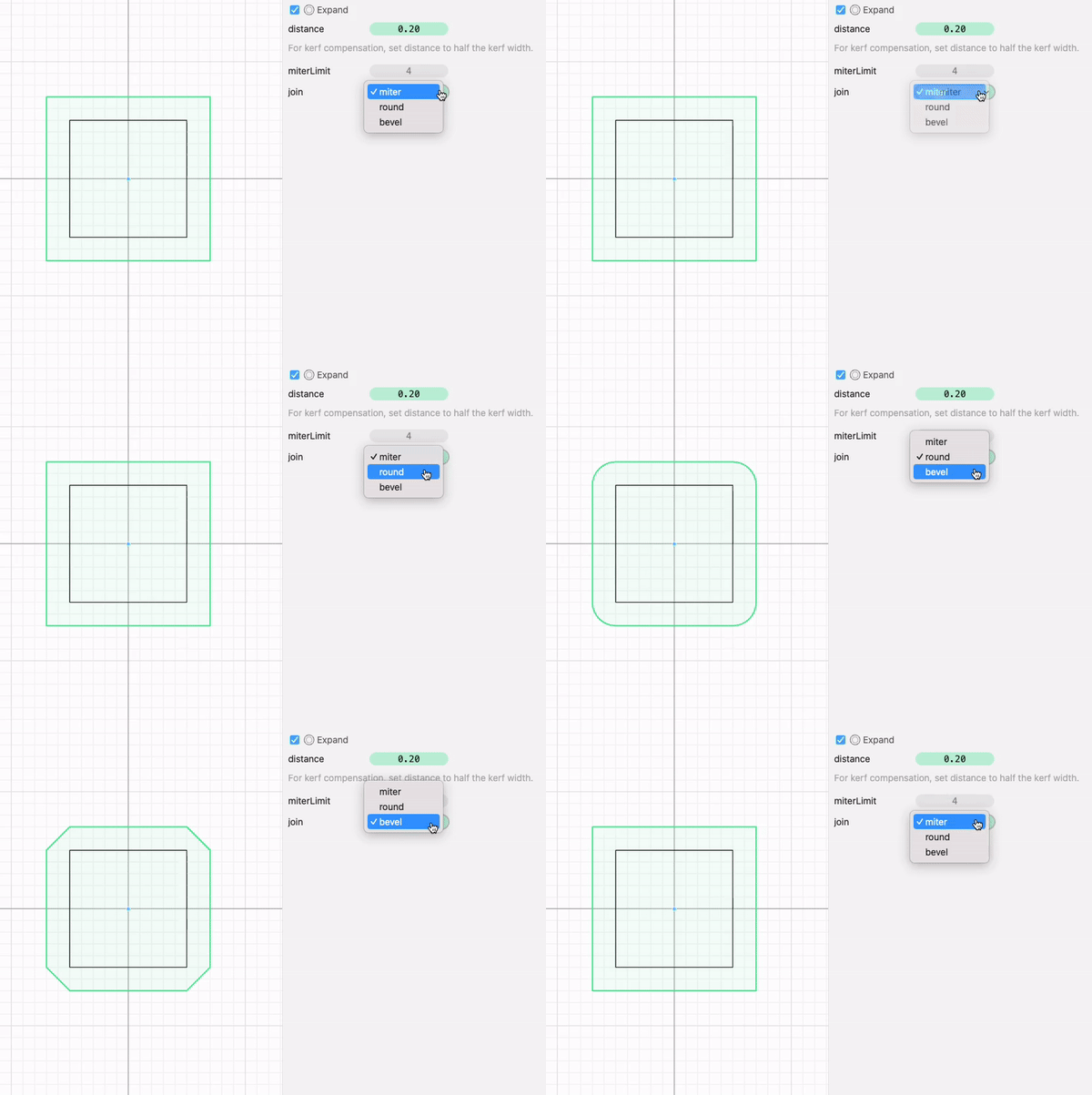
If you want to change the look of the corners change the join option. Corners can be round, mitered or beveled.
If you frequently create layered designs, the video also demonstrates how to automate this process in Cuttle, including adding a useful guide to help align the layers when you are gluing them together.