Showing and hiding parameters
If a template has parameters that are only used depending on another parameter, it is possible to dynamically show and hide them.
Checkbox control
For example, this template adds an optional hole on top, to make a token into a keychain.

When “Include Hole” is unchecked, the “Hole Size” parameter has no effect.

In the Editor, we can hide the “holeSize” parameter by adding this code in a new “_hiding” parameter:
Note that includeHole does not have quotes. In code, this is the value of the parameter. While "holeSize" does have quotes, because it is the name of the parameter.
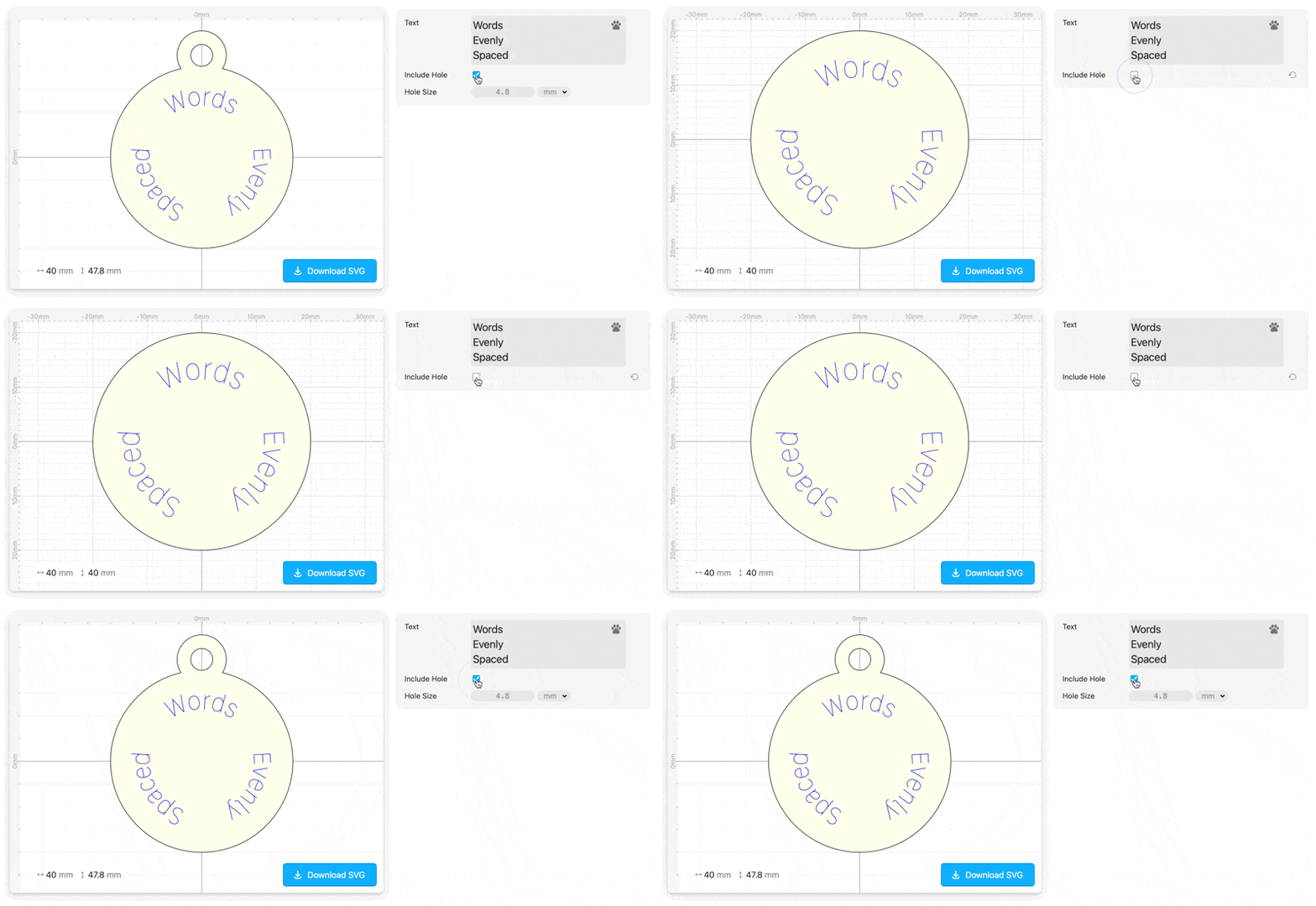
Now in the Read Me embed, the “Hole Size” parameter shows and hides as needed.
Select control
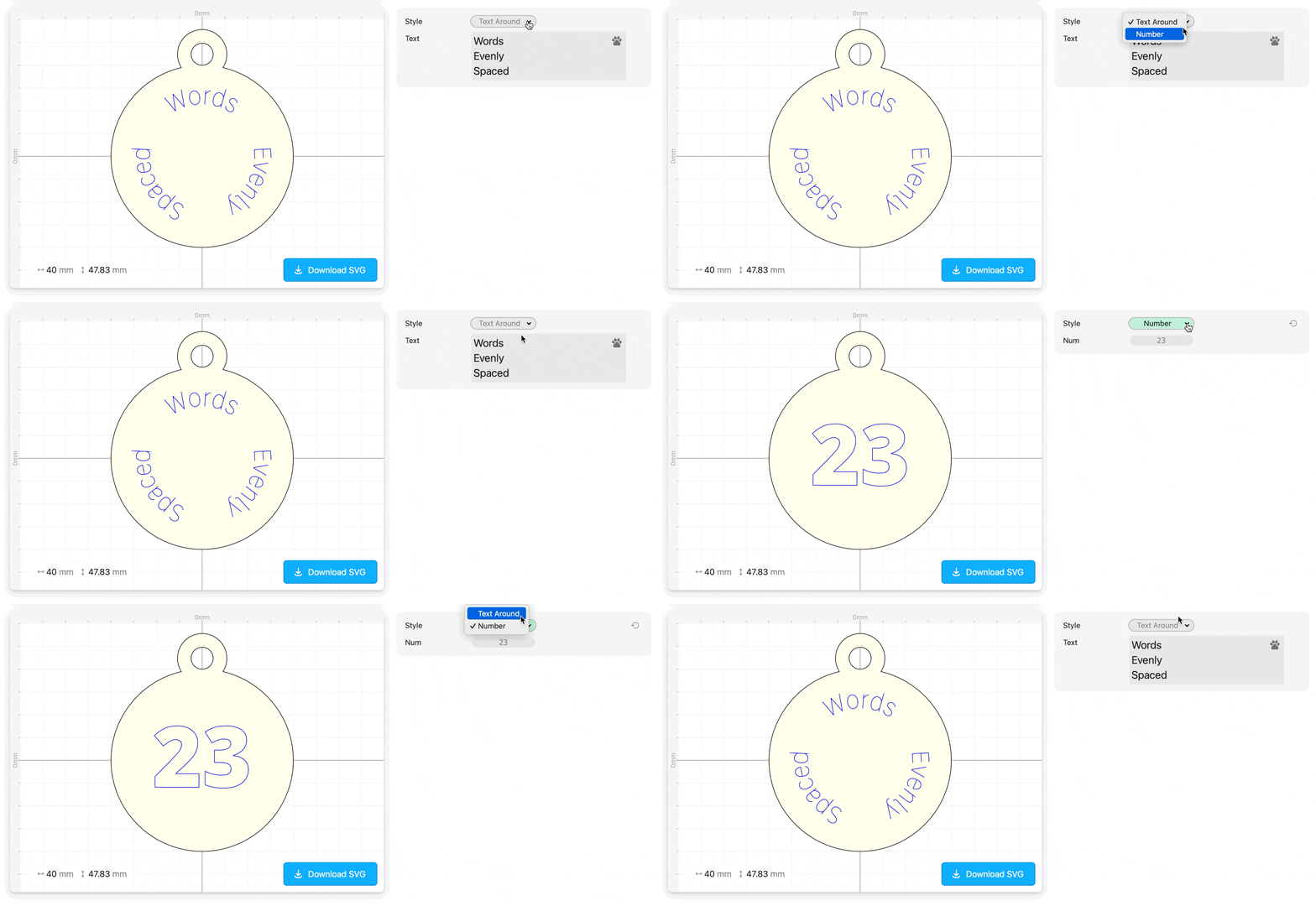
This template has different text elements, using the “Visible” modifier, depending on the value of a Select parameter.

So in the Read Me view, the applicable parameter will show, depending on the “Style” selection.
Live examples
The examples in this page are published here.
Caveats
Take care to only hide parameters that have no effect on the design.
You can hide multiple parameters with one call, for example
Hiding all the parameters within a folder will hide the folder.
If your design is showing and hiding many parameters, it might be a signal to split the design into multiple templates.