Text Within Box
Cuttle’s Text Within Box resizes text to always fit within a defined box.
How to use it
To use Text Within box in the Cuttle Editor, click Browse All Shapes and then drag out the Fit Within shape from the Text category.
Alternatively, you can create a rectangle first, and then do Modify > Text Within box
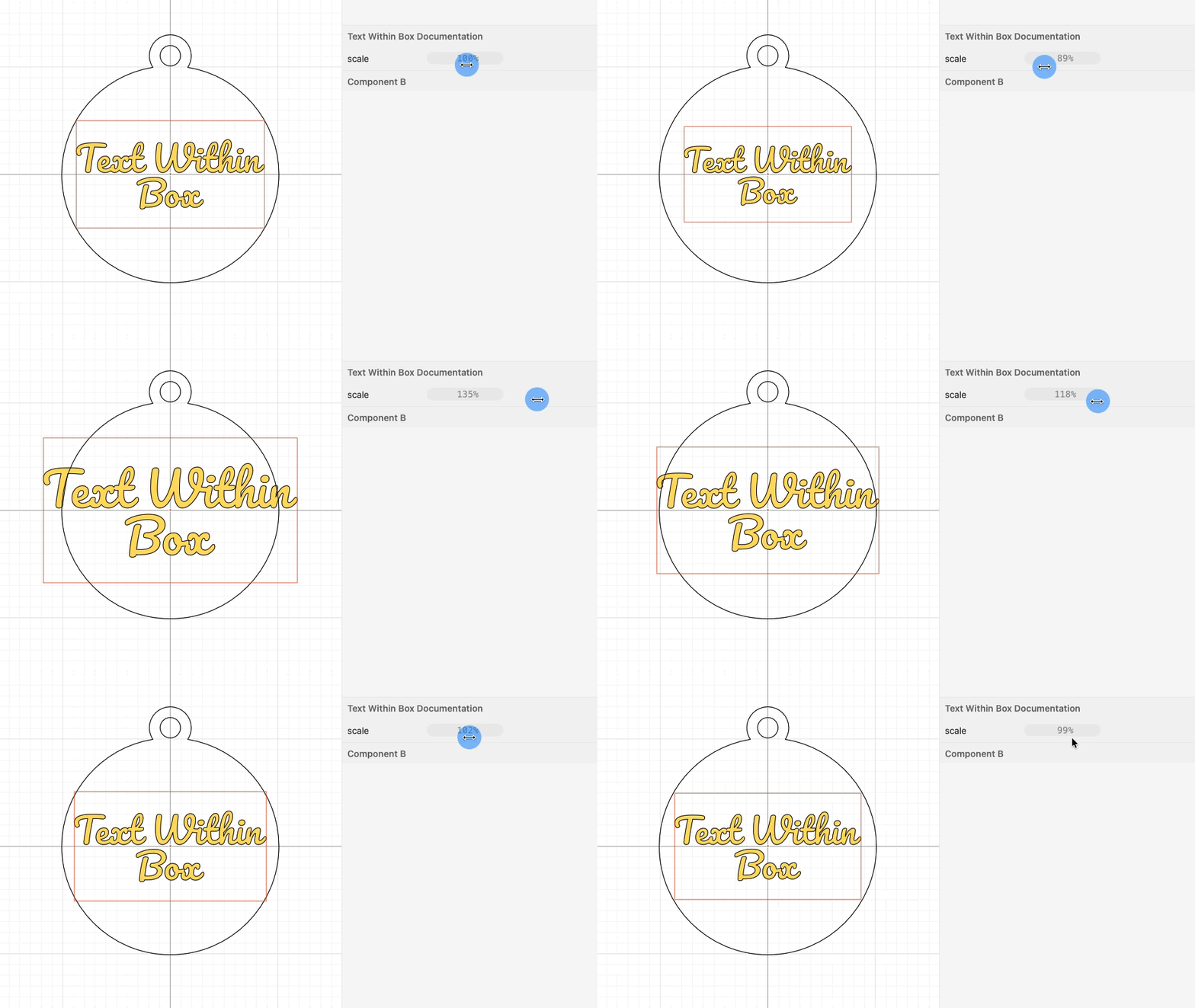
The box will turn into a guide, and you can define the size of the box by changing its scale parameter.
Align
This setting only affects text with multiple lines.

Vertical Align
This setting will affect the vertical placement of the text.

Scaling
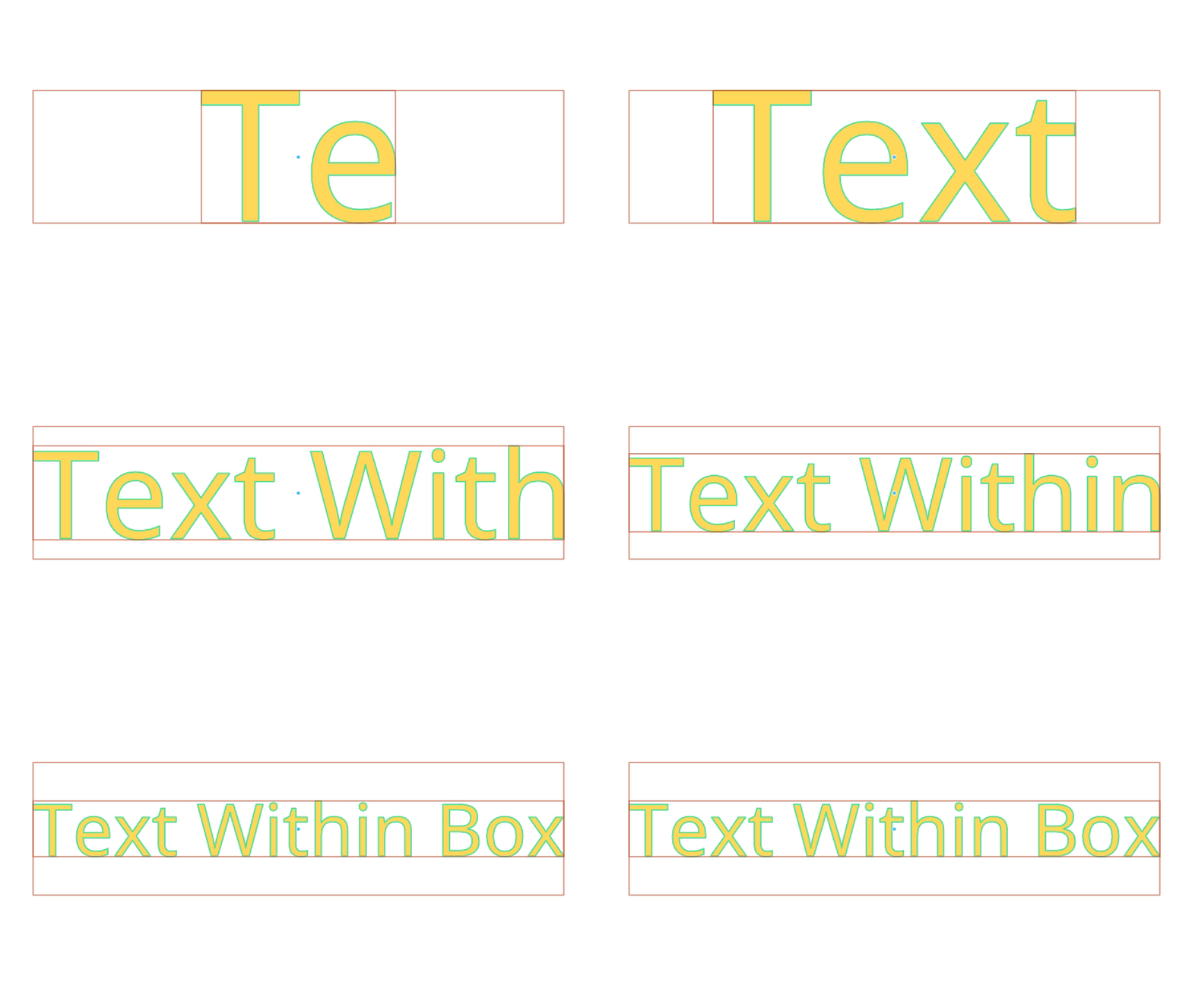
This option sets which font measurement is used as the boundary when scaling text to fit your box. Font metrics are measurements like Baseline, Ascender, Descender, and Cap Height that describe how a font's characters are sized and positioned
The grow option works for most cases. Use metrics when there is more than one Text Within Box object and you want to keep the text size uniform between them.
- grow - will ignore font's metrics and grow the text to be as large as possible so that it’s still fitting within the box.
- metrics - will size using the font’s metrics
- shrink - will size using the font's metrics but then shrink if necessary to force text to always lie strictly within the box, even if the font has characters that overhang their boundaries (some script fonts)
Tips for Template Designers
Box Guide
When you use a component that includes Text Within Box you’ll be able to see the box as a guide. This is particularly useful when designing templates because you can be confident that any text will work in relationship with other design elements.
If you need to disable or enable the guide go to View > Show Guides

Avoid Unnecessary Options
Text Within Box automates text scaling and positioning, giving template users a seamless experience, no manual adjustments needed.
Adding a Scale Parameter
In the rare cases where a scale parameter is absolutely needed, the best option is to add a multiplier to the scale of the box.
- Create a new project parameter called
scaleand change its type to Percent. - Give it a default value of 100%
- Select the box Transform and multiply it by the
scaleparameter. With an initial box size of 1.75” x 1” it would look like this:Vec(1.75, 1)*scale

- This scales the box uniformly