Switcher
The switcher component is useful for making templates where you want to let the user choose a single item from a list of shapes or patterns. It works best when combined with a Select parameter.
The video above demonstrates how to incorporate the switcher into a project where you can mix and match shapes and patterns, but you can use the steps below to understand the basic structure.
How to use it
- Each shape or pattern in the selection should be a separate component. For example we could name a group of 3 separate components
Shape A,Shape BandShape Cwith a circle, a triangle and a square respectively.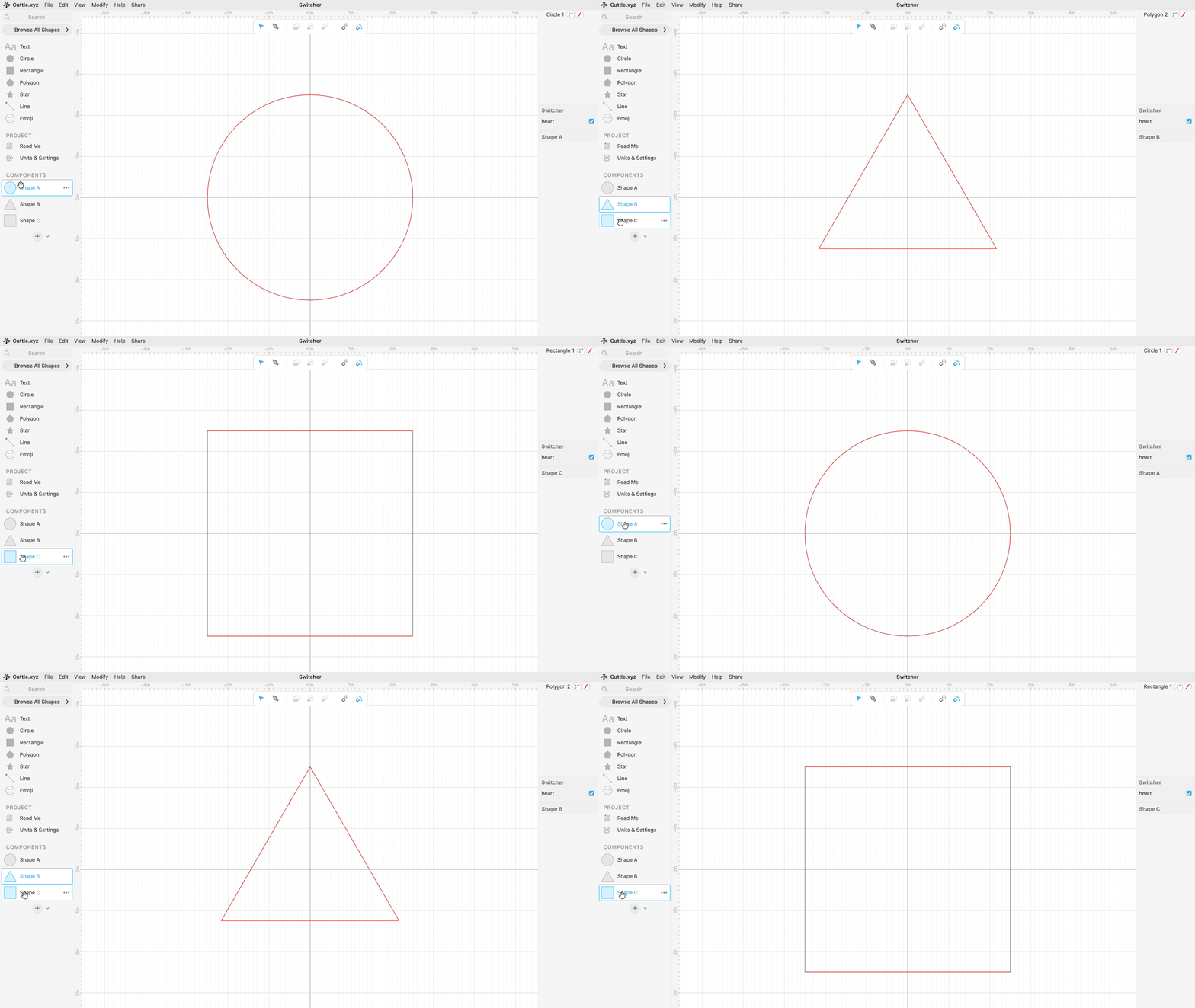
- Create an additional component, as an example we can call it
Shapesbut it can have any name that you want. Now go to to the search bar, type “switcher”, find it in the Advanced section then drag it to the center of the canvas.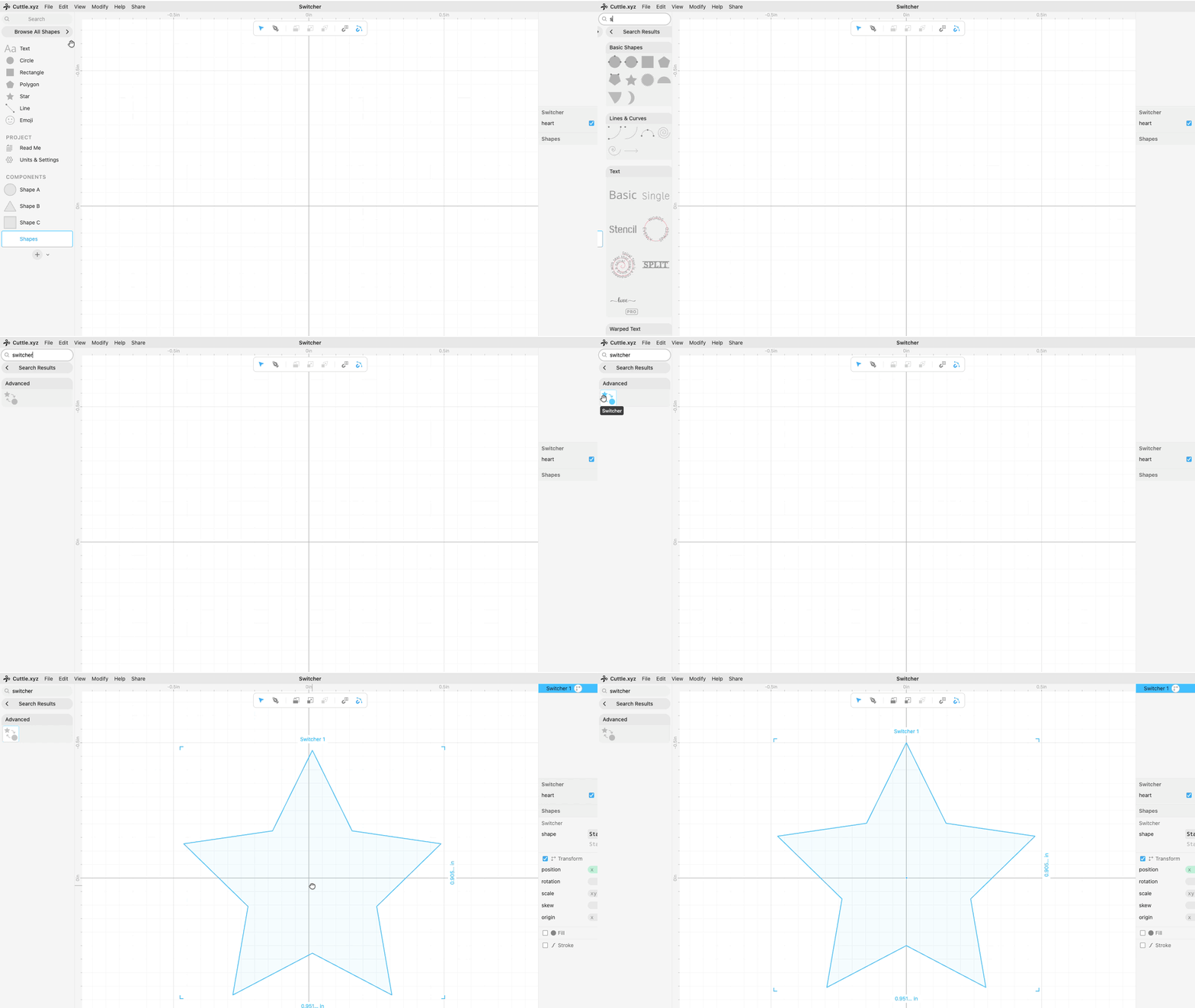
- When you have the Switcher component selected you’ll see there is a parameter on the right hand side called
shapewhere we can type any of the existing component names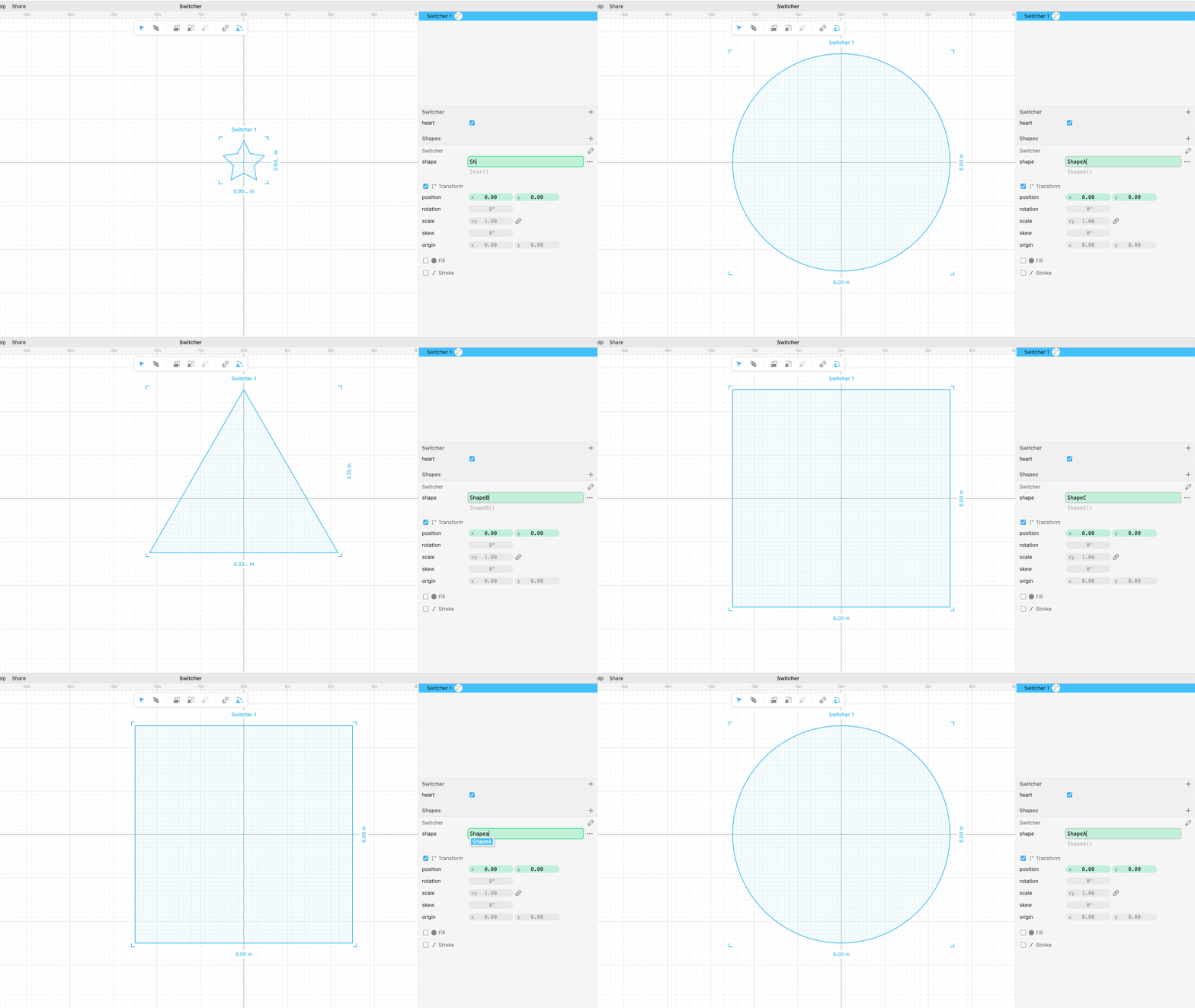
- Now we can create a new parameter, we can call it
shapeSelectionand change the parameter type to Select. This will present us with a window where we can edit the options.
- Write each option on a new line, for this example we’ll use the more descriptive names of each shape: circle, triangle, square (instead of Shape A, Shape B, etc).

- Now select the Switcher and type this expression in the
shapeparameter{ "circle" : ShapeA, "triangle": ShapeB, "square" : ShapeC, }[shapeSelection]
This is a compact way to tell the Switcher to use the current selection on the shapeSelection parameter:
- if the user selects “circle” then use the component
Shape A - if the user selects “triangle” then use the component
Shape B - if the user selects “square” then use the component
Shape C
If you are curious this is called a “lookup table” in JavaScript which is the language used inside of Cuttle.
Creating additional options
You can always add more choices to the selection. For example if you want to add a star shape:
- Create a new component
Shape Dwith a star shape in it. - Go to the
shapeSelectionparameter, click on the 3 dot menu, and click on Edit Select Options… - Add “star” to the list and click on Set Options
- Modify the expression on the Switcher parameter with the additional key (the name) and value (the component) pair, like this{ "circle" : ShapeA, "triangle": ShapeB, "square" : ShapeC, "star" : ShapeD, }[shapeSelection]