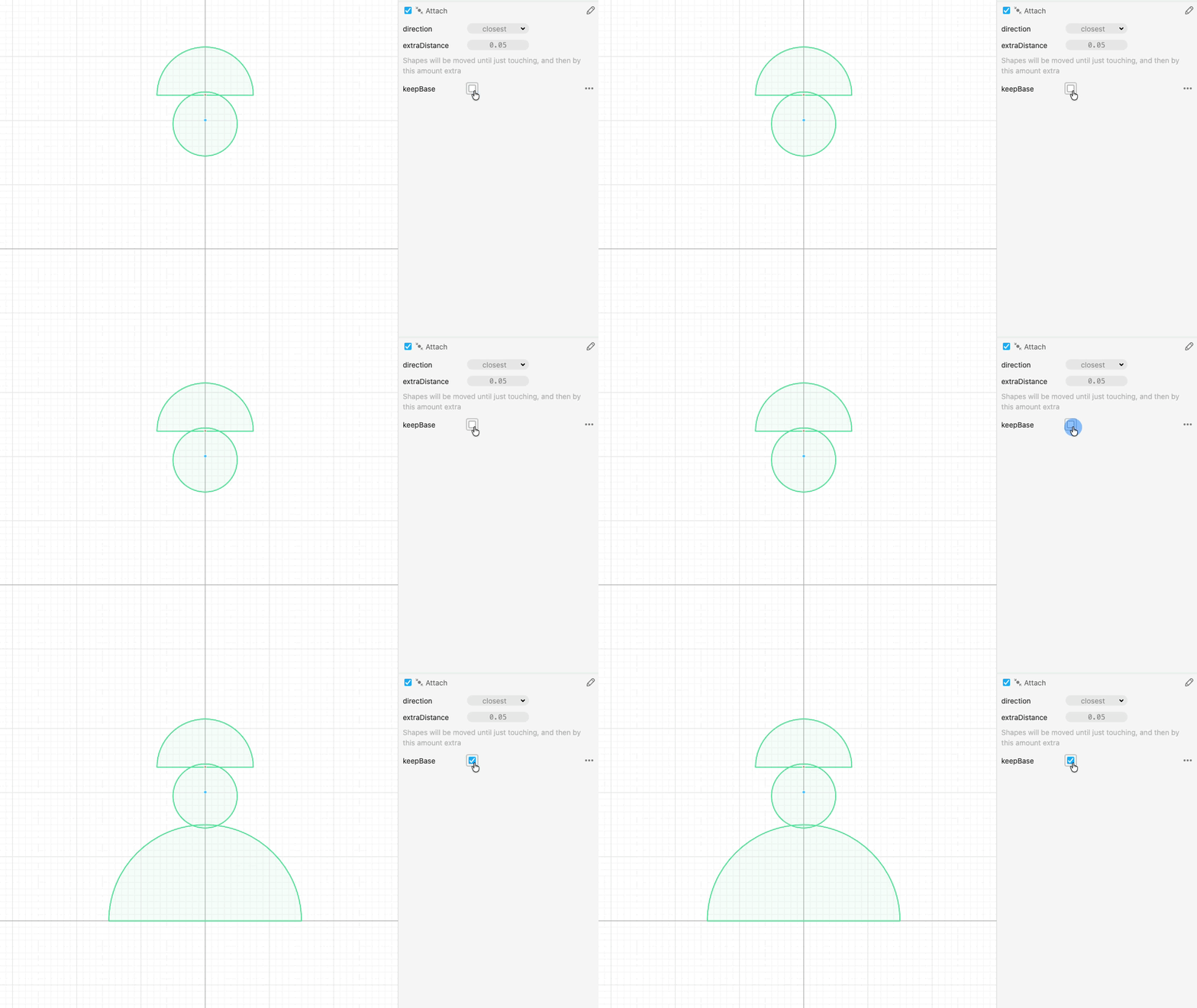
Attach
Cuttle’s Attach modifier automatically positions shapes so they touch or overlap. You can control the overlap amount and relative position. Attach does not weld shapes together. It only moves them into position, allowing you to choose how to treat them.
How to use it
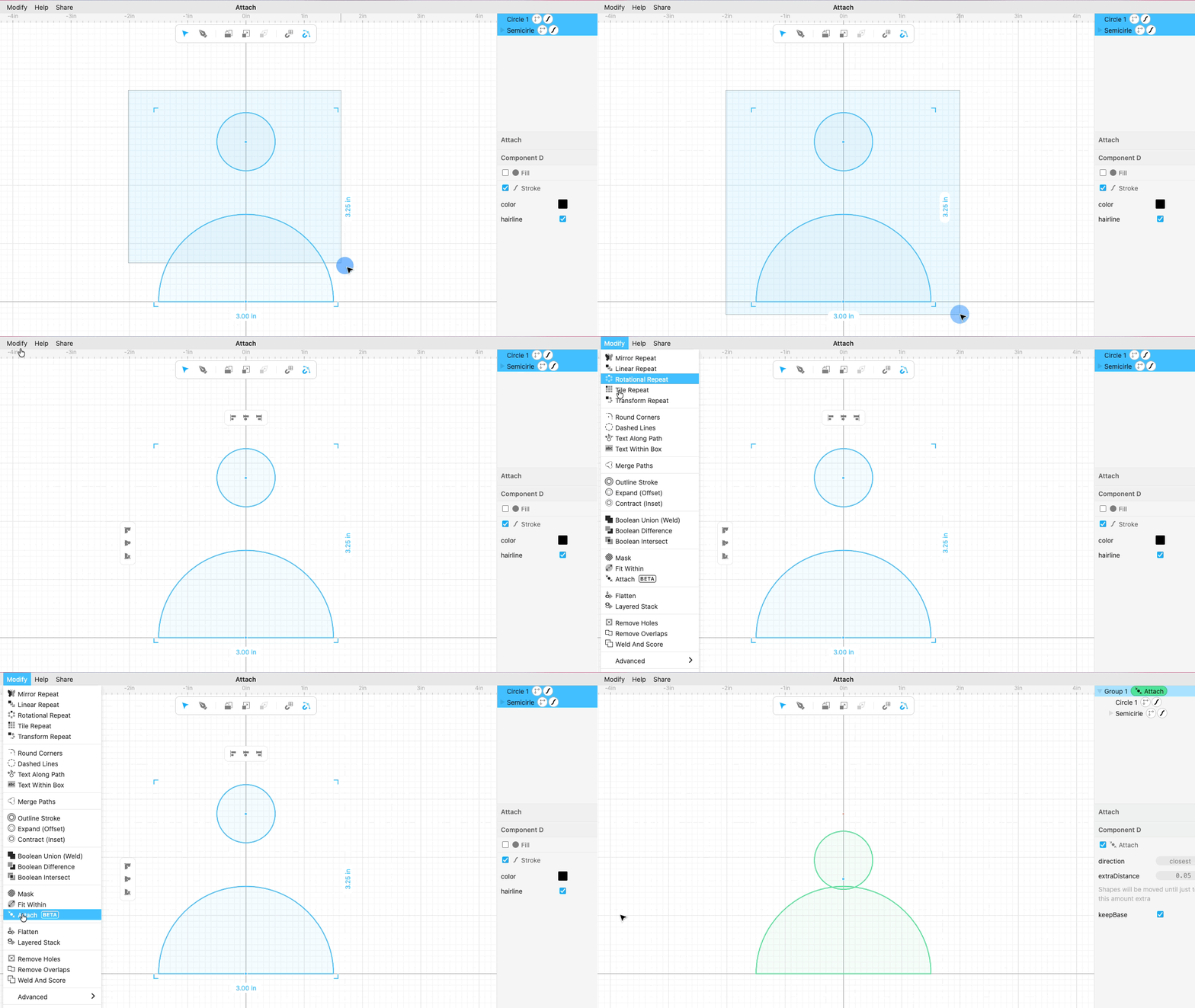
Select two or more shapes then go to Modify > Attach
The bottom shape will be the anchor or base shape, which all other shapes attach to.
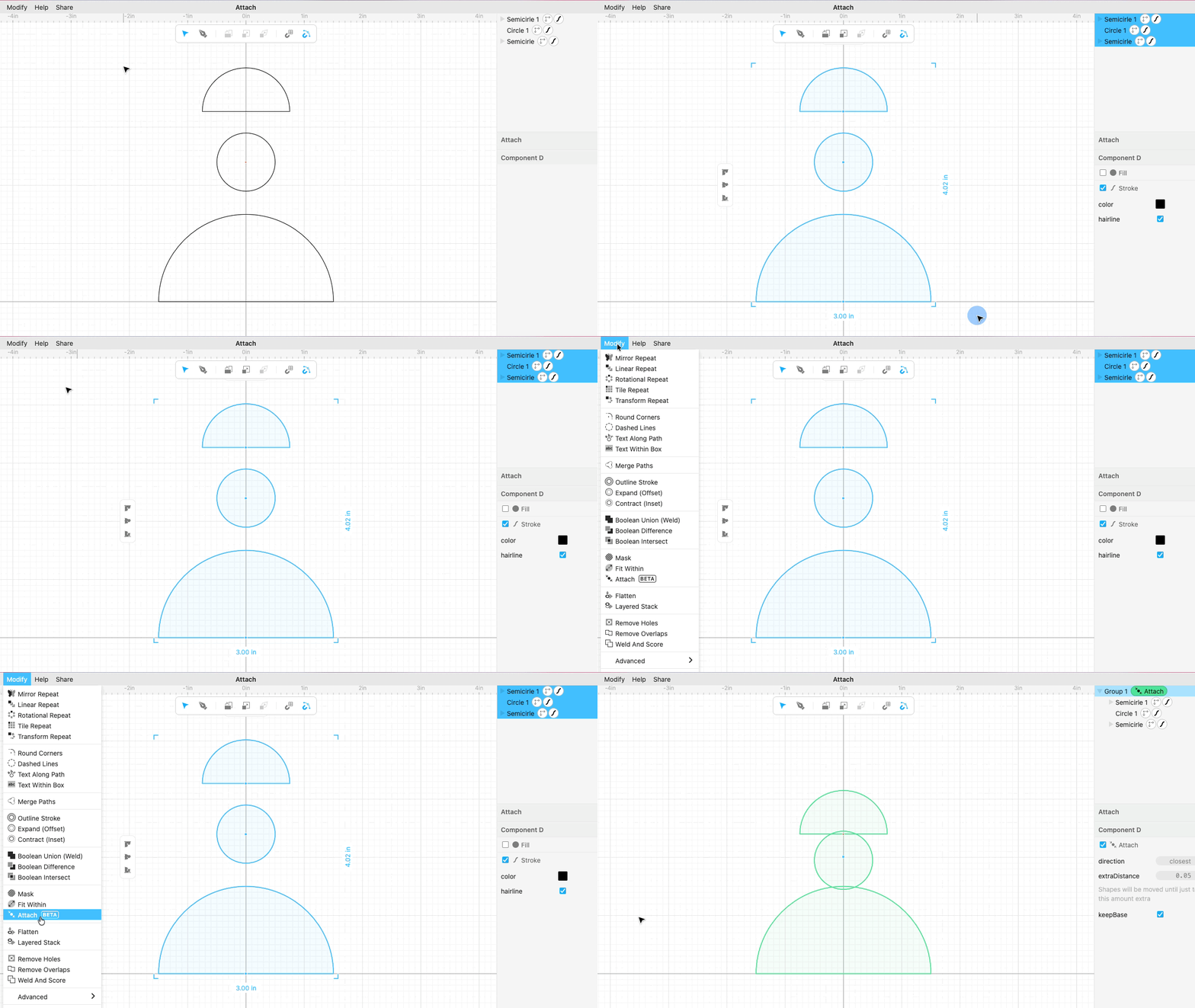
If you select more than two shapes they will attach to each other in the order they appear in the outline, from the base shape at the bottom to top of the stack.
Direction
Controls which direction shapes move to meet the base shape.
- closest - attach will find the shortest path to meet the base shape.
- horizontal - attach will move the shapes horizontally first, and if it doesn’t meet the base shape it will default to closest.
- vertical - attach will move the shapes vertically first, and if it doesn’t meet the base shape it will default to closest.
Extra Distance
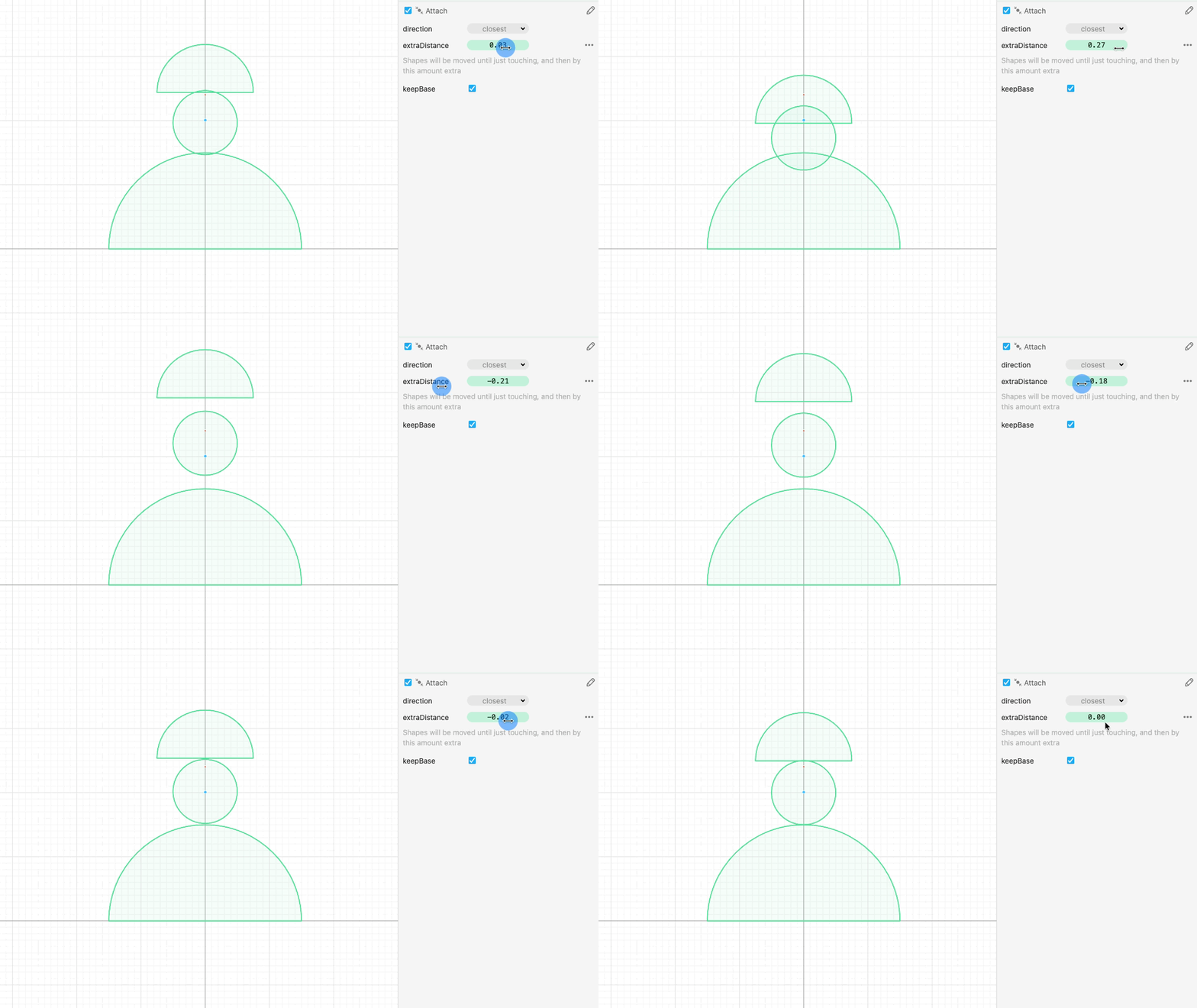
Controls how much the shapes overlap with each other. This is useful when you want to weld the shapes and you want to create a solid connection point. Set this parameter to 0 if you want the shapes to just be touching, or to a negative number is you want to leave a gap in between.
Keep Base
When keepBase is unchecked, it hides the base shape. This is useful when you only want to set the position of the other shapes, and then want to modify then in other ways that don’t affect the base shape.