Guides
Creating horizontal and vertical guides
Drag out from the ruler to create horizontal or vertical guides.
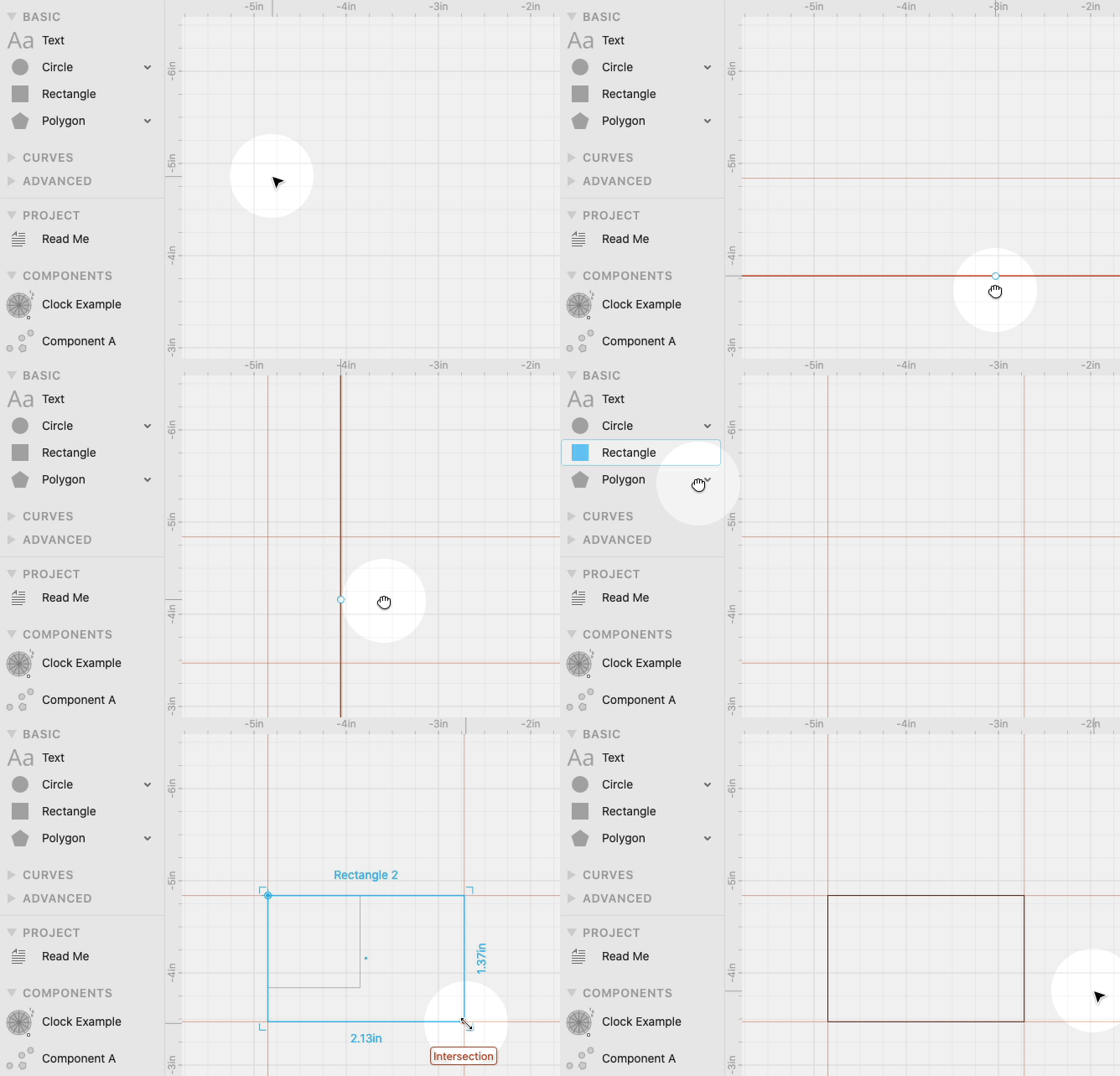
You can snap to guides (as long as you have Geometry Snapping turned on).
Modifying and deleting guides
Like any other shape, guides appear in your Outline and you can select them by clicking them in the canvas.
Once selected you can drag them around or delete them by hitting delete.
Guide options
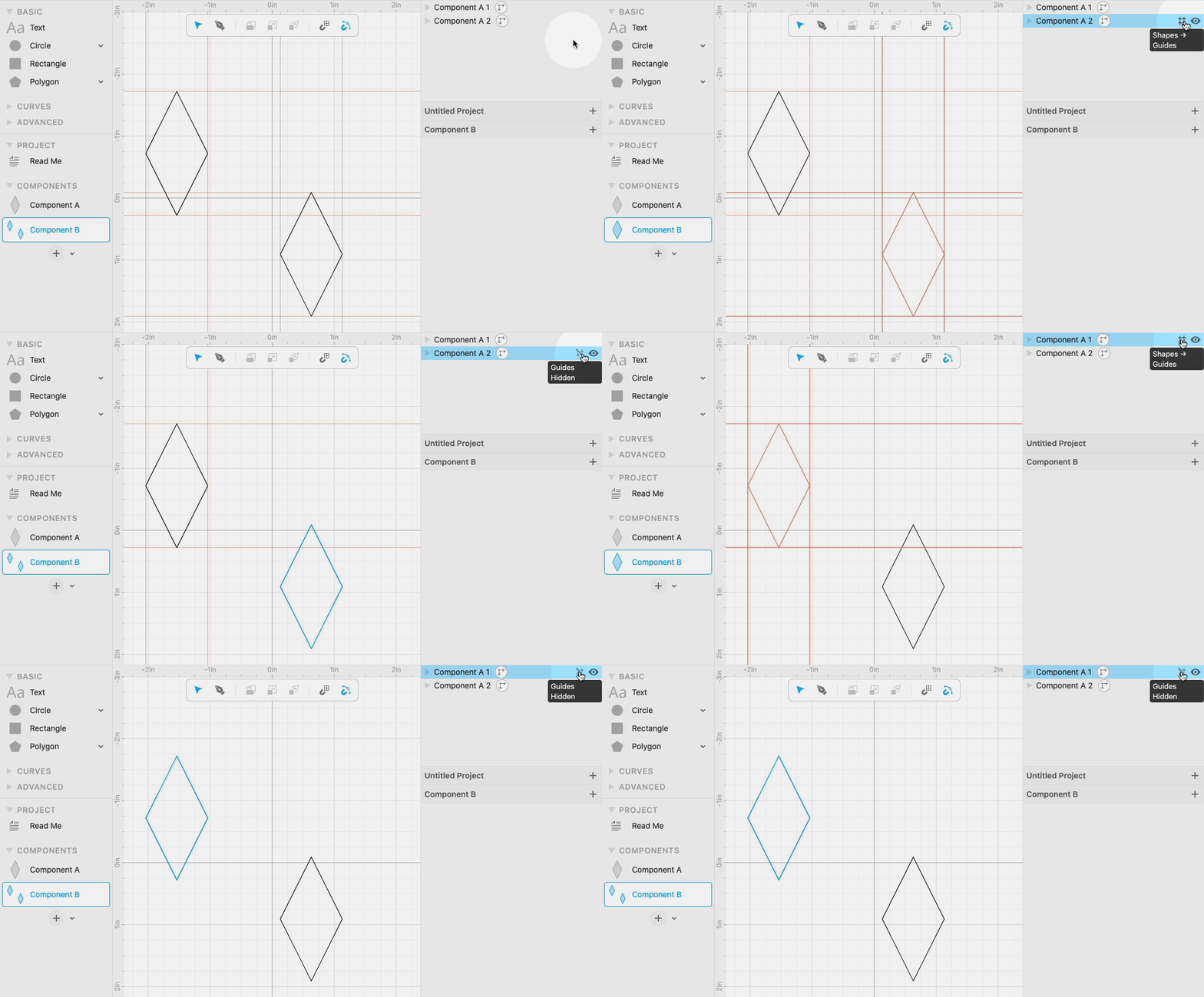
In the Outline, for each shape there is a 3-way guide toggle next to the visibility toggle.

The three options are:
- Guides Visible. This is the default.
- Shapes → Guides. Use this to make your own custom guides.
- Guides Hidden. Use this to selectively hide guides.
Making custom guides
Unlike other graphics editors, in Cuttle any shape can become a guide!
By selecting Shapes → Guides in the guide toggle, your shape will become a guide.
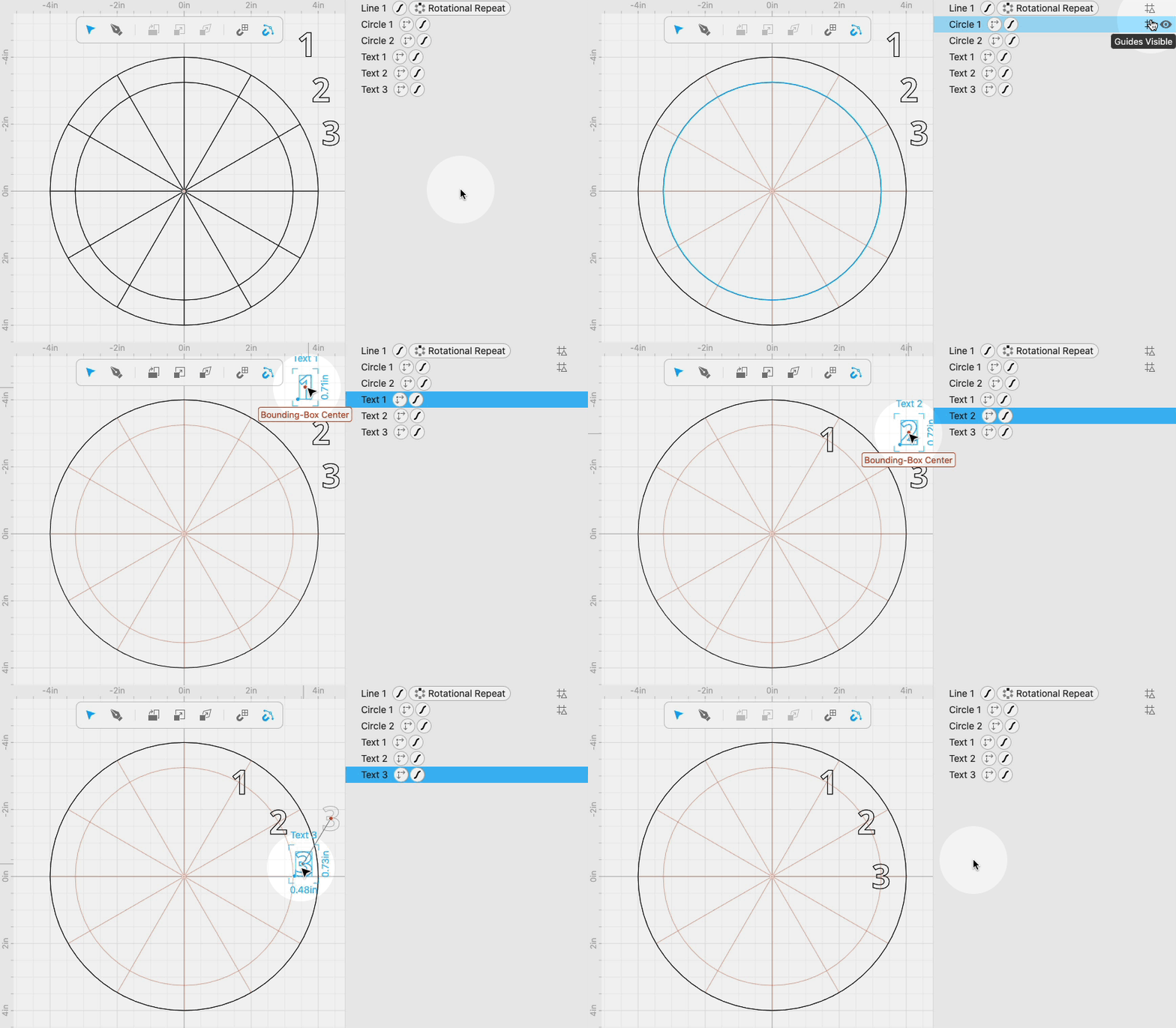
Guides will not be exported. Also they are not seen by modifiers. Guides are only for visual reference and snapping.
Selectively hiding guides
Some shapes and modifiers create their own guides.
For example, Circle and Polygon have a guide point at their centers.
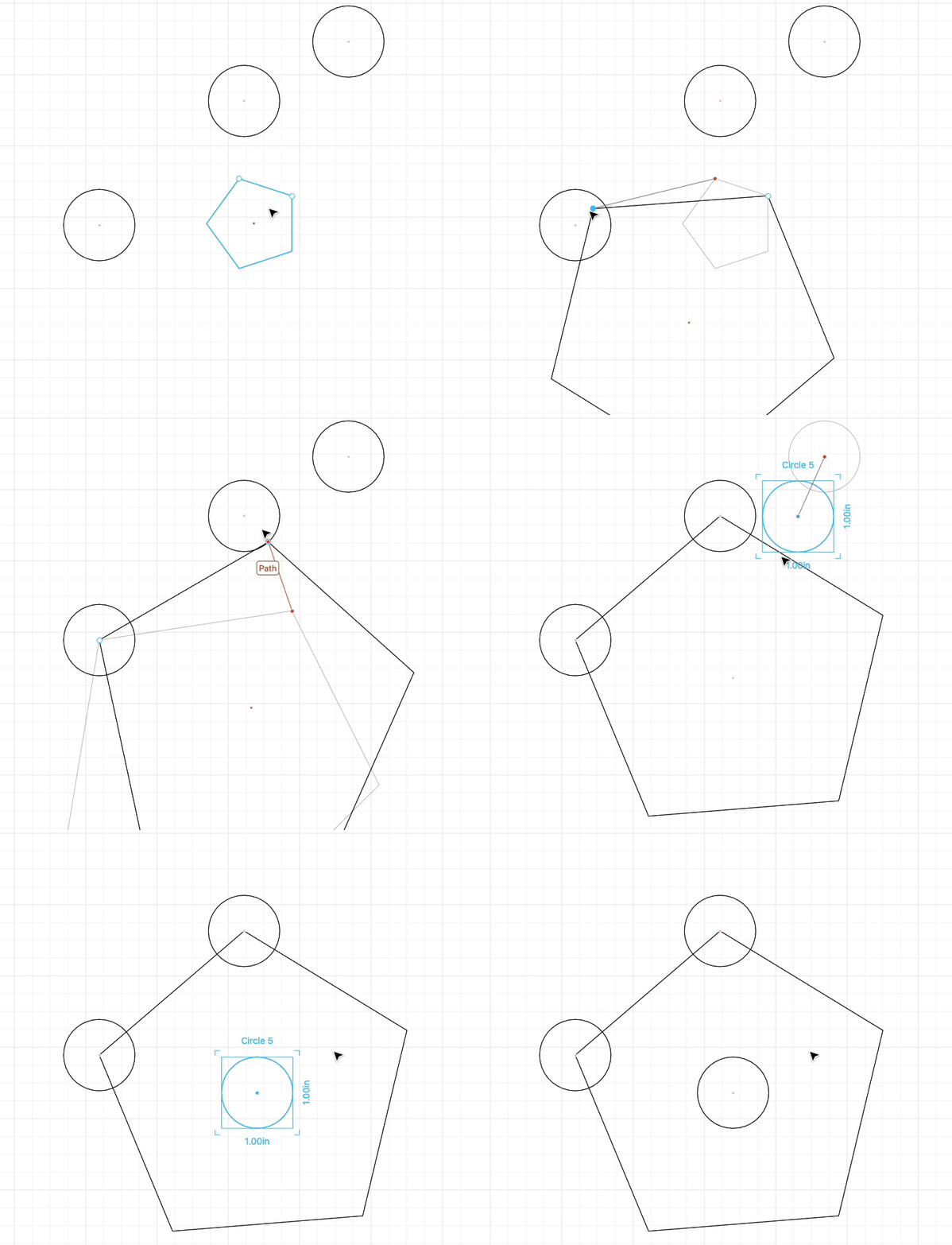
Mirror Repeat will draw a guide for the mirror line.
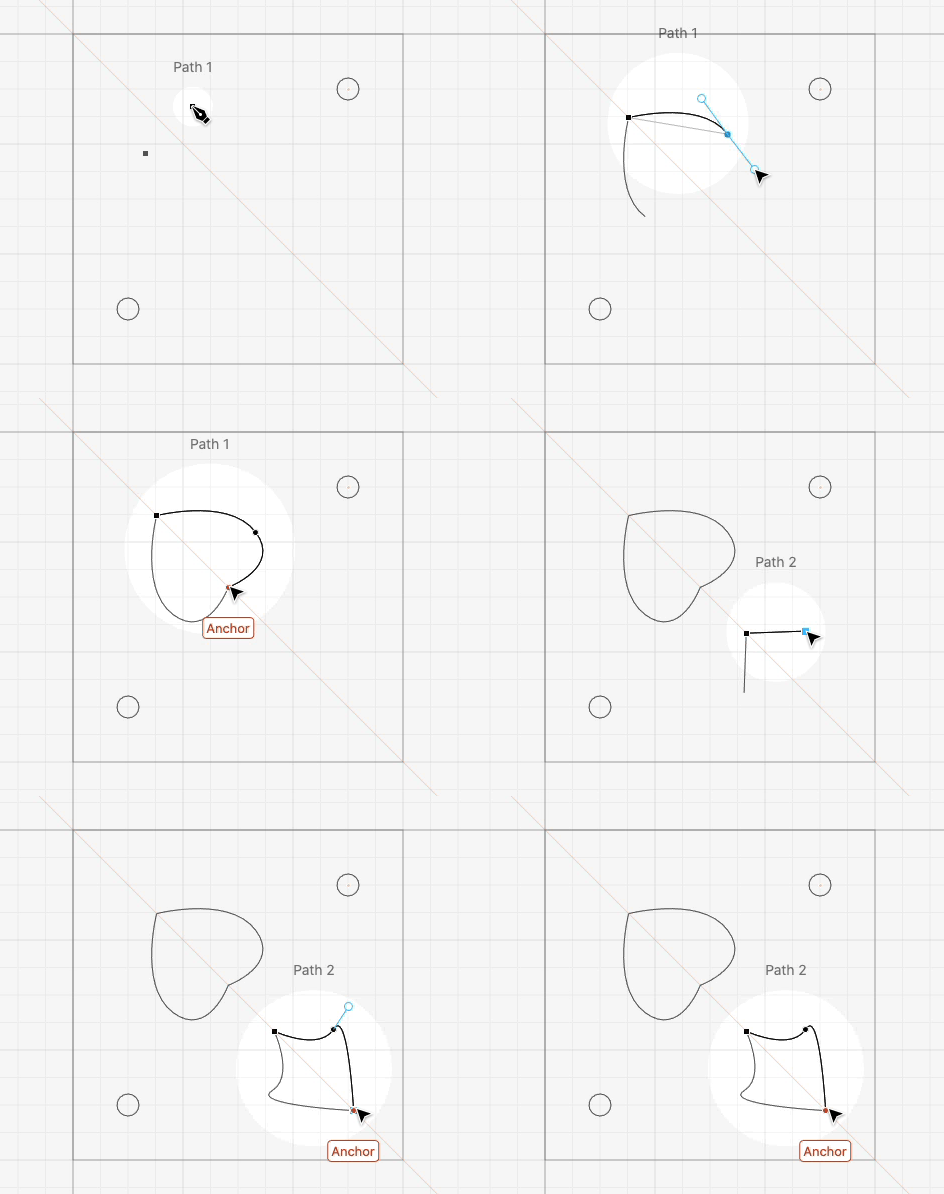
These guides enable you to snap to these features.
If you want to hide these guides, set the guide toggle to Guides Hidden.
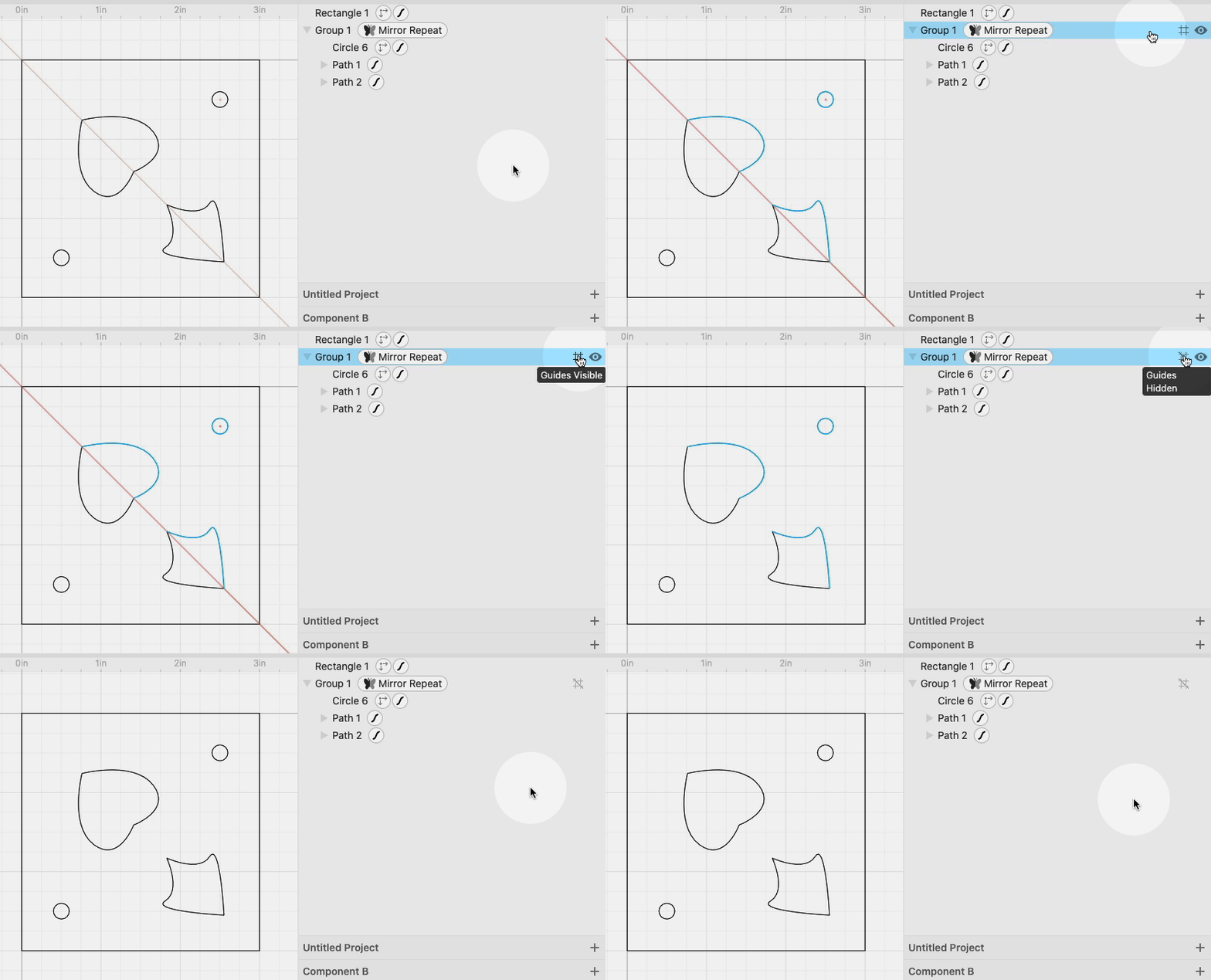
Hiding guides can also be useful when using components. For example, say you used guides to lay out a component:
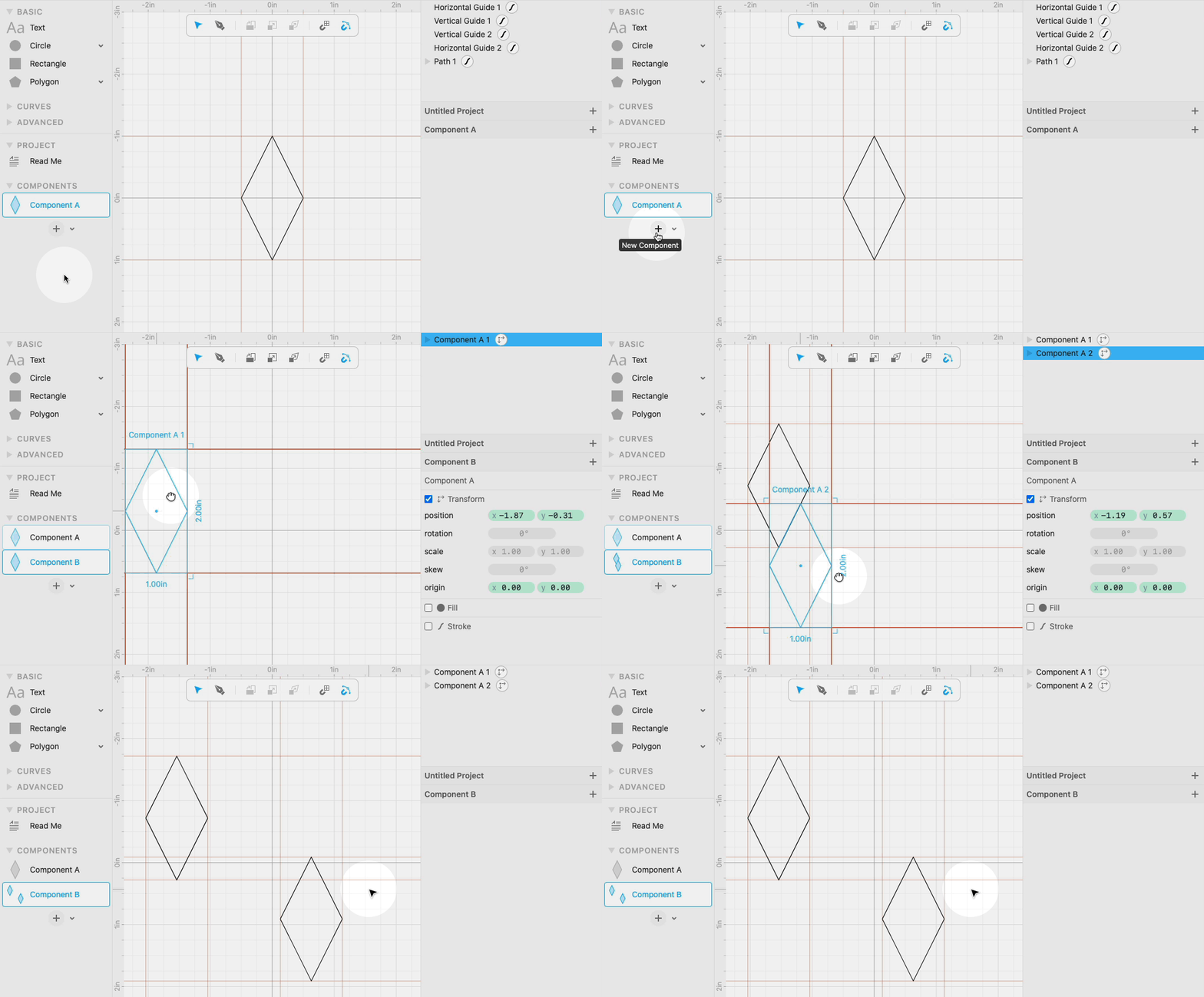
When you drag this out into another component, you’ll see the guides with it.
If you want to hide these guides, set the guide toggle to Guides Hidden.