Warped Text
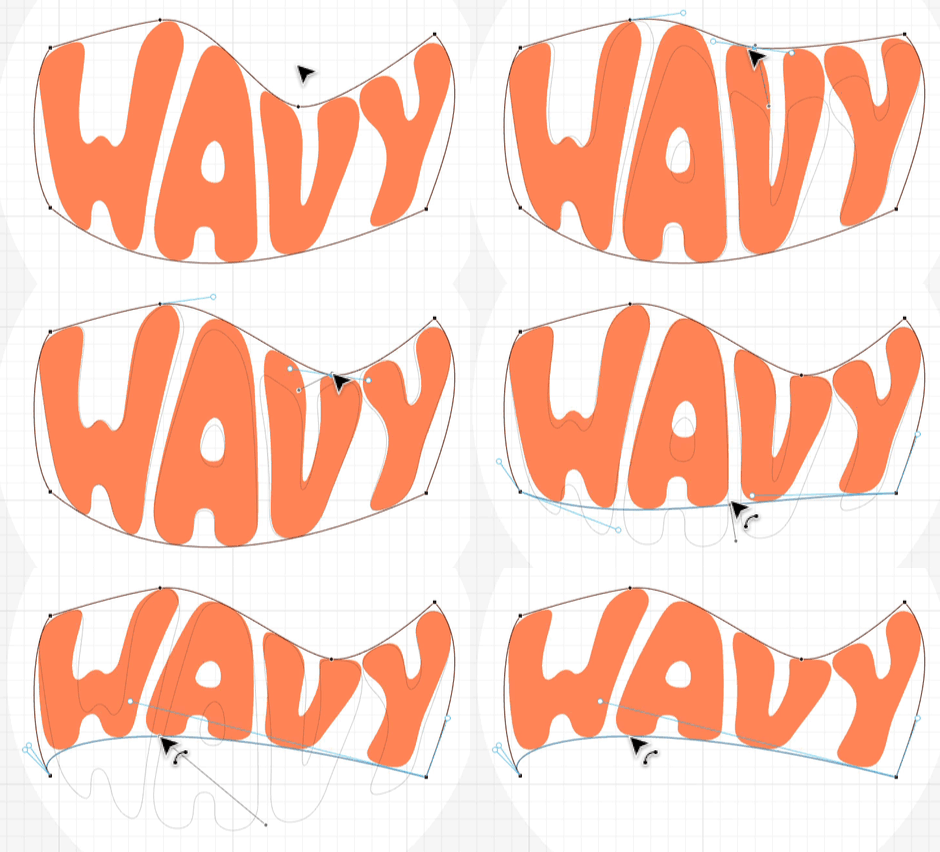
Cuttle’s Warped Text feature lets you make text warp to fit inside an arbitrary shape.
How to use it
To use Warped Text in the Cuttle Editor, click Browse All Shapes and then drag out a shape from the Warped Text category.
The Custom shape sets you up to manipulate the rectangular “warp envelope” directly, like in the above “WAVY” example.
Alternatively, you can create a warp envelope first, and then do Modify > Advanced > Warped Text.
Your warp envelope must have at least 4 anchor points in it. If you have more than 4 anchors, Warped Text will automatically find the 4 sharpest corners to use as the corners for the warp. Warped Text works best when you have a relatively smooth and not too complicated warp envelope.
Align and stretch
The align and verticalAlign parameters determine how text is placed and sized within the warp envelope.
These are best illustrated with some examples.
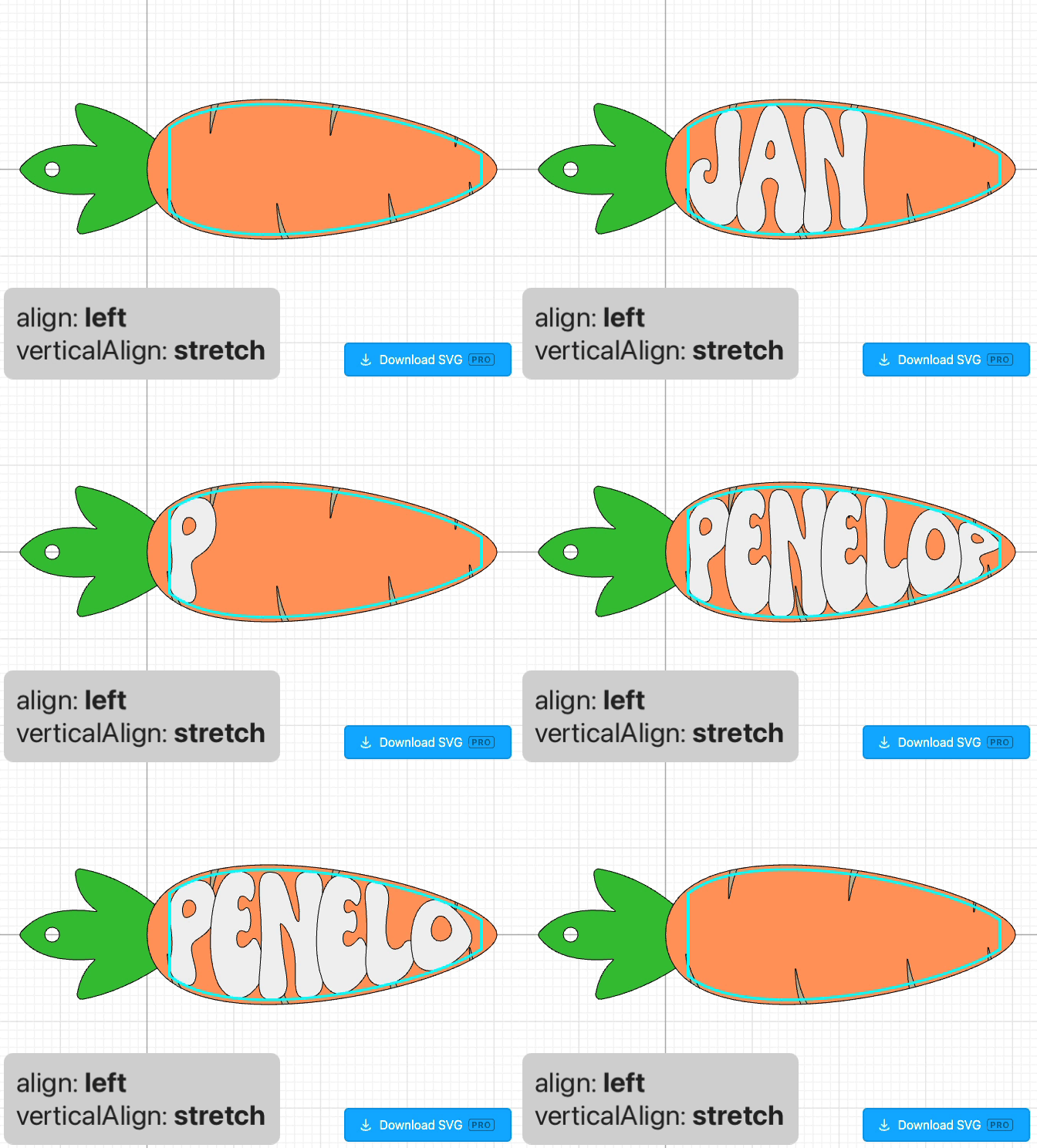
The Carrot template has align set to left and verticalAlign set to stretch. So shorter names will align to the left, while longer names will take up the whole carrot. Vertically, the name will always stretch to fill the entire vertical area.
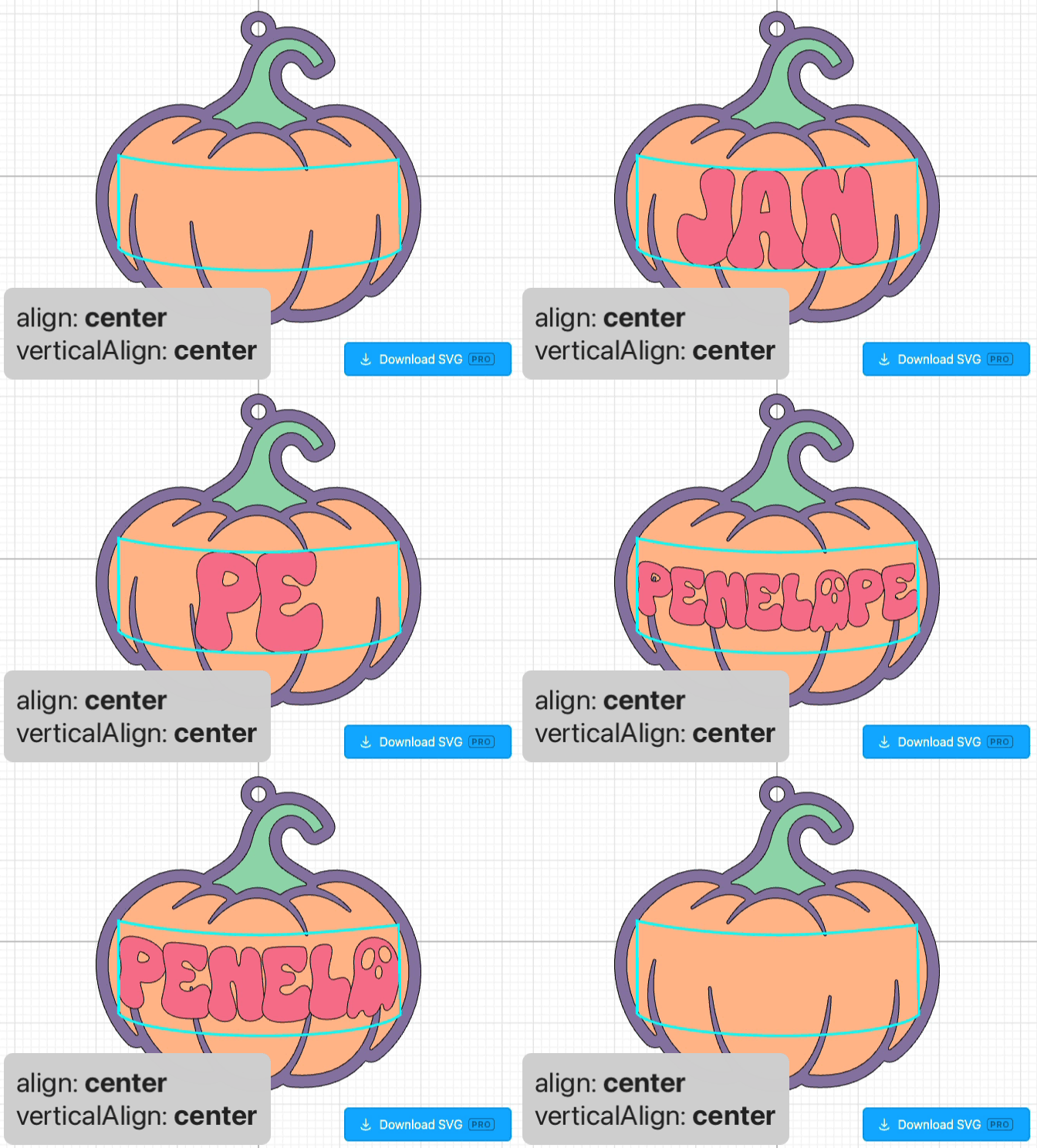
The Pumpkin template has both align and verticalAlign set to center. This keeps the name centered while the font scales uniformly. So it won’t stretch for longer names, it will just get uniformly smaller so that the name fits.
The Shark template has both align and verticalAlign set to stretch. This means the name will always stretch to entirely fill the warp shape. Very long or short names will tend to become more distorted here, but it works if you pick a bubbly font like this that reads well at different “stretch” ratios.
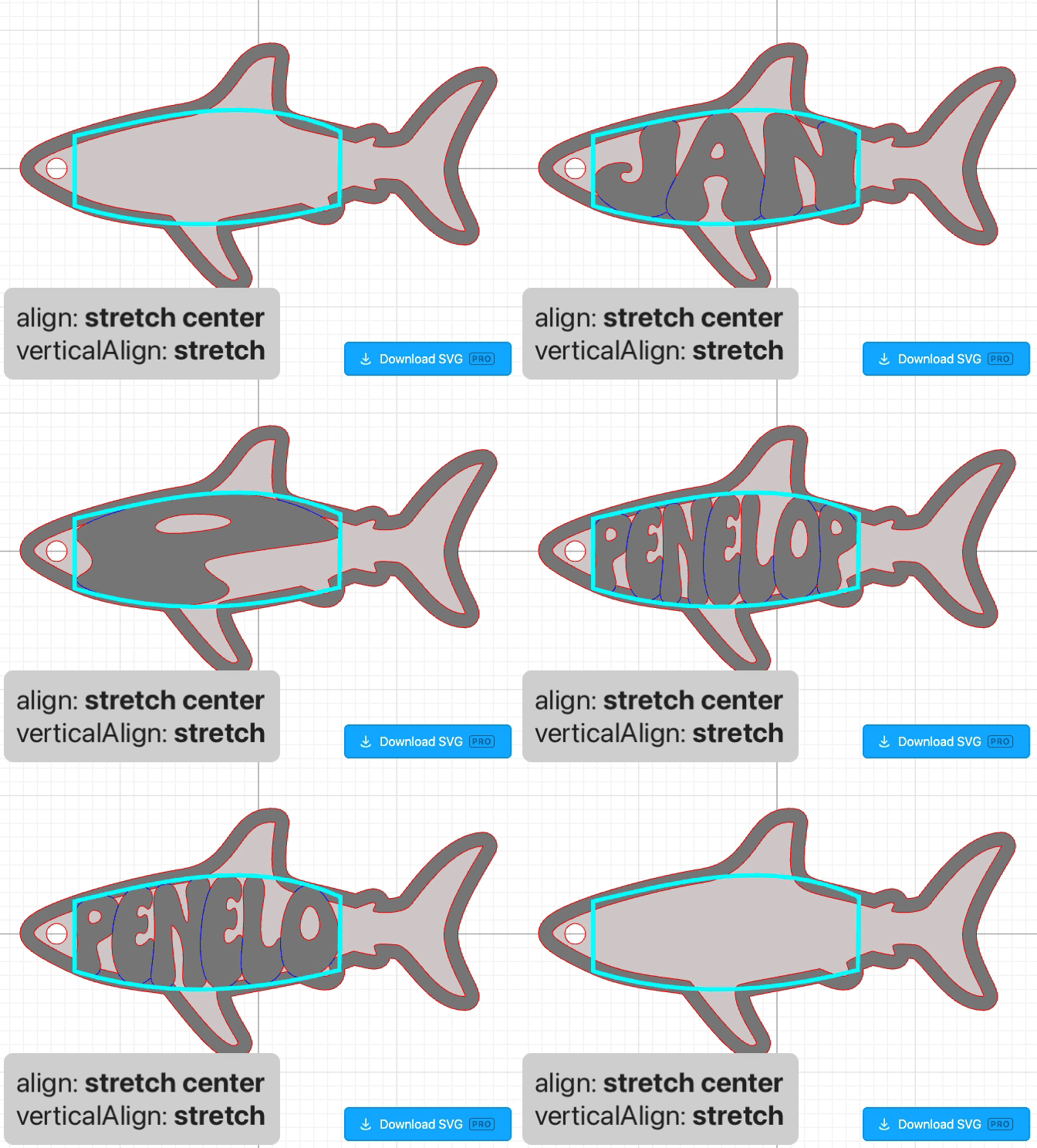
You may notice align has stretch left, stretch center, and stretch right as options. These all do the same thing if you just have a single line of text, but if you have multiple lines of text they will align the lines accordingly.
In a previous version, Warped Text was always stretched. These new alignment parameters give you more control over the behavior for long and short names.
Orientation
There is an orientation parameter in Advanced.
The default value is “upright” which will make your text always read right-side up. This is useful when creating warp shapes using Booleans and other modifiers.
You can choose “fixed” if you want manual control. This will let you rotate your warp shape and have your text follow.