Dog Bone for Missa's Dog Ornaments
 Cuttle Official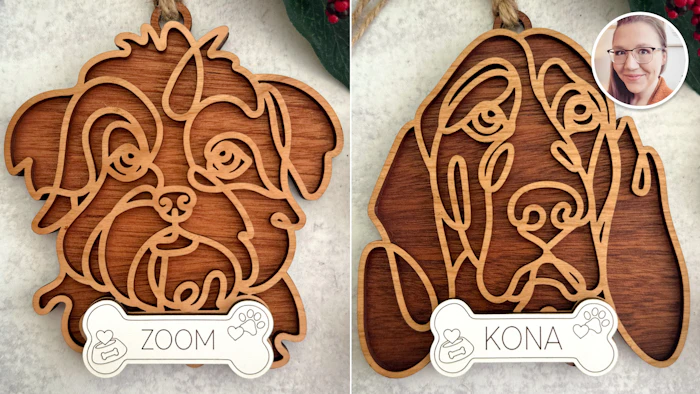
Type a list of names to instantly generate dog bone personalizations for Missa's popular Line Art Dog Ornaments. The names are automatically sized and centered.
This template just makes the bones! You'll also need to purchase Missa's Line Art Dog SVGs from her Etsy shop. She has 100+ breeds available, in bundles or individual breeds.
Use coupon code CUTTLE20 for 20% off!
We're excited to collaborate with designer Missa Daigger on this release!
She’s created unique dog illustrations that are perfect for laser cut ornaments or framed artwork.

Each of these designs has a spot at the bottom for placing a bone with the dog's name, to personalize the ornament. That's what this template generates!
Simply type the names of the dogs and this template will generate an SVG with all the dog bones — ready to cut and compatible with Missa's ornaments.
Scale Issues
When cutting the dog files downloaded from Missa’s Etsy, we recommend working with her PDF files. Sometimes the SVG files get imported at 75% scale due to a quirk with how SVGs export from Adobe Illustrator.
The bone should measure 2.679 in by 1.109 in.

Scaling down your ornaments
The Dog Ornaments are nice and large, around 5" high. Some makers prefer making smaller ornaments.
To do so, we recommend picking a percentage and always scaling everything by this percentage amount.
For example, you could choose to scale everything by 80% so the ornaments are around 4" high.
You could then set the scale parameter on this template to 80% to have it automatically generate dog bones for your 80% sized dogs.
The reason it's easier to scale everything by a fixed percentage amount is that then no matter what breed you cut, the bone will be the same size.
In order to scale the dog ornaments by a fixed percentage, follow these instructions:
How to scale by a fixed percentage in Glowforge
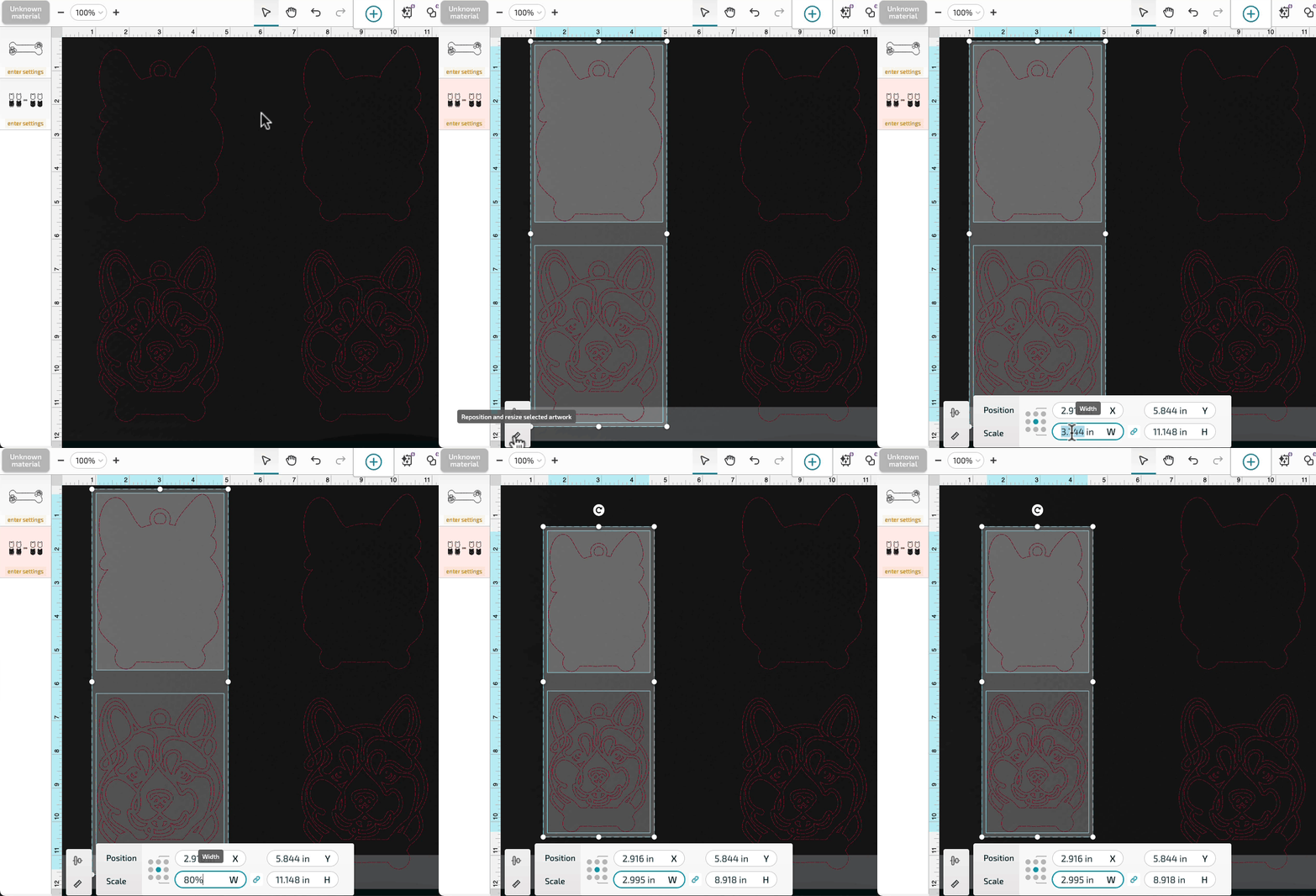
We recommend importing the PDF of the dog into Glowforge to ensure you're starting with the proper scale.
Select the artwork by dragging a selection rectangle over both the front and back layer of the dog.
Click the Ruler icon in the bottom-left to open the "Reposition and resize" settings if it's not already open.
Select the number within the "W" field. Type
80%and press enter.
How to scale by a fixed percentage in Lightburn
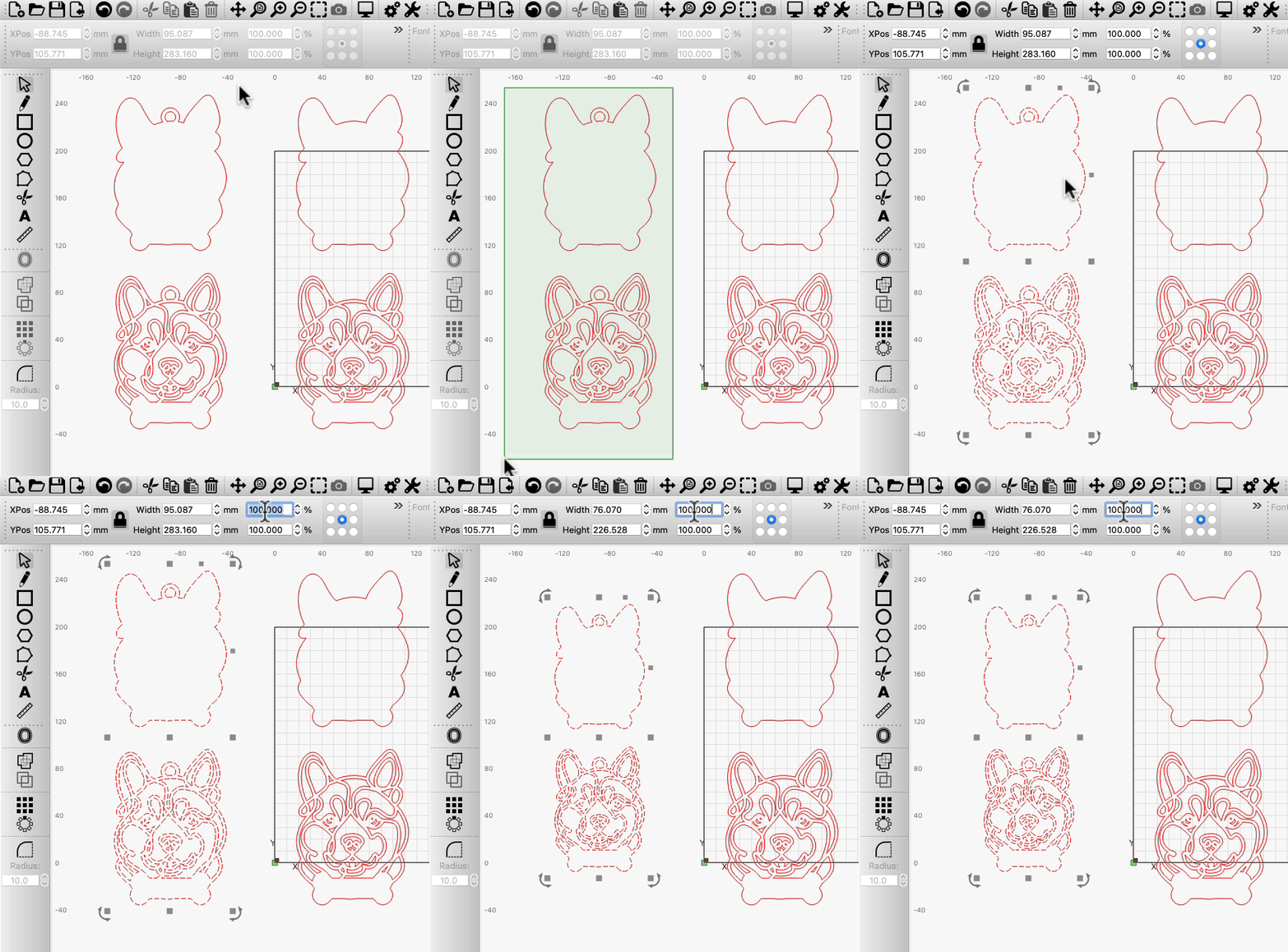
We recommend importing the PDF of the dog into Lightburn to ensure you're starting with the proper scale.
Select the artwork by dragging a selection rectangle over both the front and back layer of the dog.
In the top toolbar, look for the Width and the field that says 100.000 %. Select this field, type
80, and press enter. (Make sure the Lock icon is enabled, so both the width and height scale uniformly.)