Connected Text
 Cuttle Official
Connect text together so that it can be cut out in one piece. Dots on i's are automatically joined, letters are pressed together, and so on. It works instantly and you can use any font!
This template is just a demo for Cuttle's Connected Text shape which can be used in any project!
How to create connected text in the Cuttle editor
In the Cuttle editor’s left sidebar, click Browse All Shapes and look in the Text category.
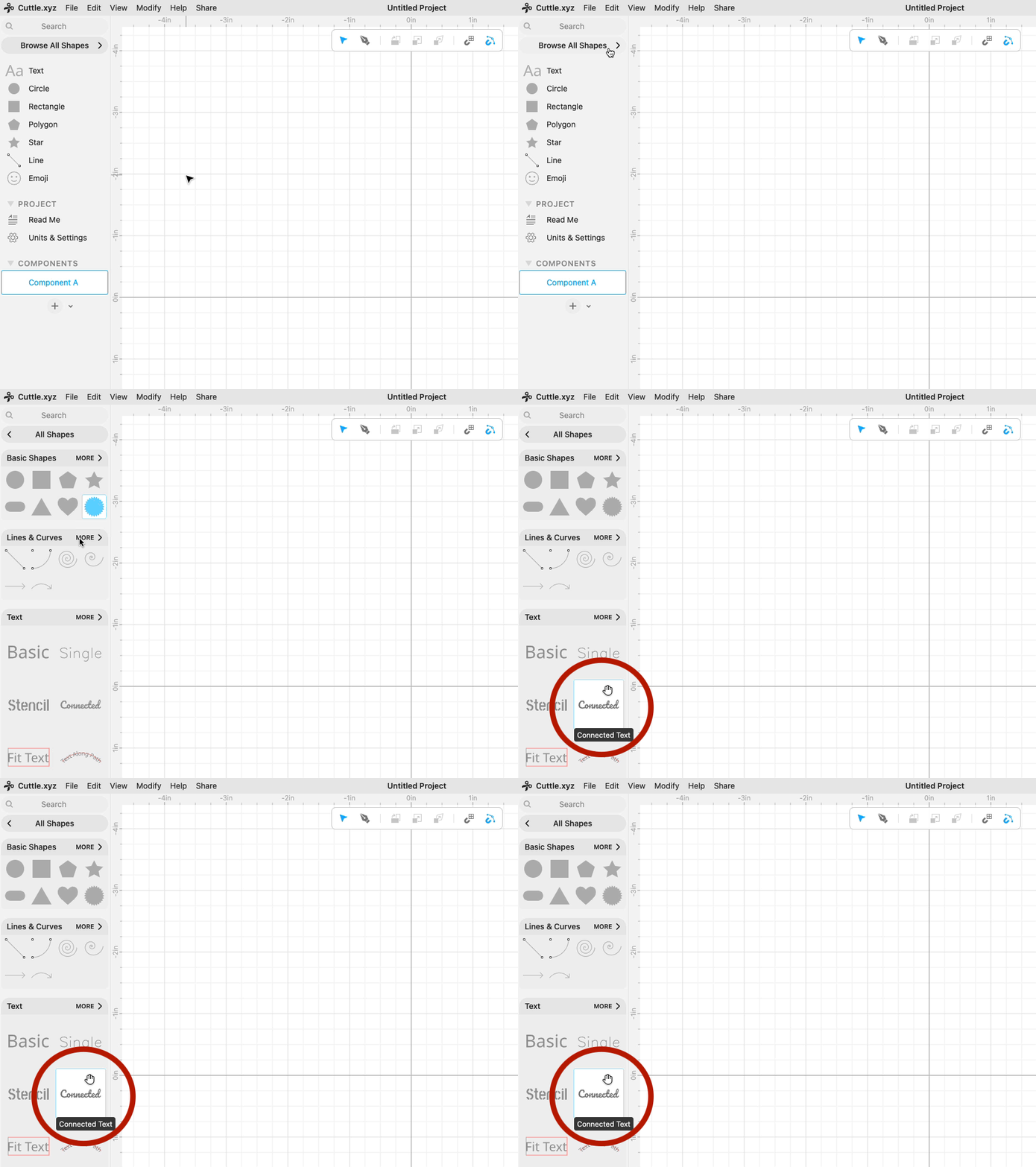
Drag out a Connected Text shape onto the canvas.
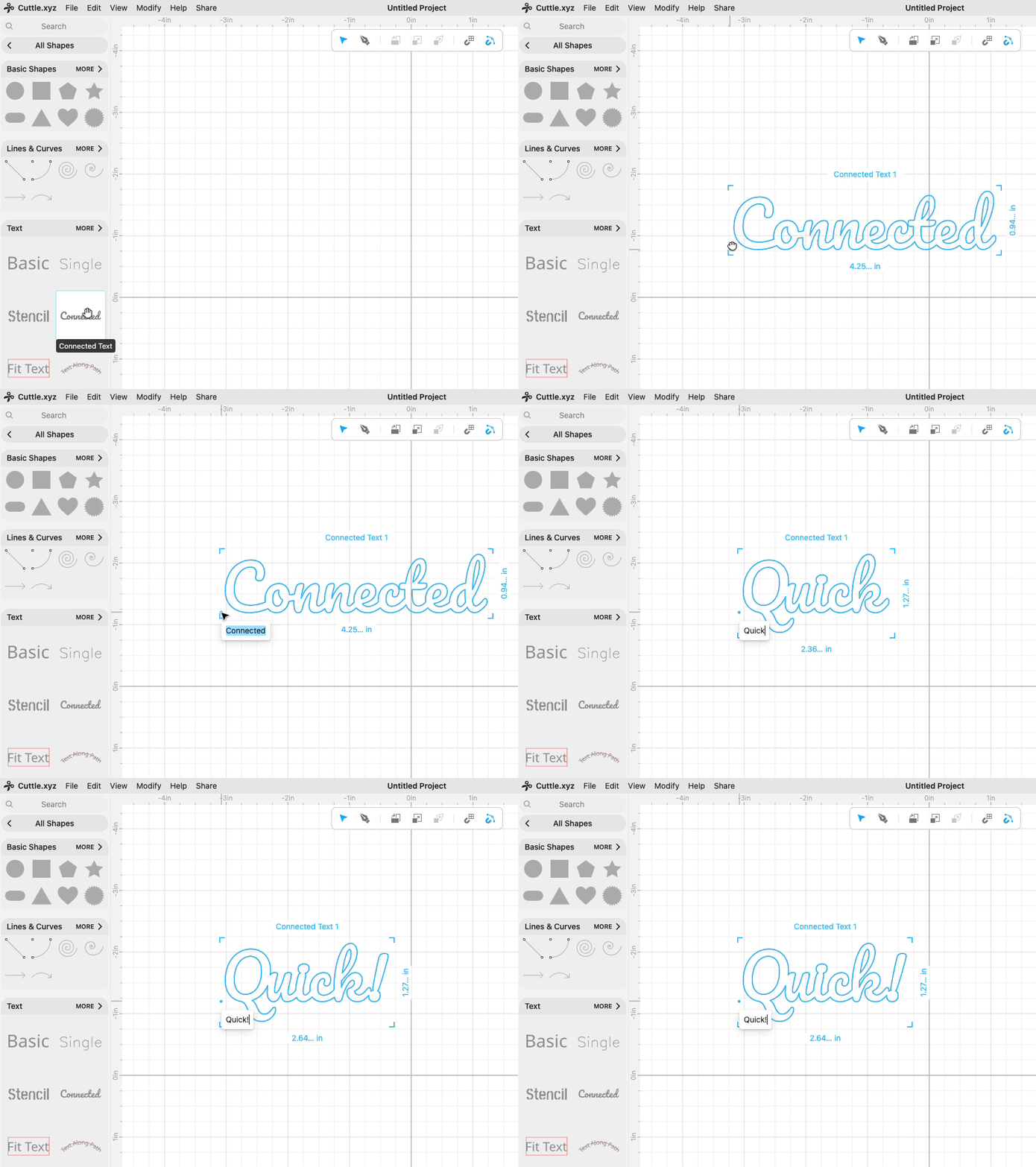
Type your text and it will be automatically connected!
You can change the font in the inspector (right side panel).
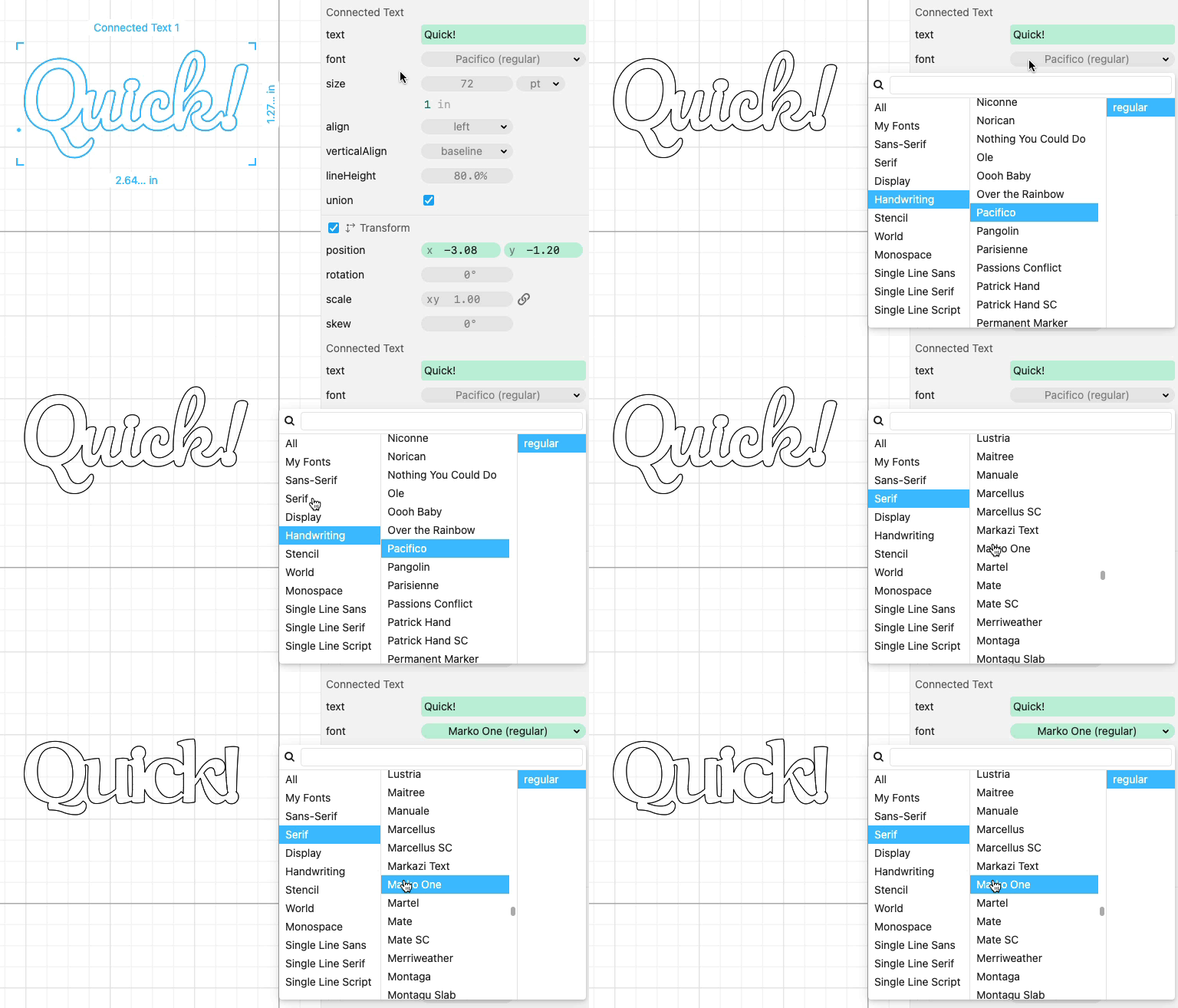
The feature works with any font, including custom fonts that you upload.
How it works
We developed an algorithm that finds and joins the individual shapes of text.
First, it connects each individual character. It move the dots of an i or j or ! (or accents) towards the main part of the character until they touch.
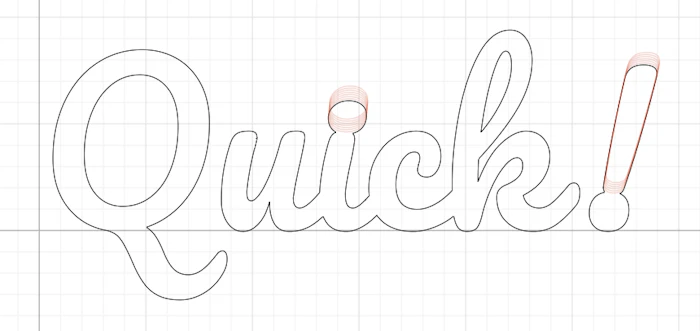
Then, each character is shifted to the left until it overlaps the previous character.

We also have custom logic to connect punctuation like apostrophes and quotes.
In our tests with various fonts and text, this algorithm has worked really well. If you find a font and text combination that doesn’t meet your expectations, please let us know! We’ll collect these test cases and use them to improve the algorithm.
How to thicken text
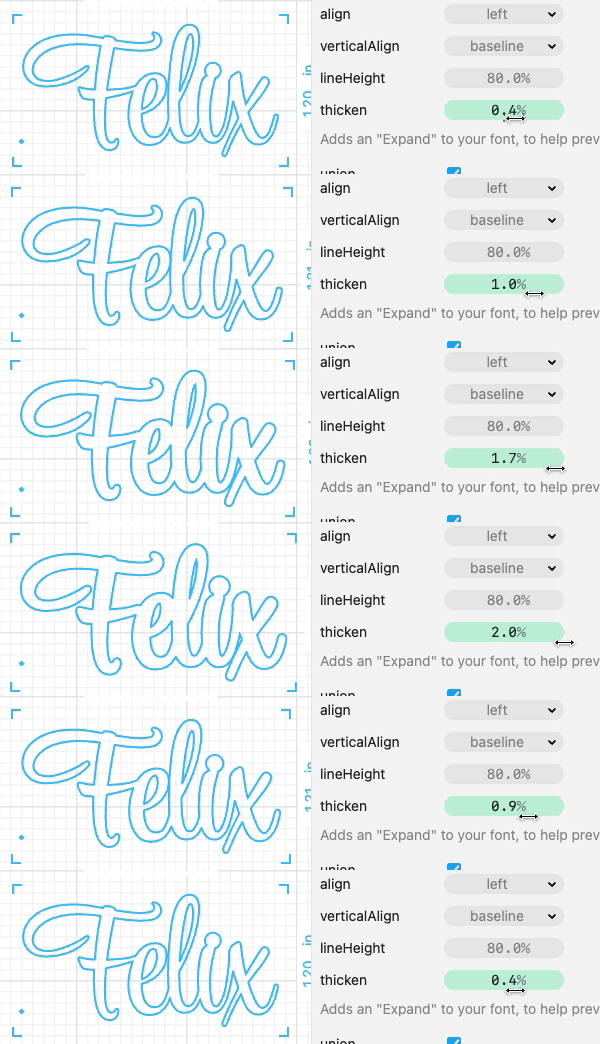
Sometimes a font is delicate and you'd like to make it a bit thicker so the piece is stronger.

To do this, just adjust the thicken parameter. Bumping it up to 1% or 2% is usually enough. 💪
How to connect multi-line text
Make new lines in your text simply by typing Enter.
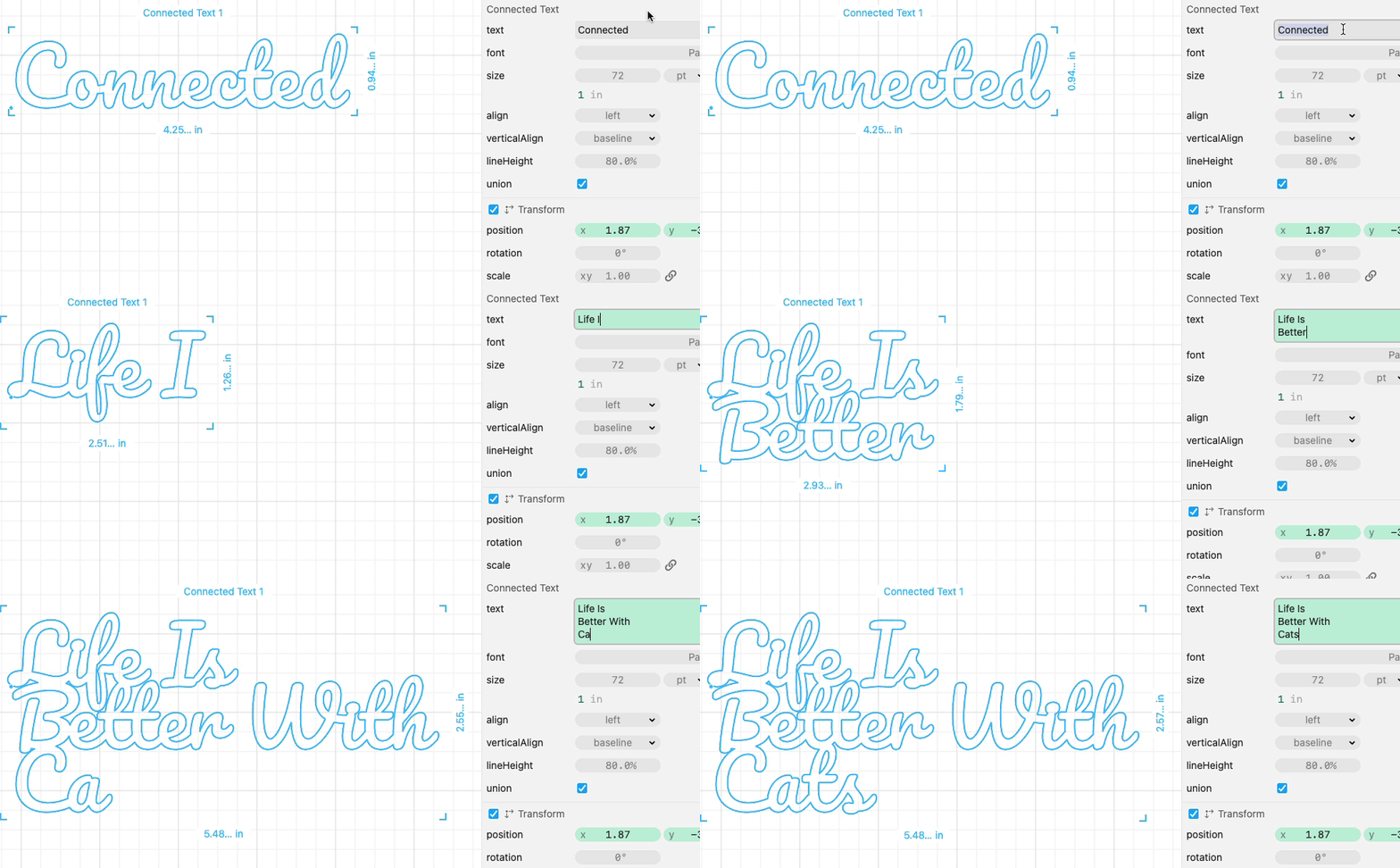
You can type spaces or use the align parameter to adjust the horizontal positioning.
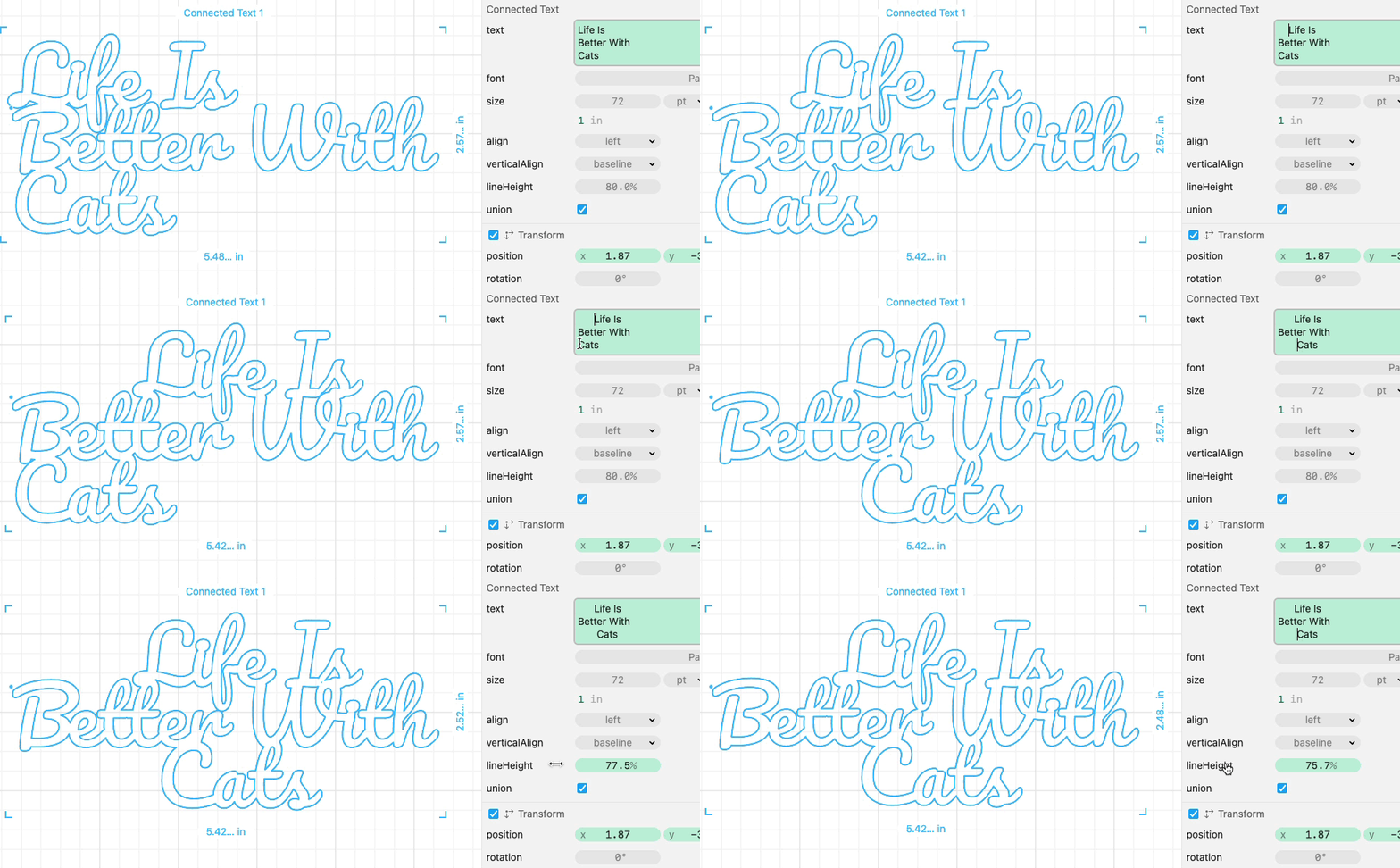
Under the font, click Show More Options to adjust the lineHeight.
How to make custom edits to the connected text
If the algorithm didn’t connect your text exactly the way you want it, we built an escape hatch that lets you make custom tweaks.
First, set the welding parameter to "none". This will turn off the automatic welding of your text.
Then do Edit > Convert to Paths. This will turn your text into groups of raw paths that you can manipulate.
Now, double click into these groups to edit them. You can move around the individual paths that make up your text. For details on moving individual paths around, check out our original video on making connected text.
Finally, when you’re done adjusting, re-join all the individual paths with Modify > Boolean Union (Weld).