Sports Bag Tags with separate pieces ⚾️, and other improvements
DEC 20, 2024
Here's the latest with Cuttle.
- Sports Bag Tags — added an option for cutting separate pieces (rather than score and paint)
- Circular Name Ornament — added an option for scored letters
- Cuttle Editor Quick Tip: How to Offset Text
- Cuttle Editor Tutorial: Bottle Holder Ornament
- Cuttle Editor Tutorial: Making Small Changes to Ornament Templates
- Cuttle Editor Tutorial: Customizable Christmas Tree Topper
Sports Bag Tags — Option for separate pieces, no more painting!
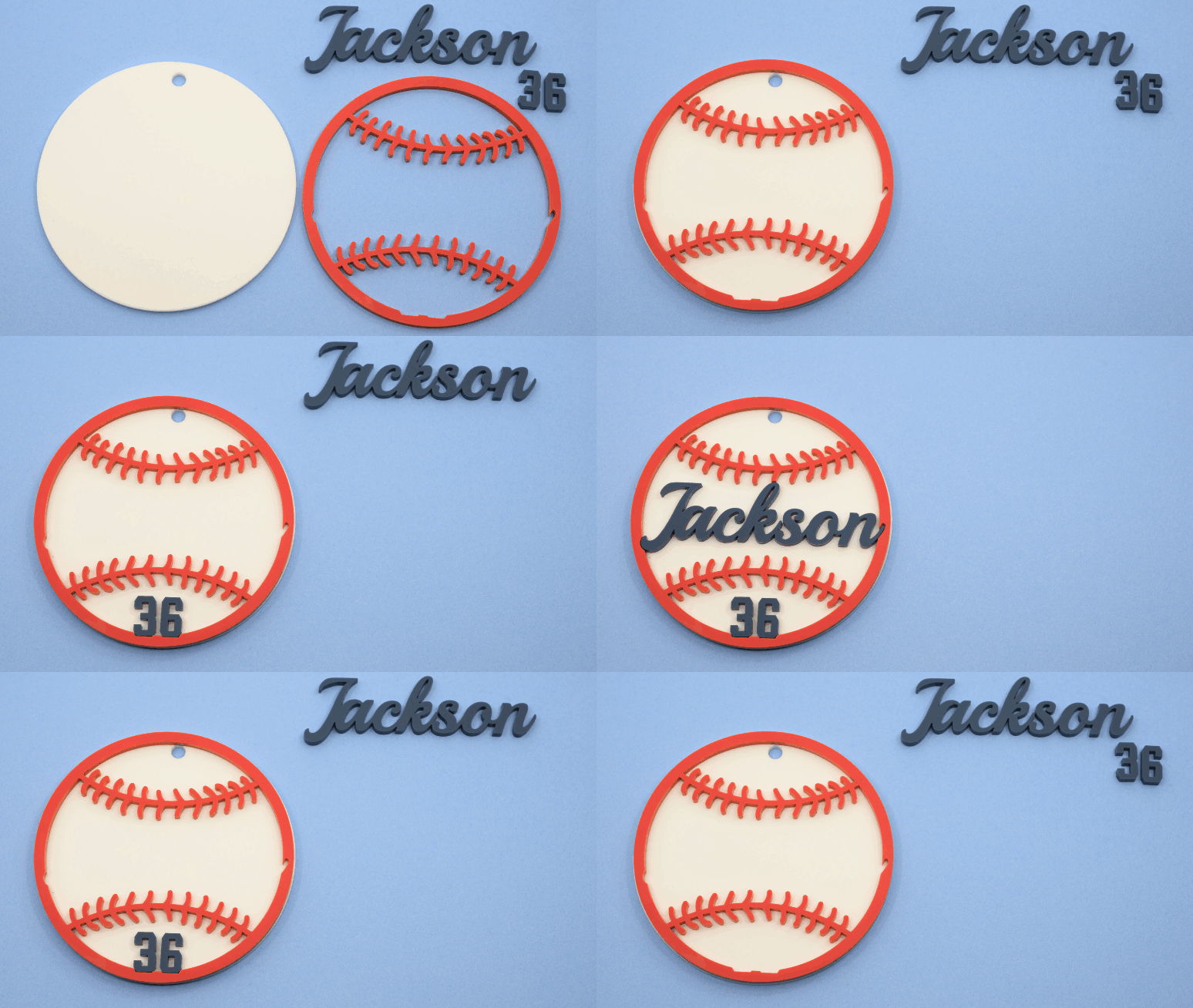
We had originally designed the Sports Bag Tags to be scored and then painted different colors.
But several folks on the Facebook Group said they preferred to cut these from colored acrylic or pre-painted wood. In this case you want to cut each color as a separate piece.
So we recently added an option for “separate pieces” to all the Sports Bag Tags — Baseball, Football, Soccer, Volleyball, and Basketball.
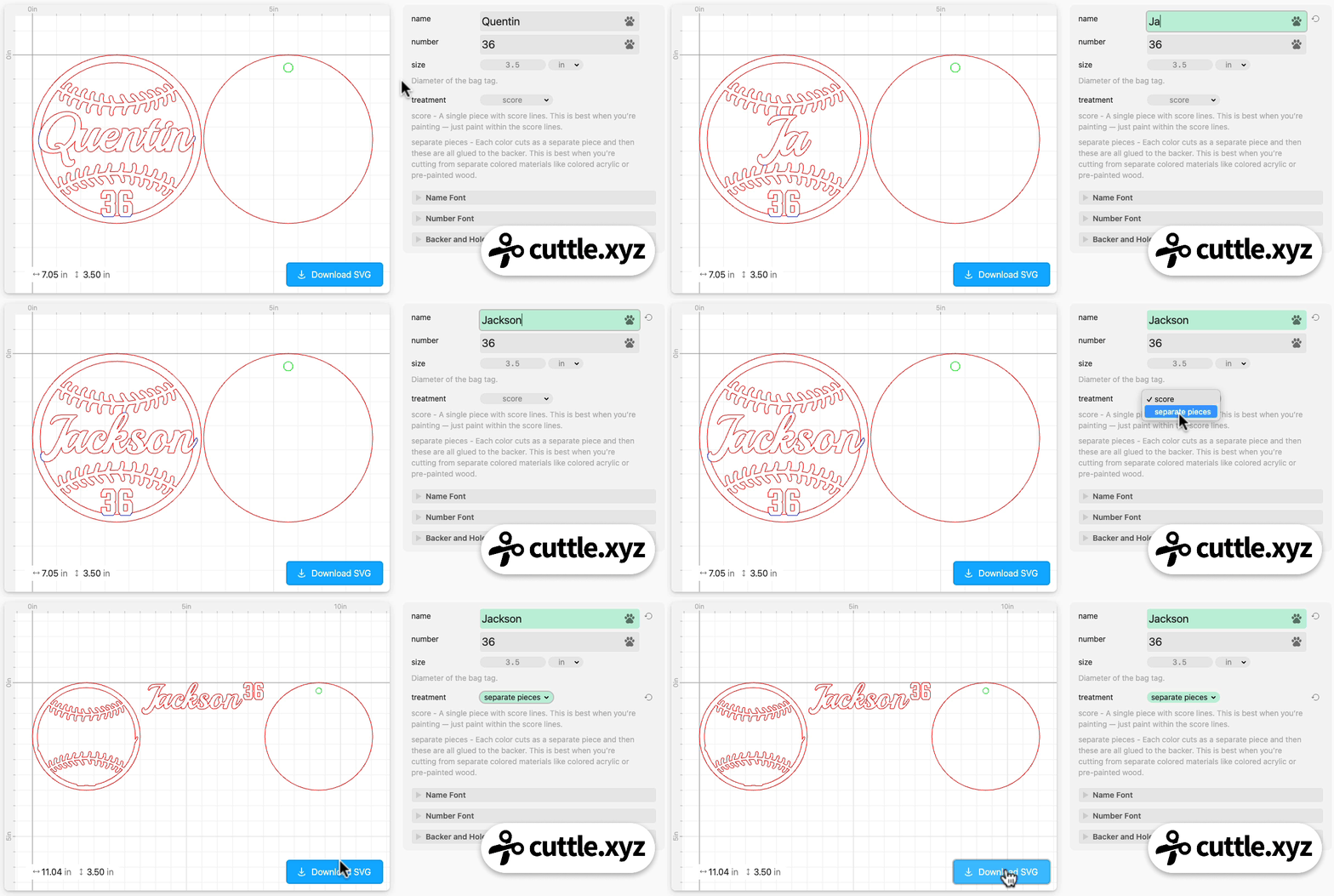
The default “treatment” is “scored” — the original design where you can paint each scored region a different color.
Now there’s a new option to choose “separate pieces”. This will automatically separate out the name and number from the front layer so that you can cut these from different colors of acrylic.
Thank you everyone who suggested this feature!
Circular Name Ornament — Option for scored letters

On our popular Circular Name Ornament, we added an option for “scored letters” which automatically adds score lines between letters.
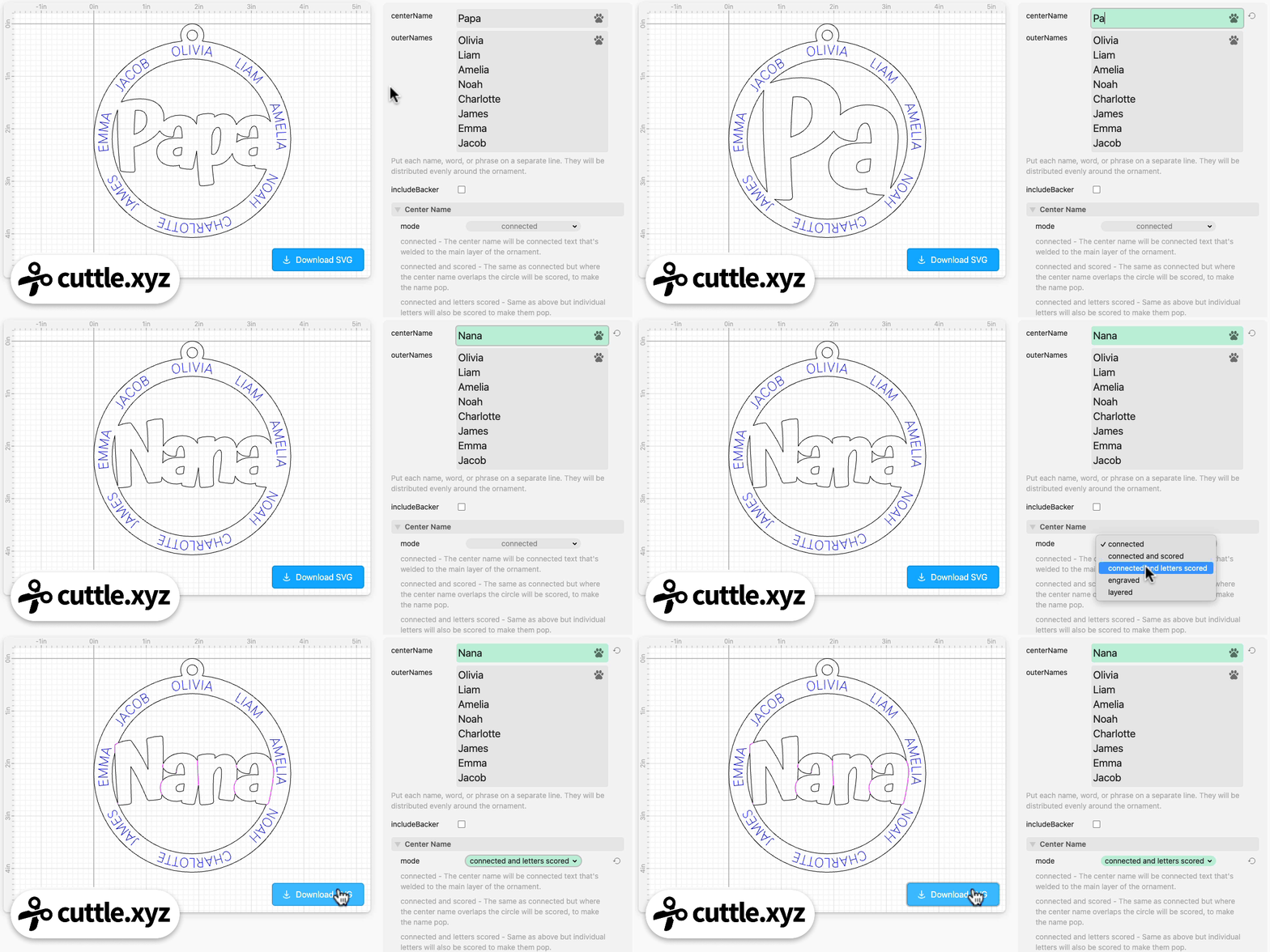
This works well for non-cursive fonts (like Atma) where the score lines helps each individual letter “pop”.
To replicate the effect used in the sample above, open the Center Name section. Set the centerFont to Atma (600). Set the mode to “connected and letters scored”.
Thank you Jill D for suggesting this improvement!
Quick Tip: How to Offset Text

We added a short (2 minute) video and written instructions for a common question: how to “offset” or “outline” text to create a backer.
Federico also made a longer video on that page showing some additional tips and techniques when working with offsets, like adding an inset score line to help align the layers when gluing.
Video Tutorial: Bottle Holder Ornament

In Federico’s live stream yesterday he shows how to design a Bottle Holder Ornament from scratch in the Cuttle Editor.
He shows how to measure the bottle, then uses this to design some rings that fit around it and slot it into a frame. He makes the frame the shape of a tree but you can design any shape you like!
Here’s the resulting template.
This was a cool one to close the year on! We’re taking the next two weeks off for the holidays and will be back with the weekly live stream starting Thursday, Jan 9, 2005. Live streams are on our Facebook Group on Thursdays at 1pm PT / 2pm MT / 3pm CT / 4pm ET. See you there!
Video Tutorial: Apply Small Changes to Ornament Templates

In Federico’s livestream from last week, he shows how to make small tweaks to Cuttle Ornament Templates. He shows how to add a halo to the Paw Ornament.
He also answers Mary B S’s request to use different fonts with the Circular Name Ornament. Finally, he explains how to engrave additional shapes into the center, inspired by Cuttle user Amber M’s design.
Video Tutorial: Make a Customizable Christmas Tree Topper

In Federico’s livestream from two weeks ago, he answers Jennifer S’s request for a Christmas Tree Topper. He uses the Fit Within modifier with Connected Text to create a personalizable template that works with any shape. He shows how to use the Visible modifier with the Selection parameter type so that you can choose a shape from a drop down menu.
Here’s the template he created.
Other Improvements and Fixes 🐞
- On our How to “Score” on a Laser Cutter help page we added instructions for WeCreat MakeIt! software.
- The Weld And Score modifier can be applied to the result of another Weld And Score, making it more composable.
- Fit Within has a new
keepContainerboolean parameter, defaulting to enabled. When disabled, the containing shape will be removed. - Origins are now shown for shapes that don’t have a transform yet. This helps you quickly center any shape.
- When a single item is selected, the Edit > Align menu items will now align to the canvas center.
- Transform box dimensions will show up as locked and un-editable if the transform scale is an expression.
- When renaming, Cuttle now considers project parameters when resolving naming conflicts.
- The Flatten modifier now produces correct results more reliably. If you notice any issues with Flatten, please let us know!
- Fixed a subtle bug that could cause the Remove Overlaps modifier to miss some segments. Thank you for the bug report Chris Haske!
- Fixed a bug where Cuttle could freeze for a few seconds when hovering over very very small paths. Thank you @hannahilea for the report!
- Fixed a bug where applying Boolean Intersect to Text (and other deeply nested groups with overlapping paths) could produce an incorrect result.
- Scripting: RichText can now be compared against a string with the
===operator.

Toby Schachman