Make Your Own Cuttle Templates
JUN 25, 2025
Here's the latest with Cuttle.
- New Video Series: How to Make Your Own Cuttle Templates
- New Font Options feature: Connect dots but not letters
- Weekly Livestream: Making Cuttle Templates with Warped Text
Make Your Own Cuttle Templates

Federico recorded two new Cuttle tutorials on making your own templates.
Making your own templates is useful for:
- Streamlining your laser production process on any personalized design. You can quickly type a name to generate personalized cut files. This also makes it easy for your assistants — who may not be fluent in graphics programs — to help out during busy times!
- Earning income by sharing personalizable designs. Cuttle Creators is a pilot program we’re running where designers earn royalties whenever Cuttle Pro subscribers download their designs. (If you’re interested in being a Creator, please join the waitlist — we’ll onboard more designers soon!)
Part 1: Engraved Name Template

The first tutorial shows how to make a simple tag with customizable engraved text.
You’ll learn:
- How to use “Fit Text” to make text that automatically resizes to fit within a rectangle
- How to make the text and font customizable by the user
- How to add recommended fonts to the font picker
- How to create a “Read Me” with a photo of your project and an embedded component where the user can easily customize your project
- How to make the file name automatically reflect the personalization
Part 2: Layered Name Template

The second tutorial shows how to make a template with two layers. The top layer is the name and the bottom layer is a shape that also has the name welded to it, creating a nice base for gluing the name.
You’ll learn:
- How to create the Name and Backer as two components in your project
- How to Boolean Union (Weld) the Name onto the Backer
- How to make a “Preview” and “Cut” component and use these in the Read Me
New Feature: Connect Dots (but not letters)
Automatically Connected Text is one of Cuttle’s most popular features. It lets you connect words into single pieces — connecting dots on i’s and letters together — so that you can cut them in a single piece. Much better than losing little dots in your honeycomb!
But sometimes on certain names, connecting the letters doesn’t look great. You don’t want that but you still want to connect the dots on i’s!
We added a feature in Font Options that lets you connect only the dots (but not the letters).
Here’s an example showing “Tiffany” on the Layered Name Keychain.
It doesn’t look great how the “T” and “iffany” were automatically connected. In this case, we’ll choose to keep those in two pieces, like this:
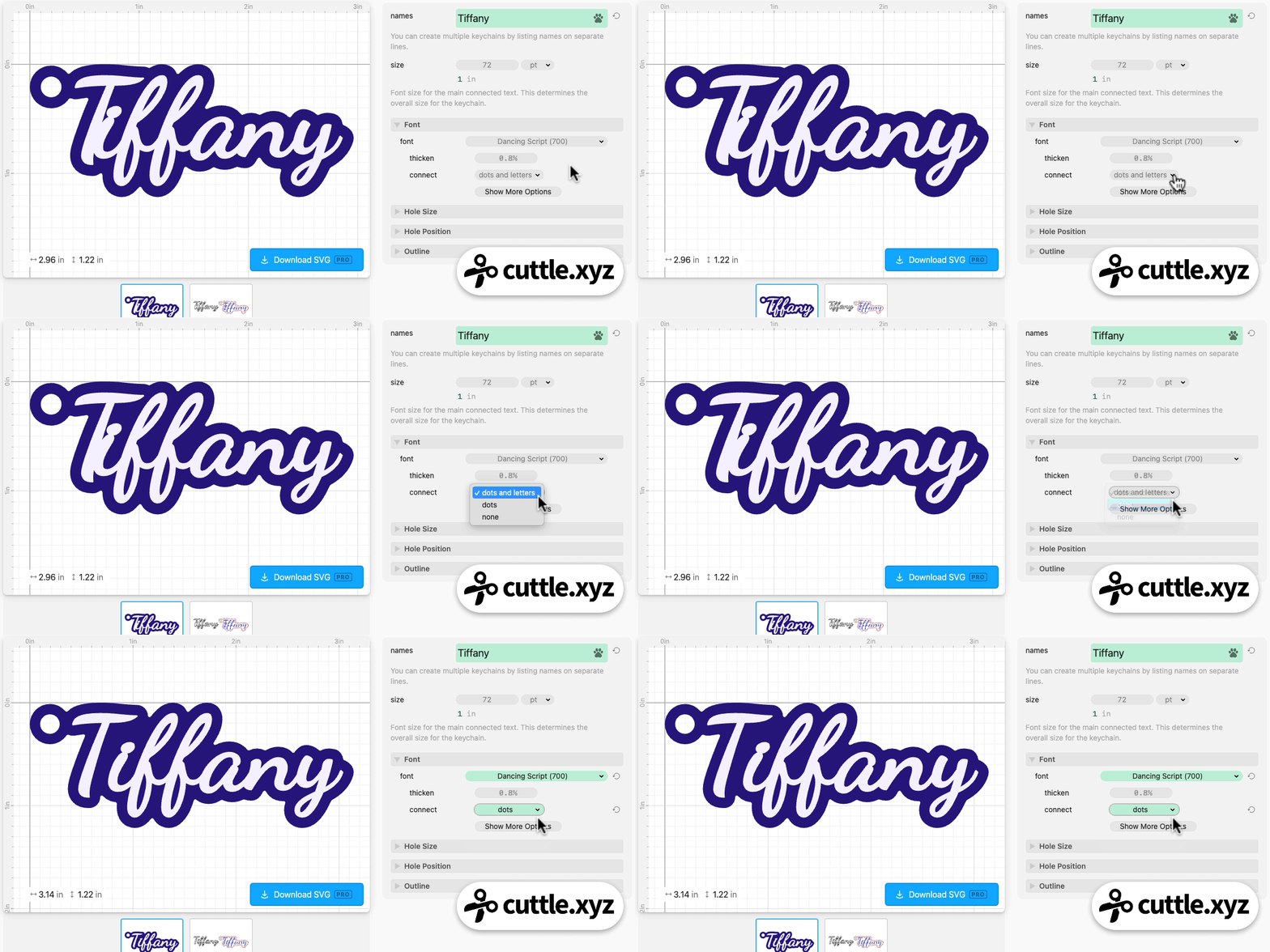
Note you can use this feature on any template that lets you customize the font!
Just click Show More Options under the font to see the “connect” options.
Livestream Tutorial: Make Cuttle Templates with Warped Text

In Federico’s livestream from last week, he shows how to make Cuttle Templates with Warped Text inspired by the amazing templates from Cuttle Creator Bonnie (CBco Designs).
He demonstrates how to add anchor points to the Custom Warped Text shape. Using simple shapes from the emoji menu, he prototypes personalizable templates for a boxing glove, a shirt, a retro joystick, and a paw. He also shows how to create a back layer, add a hole, and package your design into a Cuttle template.
You can catch Federico’s streams live on our Facebook Group on Thursdays at 1pm PT / 2pm MT / 3pm CT / 4pm ET. In

Toby Schachman