Add 1,000,000+ new icons to your Cuttle designs
JUL 16, 2025
Here's the latest with Cuttle.
- Cuttle Pro members now have access to 1,000,000+ new icons everywhere!
- Cuttle Editor Tutorial: Making a Snowman Ornament
- Cuttle Editor Tutorial: Bulk Production in Templates
- Cuttle Editor Tutorial: Personalizable Luggage Tags
1,000,000+ new icons
Cuttle Pro members now have access to 1,000,000+ new icons everywhere that you can pick an emoji or symbol.
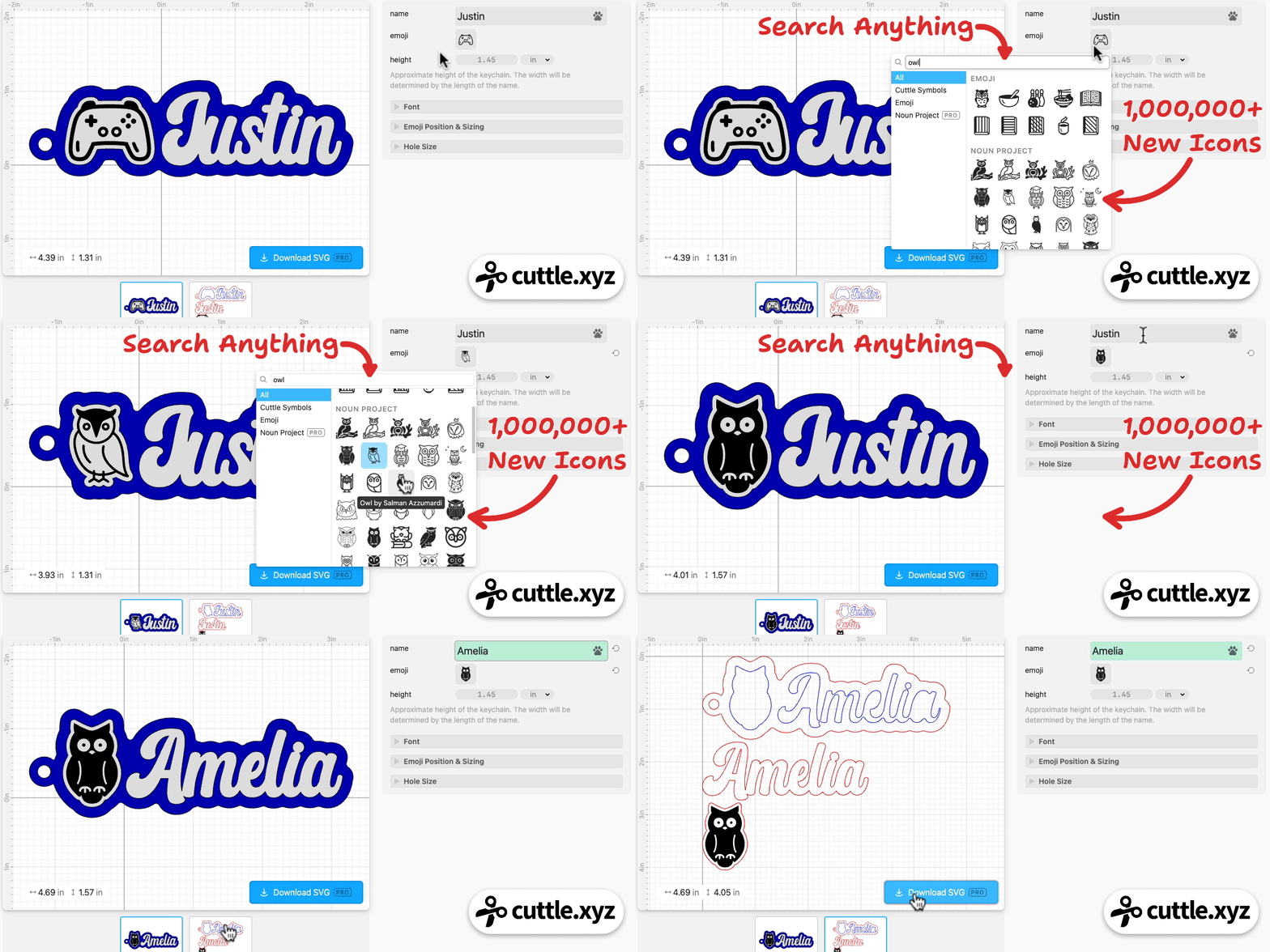
For example, above we search for “owl” on the Emoji Name Keychain template and browse through the options.
You could use these new icons for…
- Keychains featuring a special hobby or favorite animal
- Teacher appreciation gifts with subject-specific icons (microscope, paint brush, etc)
- Party favors with themed icons
- Plant markers with icons for the flower or plant
You can also use this to make Sports Keychains for sports we haven’t already done, like Golf:
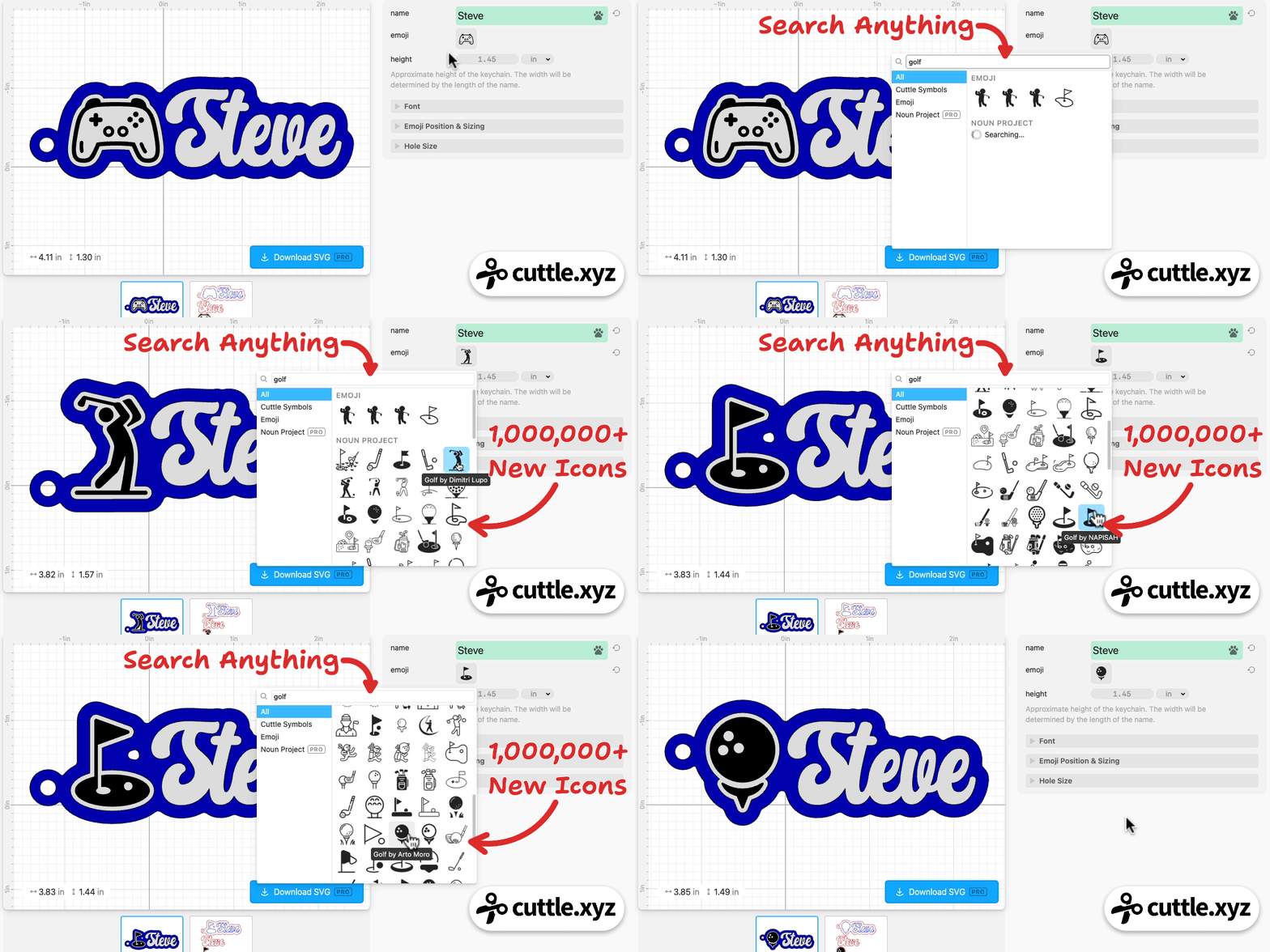
I’m sure you’ll come up with even more uses than this!
These icons are coming from our partner The Noun Project which is a huge library of vector designs.
Our integration comes with a royalty-free license for you to use these icons in your creations — both personal and commercial use are covered! 👍
Icons anywhere you can type text
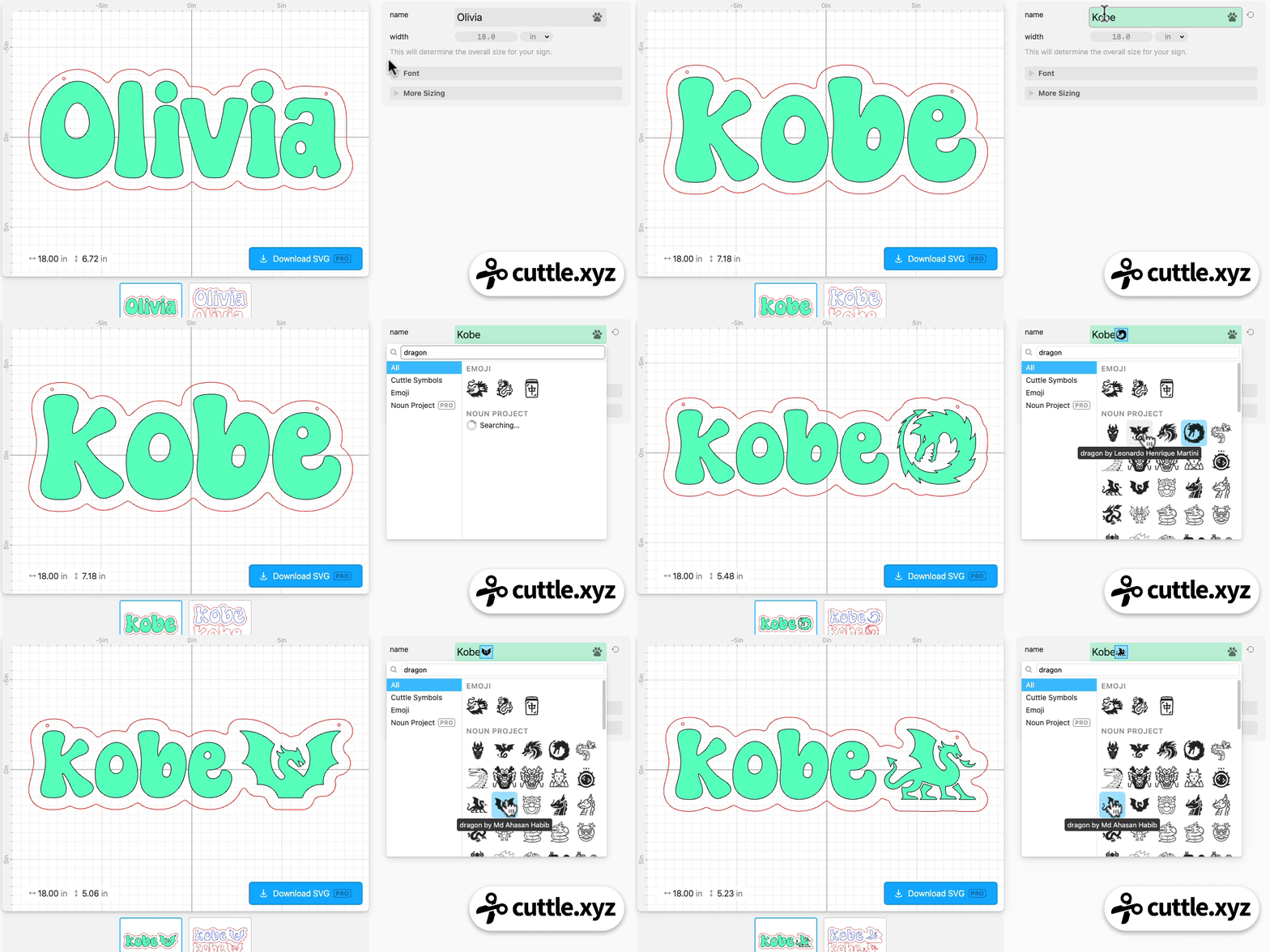
The new icons are also available in the symbol picker on every text field.
Just click the Paw icon on the right of the text field to insert any of these new icons into your text.
For example, here’s the Name Sign Door Hanger where we’re adding a dragon to the end of the name:
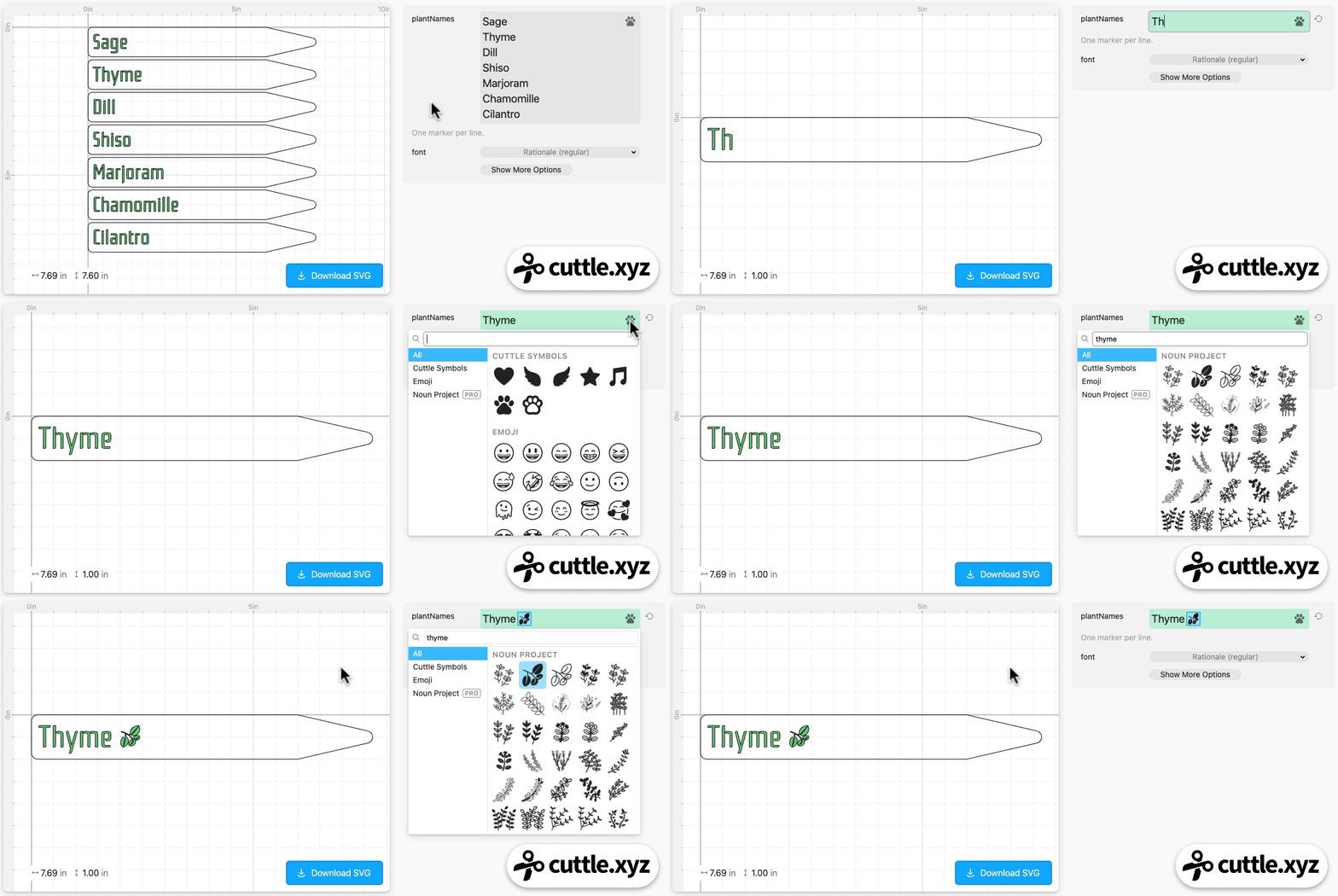
Here’s the Garden Marker template where we insert a thyme leaf:
Icons in the Cuttle Editor
You can also use all these new icons within the Cuttle Editor.
Drag out an Emoji shape from the left sidebar, then search to pick any icon in the Noun Project library.
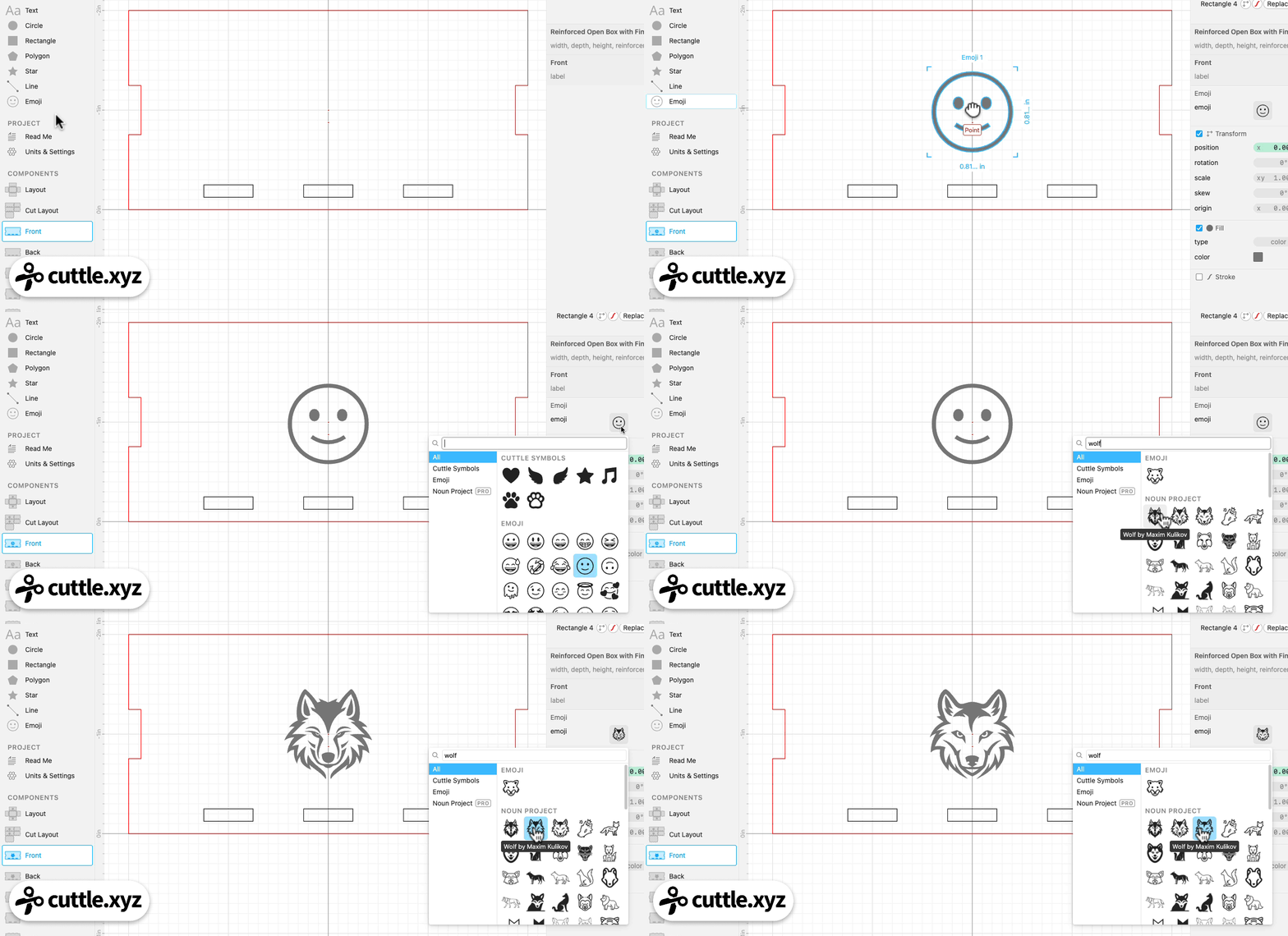
This is great for quickly adding some engraved flare to a box! Or use the icons as the starting point for a new design.
We hope you enjoy this new addition to Cuttle and are excited to see the creative use cases you come up with! Please post some photos in the Facebook Group 🥰
Video Tutorial: How to Make a Snowman Ornament ☃️

In Federico’s livestream from last week, he answers Charlene G’s request for a Snowman Ornament. He uses simple shapes like circles, triangles, and arcs to design the snowman.
By combining modifiers like Layered Stack, Flatten, and Weld and Score, he demonstrates how to create different treatments including a single-layer version with score lines, as well as a layered ornament that adds depth to the design.
You can catch Federico’s streams live on our Facebook Group on Thursdays at 1pm PT / 2pm MT / 3pm CT / 4pm ET.
Video Tutorial: How to Set Up Bulk Production for Your Templates

In Federico’s livestream from two weeks ago, he shows how to set up bulk production in your projects.
He creates a Name Tag design with Fit Text, and shows a quick recap of how he used Auto Layout for bulk production in a past livestream. He then demonstrates how using Cuttle’s Tile Repeat Modifier offers more control while configuring bulk production for your project.
Video Tutorial: How to Make A Laser Cut Luggage Tag

In Federico’s livestream from three weeks ago, he answered Emily E’s request for a luggage tag template.
He uses a standard ID card’s dimensions as a reference to create the front and back layers, and adds a spacer so the card can slide in. This is how Cuttle’s Gift Card Ornament template works. He also shows how to add personalizable text to the template using Fit Text.
Here’s the template he created.

Toby Schachman