3D Printing with Cuttle
OCT 15, 2025
Here's the latest with Cuttle.
- New Beta Feature: 3D Printing with Cuttle
- Cuttle Editor Tutorial: Quick and Easy Laser Cut Stamps
- Cuttle Editor Tutorial: Make Easy One Layer Christmas Ornaments
- Cuttle Editor Tutorial: Template with Mix and Match Options
- Cuttle in the Wild: Card Game and Mechanical Keyboard Holder
3D Printing with Cuttle
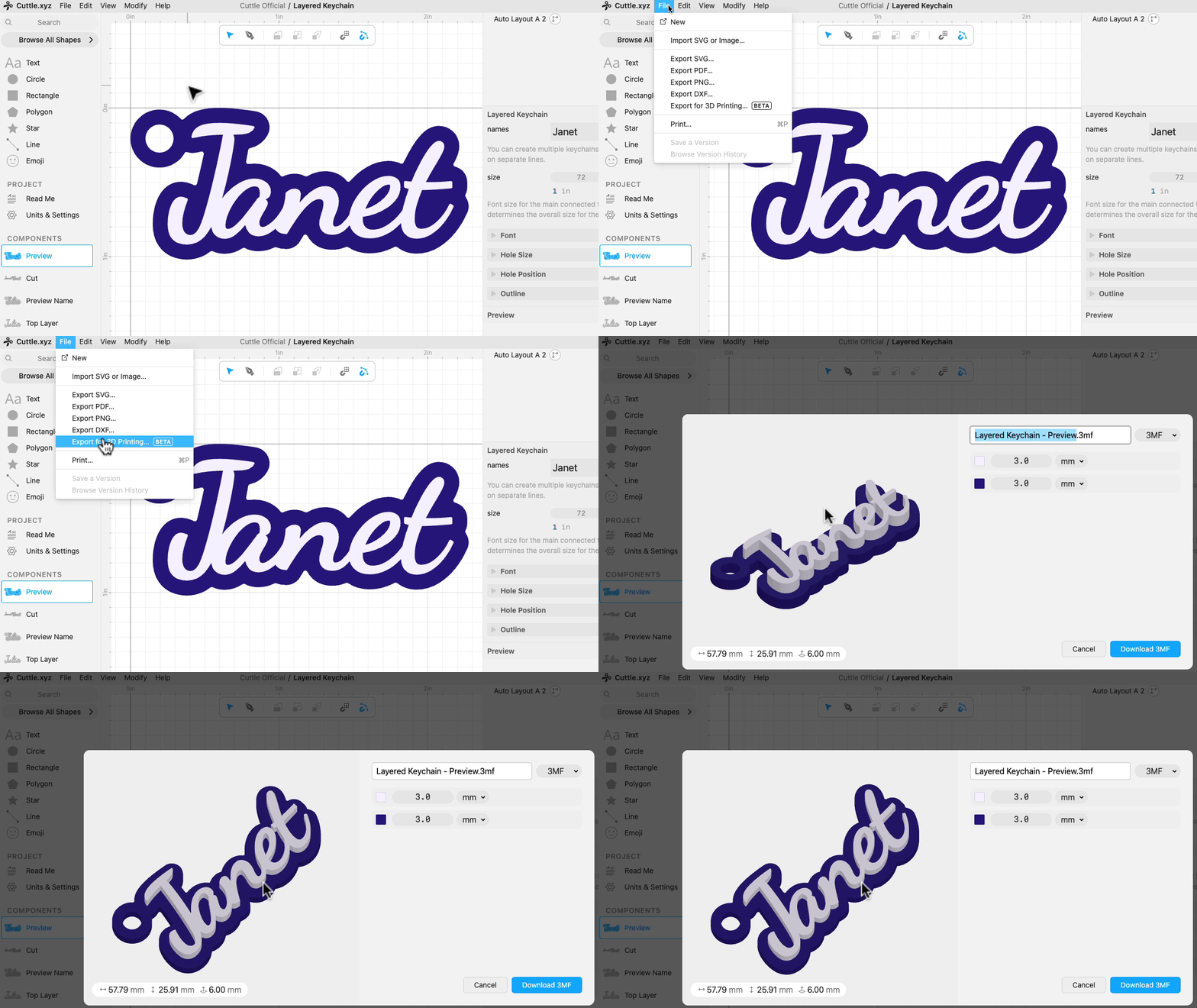
We released a new beta feature that lets you export 3D Printing Files (3MF and STL files) directly from the Cuttle Editor.
To use it, you will need a design with filled shapes.
Each color becomes a layer of the 3D print. That is, this works like the Flatten or Layered Stack modifiers in the Editor.
For example, you can use the Preview component of the Layered Keychain template.
- From the template, click Open in Cuttle Editor
- Make sure you’re on the Preview component (left sidebar)
- Type the name(s) in the right sidebar (you might need to click Show All)
- Do File > Export for 3D Printing…
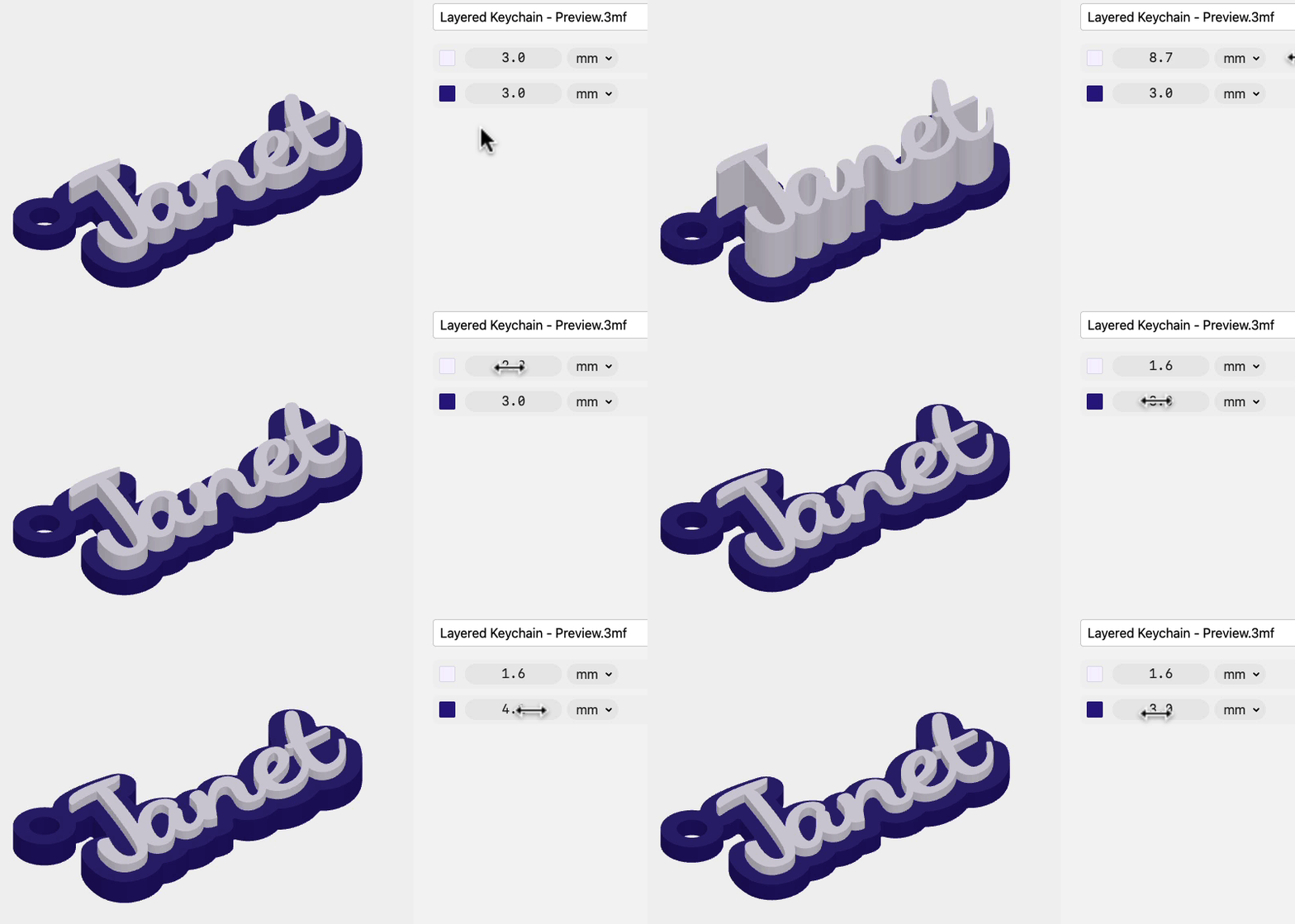
In the Export dialog, you can adjust the height for each colored layer.
When you’re ready, click the blue button to download your file and import it into your 3D printing software, like Bambu Studio or Prusa Slicer.
Here’s a short video of Federico showing this workflow.
We need your feedback
This implementation is just the very first version and it will evolve a lot based on your feedback!
We’d love to hear:
- What 3D printer(s) do you have?
- What kinds of projects would you be excited to 3D print from Cuttle?
Please reply to this email or let us know on the Facebook Group or Discord chat.
3D Printing live demo this Thursday
Federico plans to do a live demo of this new feature at the livestream this Thursday with several examples of what you can make!
Tune in for the stream on our Facebook Group: Thursday at 1pm PT / 2pm MT / 3pm CT / 4pm ET.
We’ll also post a recording on our YouTube channel so subscribe there if you’re not already!
Video Tutorial: How to Make Laser Cut Stamps

In Federico’s livestream from last week, he shows how to make laser cut stamps. Also check out stamp templates by Cuttle Creators, including a Crayon Stamp from Tara (@DesignsByTara), and a Teacher Stamp from Bonnie (@cbcodesigns).
He demonstrates how to create the different parts of a stamp using the Expand Modifier. He shows examples with both text and emojis, and teaches an optimization trick to save engraving time and material for your stamps.
Check out the Word Stamp and Emoji Stamp templates he makes in the video.
You can catch Federico’s streams live on our Facebook Group on Thursdays at 1pm PT / 2pm MT / 3pm CT / 4pm ET.
Video Tutorial: Make Easy One Layer Christmas Ornaments

In Federico’s livestream from two weeks ago, he shows how to quickly design several styles of ornaments using Cuttle’s tools. He focuses on single layer and customizable text ornaments that are easy and quick to make for your customers.
Here are the templates he makes in the video.
Video Tutorial: Make a Template with Mix and Match Options

In Federico’s livestream from three weeks ago, he demonstrates how to use the Switcher component to create a template with mix and match options. Shoutout to Cuttle Creator Bonnie (@cBcoDesigns) and their Mix-and-Match Patterned Signs template that uses this technique!
He starts by showing how to set up the basic structure of the pattern using the Mask modifier. Then, he walks through configuring the Switcher component to let users choose both the background shape and the pattern from a dropdown menu.
You can use the template he created as a starting point for your own project.
Cuttle in the Wild
Here are a few cool projects we came across.

Vickie Wessel used Cuttle to design the printed graphics for a card game that she’s selling on Kickstarter. She writes, “When I started working on the Kickstarter, I was going to try another program for the graphics. Then I thought why should I do that when this [Cuttle] has been working so well and I don't have to learn a new program.”

Charles Eckman used Cuttle to design keyboard holders for his collection of mechanical keyboards. The design is parametric, so it can be resized, and each holder has specially shaped “fins” for holding that particular keyboard.
Other Improvements and Fixes 🐞
- Added new free fonts (updated Google Fonts)
- Added new Emojis (updated to Unicode 17)
- The Attach modifier now has a
keepBaseparameter - Component and Project parameters are now prevented from being the same name
- Fixed issues with Guides not being displayed correctly in some cases
- Fixed a memory issue causing projects to become slow after performing many edits in one session
- Fixed a small inaccuracy with overlap detection that could result in very small overlap spans
- Fixed a bug with overlaps where segment slices could fail the test if their segments were not both considered to be straight
- Fixed Emoji search when the search query contains a hyphen

Toby Schachman